 Domain SearchInstantly check and register your perfect .pk or international domain
 Web HostingGet a .pk domain for as low as PKR 467
 cPanel HostingUser-friendly hosting powered by cPanel
 Reseller HostingLaunch your own hosting business with minimal technical requirements
 Windows HostingOptimized for Windows-based applications and websites
 Affiliate ProgramEarn referral commissions by promoting our services
 WordPress HostingFast & Reliable WordPress Hosting
 Domain TransferMigrate your existing domain seamlessly with zero downtime.
 All DomainsAccess 324+ top-level domains (TLDs) worldwide from a single platform
 Whois LookupIdentify the owner of any domain using our whois and rdap lookup tool
 Managed VPS Hosting
 AI Website BuilderCreate beautiful websites effortlessly using intuitive drag-and-drop features
 Online ShopLaunch a professional online shop with no technical skills required
 BlogDiscover expert guides on hosting, websites, SEO, and digital growth strategies
 ContactGet instant assistance via live chat or email
 SupportAccess help articles, tutorials, and service documentation
 SSL CertificatesEncrypt data, build trust, and boost SEO.
Which one would you rather see in your address bar, example.com/product.aspx?id=123 or example.com/products/laptop-bags?
I bet it’s by no chance the first one.
The second URL gives you a much better idea of what you’ll find on the page before you even click it. That’s one of the reasons website owners use URL rewriting.
URL Rewrite is an IIS (Internet Information Services) feature that checks incoming URLs and applies rules to them. It lets you change how your website handles a URL without changing what visitors see in their browsers.
You can use it to create cleaner URLs, redirect old pages, force HTTPS, and connect friendly URLs to applications running on Windows servers.
There is one distinction you need to keep clear from the start. A rewrite changes how IIS processes a request without sending the visitor to another URL. A redirect tells the browser to request a different URL. So, the address shown in the browser then changes.
If you’ve used Linux hosting, you may already know .htaccess and Apache mod_rewrite. IIS uses a different configuration system, with rewrite rules commonly stored in web.config.
Microsoft’s IIS URL Rewrite Module supports URL rewriting, redirects, conditions, regular-expression matching, server variables, rewrite maps, and other rule-based operations.
Now, if you’re using Windows Hosting for an ASP.NET or other Microsoft-based website, URL Rewrite is one of the IIS features worth knowing.
Why Use URL Rewrite on a Windows Website?
You don’t need a huge collection of rewrite rules to run a good website. Usually, a few carefully chosen rules solve the URL problems you are likely to encounter.
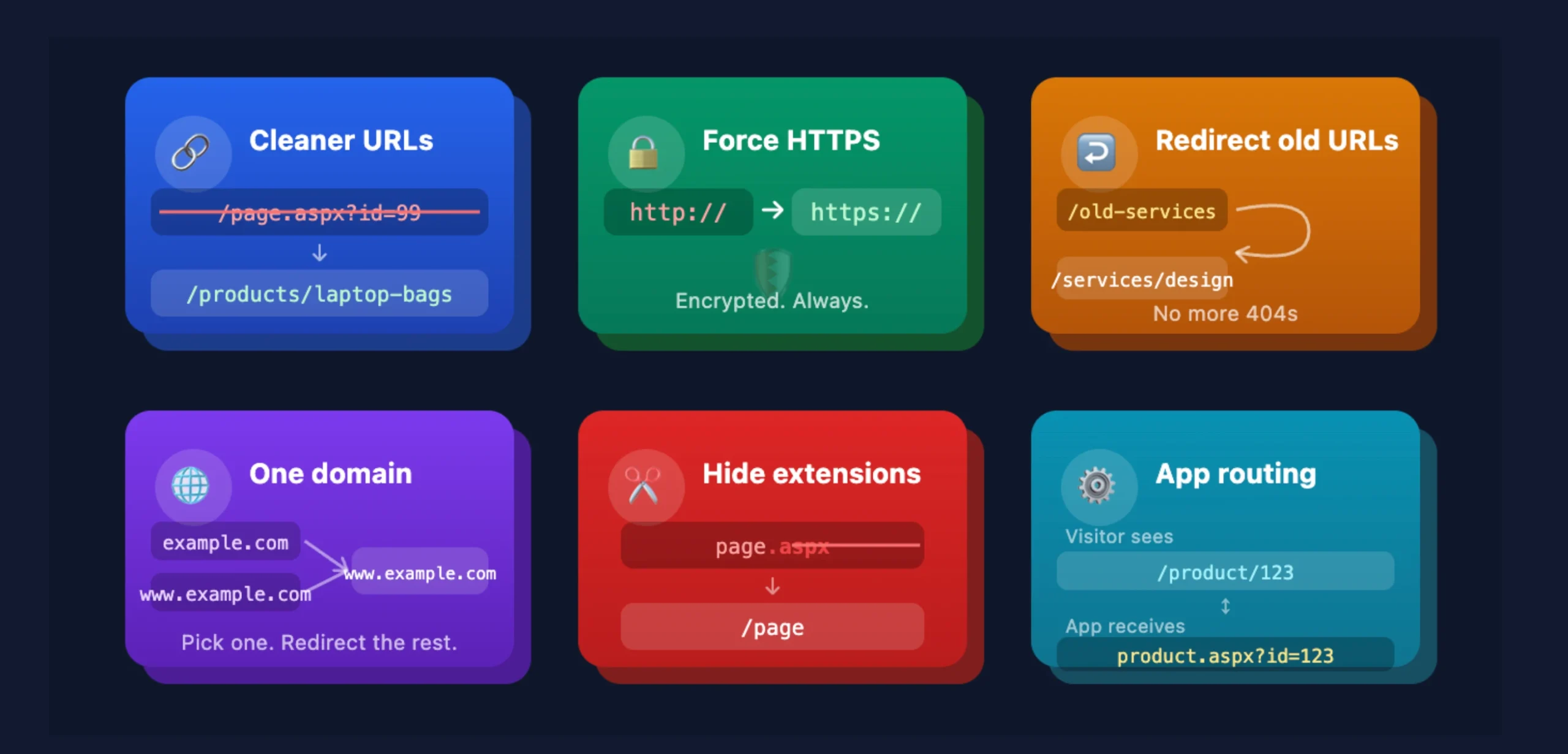
- Cleaner URLs: Rewriting can turn technical URLs into readable paths. For example,
example.com/product.aspx?id=48could be presented to visitors asexample.com/products/women-handbag.
The application can still receive the information it needs while your visitor gets a cleaner URL. - HTTPS redirects: You can send all HTTP requests to the HTTPS version of your site automatically. For any website handling forms, accounts, or payments, this is not optional.
- URL canonicalization: You can choose one preferred version of a URL, such as
https://www.example.comorhttps://example.comand redirect the other version to it.
This prevents different versions of the same website address from being treated as separate destinations.
- Old-to-new URL redirects: After a website redesign, CMS migration, product change, or page restructuring, the old URLs do not disappear from people’s bookmarks or other websites’ links.
A redirect rule sends those visitors to the right new location instead of a 404 page and helps preserve whatever equity those old URLs had built up.
- Extension removal: Applications can present cleaner URLs to visitors without exposing technical extensions like
.aspx, where the application architecture supports it.
- Application routing: URL Rewrite can also connect a visitor-friendly URL to an application that expects a different internal path or query string.
For example,/article/342/some-article-titlecould be internally rewritten to an ASP.NET page containing the article ID and title. Microsoft uses a similar pattern in its IIS URL Rewrite examples.
Quick Tip: If a Windows-hosted website suddenly starts returning 404 errors after you change its URL structure, check the rewrite configuration before assuming the page itself is missing.
How URL Rewrite in IIS Works
A rewrite rule normally has three parts: Match, Conditions, and Action.
The “Match” determines which URL the rule applies to.
“Conditions” add requirements. For example, an HTTPS rule can check if the request is currently using HTTP before redirecting it.
The “Action” tells IIS what to do when the match and conditions are satisfied. The action can rewrite the request, redirect the visitor, return a custom response, or perform another supported operation.
1) URL Matching
Most IIS rewrite rules use regular expressions. You do not need to be a regex expert to work with the common ones.
| Pattern | What it means |
|---|---|
^ | Beginning of the URL or path |
$ | End of the URL or path |
(.*) | Capture any characters |
([0-9]+) | Capture one or more numbers |
For example, ^product/([0-9]+)$ can match product/123. The ^ says the pattern should begin at the start, while $ requires the pattern to finish at the end. The ([0-9]+) captures the number in the URL.
2) Rewrite vs Redirect
| Action | Browser URL changes? | Typical use |
|---|---|---|
| Rewrite | No | Map a clean URL to an internal application path |
| Redirect | Yes | Move visitors from an old URL to a new URL |
A rewrite happens inside IIS. The visitor normally continues to see the URL they requested. A redirect sends a response to the browser telling it to request another URL.
So, if you want /product/123 to be processed internally as /product.aspx?id=123 you would use a rewrite. If you want /old-product to send visitors to /products/new-product you would use a redirect.
3) Conditions
Rules sometimes need conditions in addition to a pattern. For example, a rule that forces HTTPS should only redirect requests that are not already using HTTPS.
Common IIS server variables you will see in conditions include:
{HTTPS}: if the request is using HTTPS
{HTTP_HOST}: the hostname in the request
{REQUEST_URI}: the full request URI
These variables can be used in conditions and actions to give IIS more information about the request it is processing.
4) Capture Groups
Capture groups allow you to take part of a matched URL and use it elsewhere in the rule. When your pattern captures part of a URL, IIS gives you back-references to use in the action:
{R:0}: the complete matched pattern
{R:1}: the first captured group
{R:2}: the second captured group
For example, ^product/([0-9]+)$ contains one captured group. So, if the requested URL is product/123 then {R:1} represents 123.
This is what lets a single rule handle URLs such as /product/123, /product/124 and /product/125 without creating a separate rule for every product. Microsoft documents these rule back-references as part of the URL Rewrite Module configuration.
Where IIS Rewrite Rules Are Stored: web.config
web.config is the XML configuration file commonly used by IIS applications. Most website-level IIS rewrite rules go inside your web.config file. You will usually find it within your website’s root or application directory alongside the website’s other files.
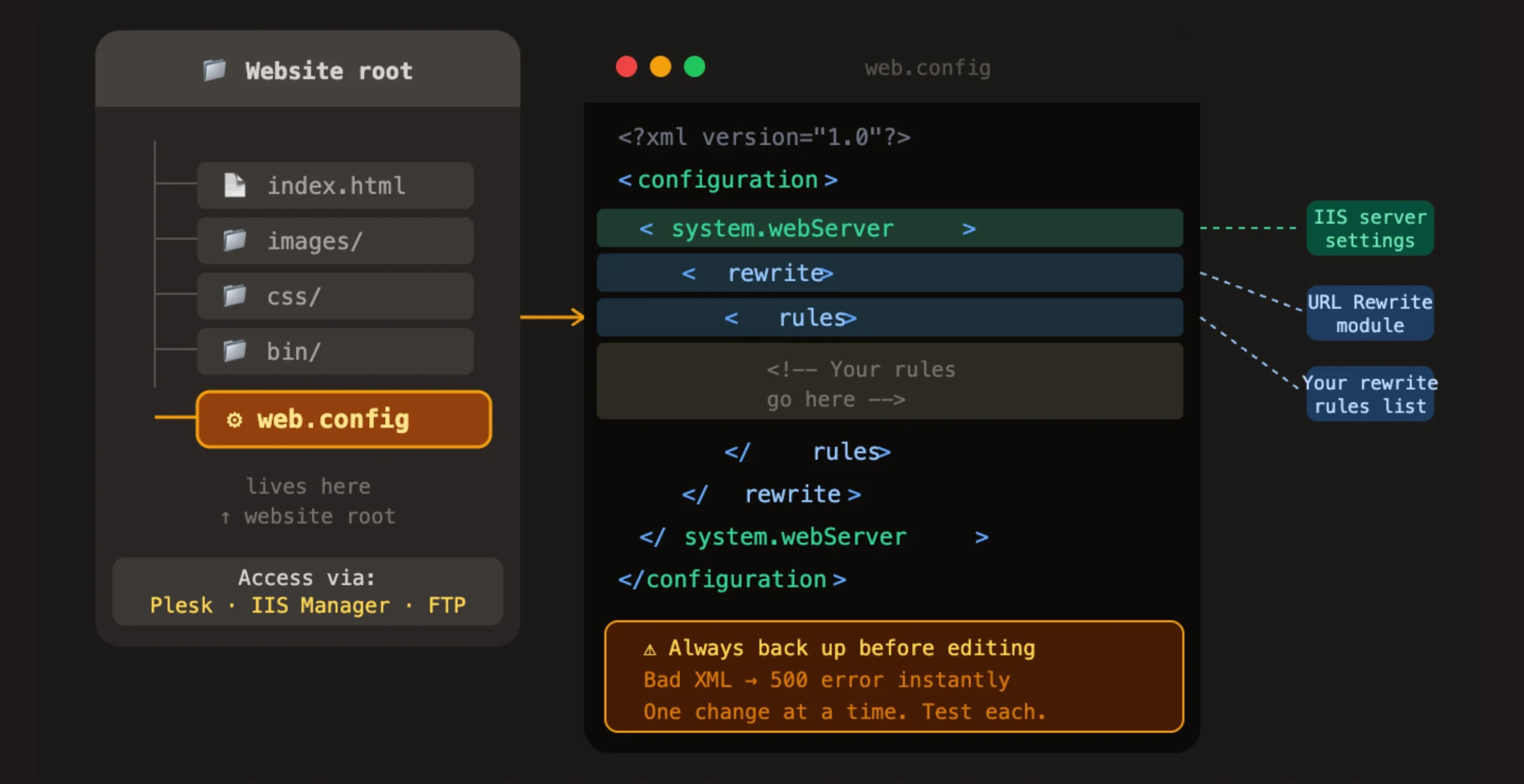
On Windows Hosting, you may be able to access it through your hosting control panel or file manager.
A basic structure looks like this:
<configuration>
  <system.webServer>
    <rewrite>
      <rules>
        <!-- Your rewrite rules go here -->
      </rules>
    </rewrite>
  </system.webServer>
</configuration>
Each element has a purpose:
<configuration>is the root of the file<system.webServer>holds IIS-specific settings<rewrite>contains everything related to URL Rewrite<rules>is where individual rewrite rules are listed
Back Up web.config Before Editing
This is worth taking seriously. A small XML mistake can prevent IIS from loading the configuration correctly and result in a 500 Internal Server Error.
Before changing the file:
- Download or copy the existing
web.config. - Keep the working version somewhere safe.
- Make one change at a time.
- Test the website after each major change.
If your hosting panel provides a file manager, you can work with the configuration file there. Our Windows Hosting uses Plesk, which provides management tools for Windows hosting environments.
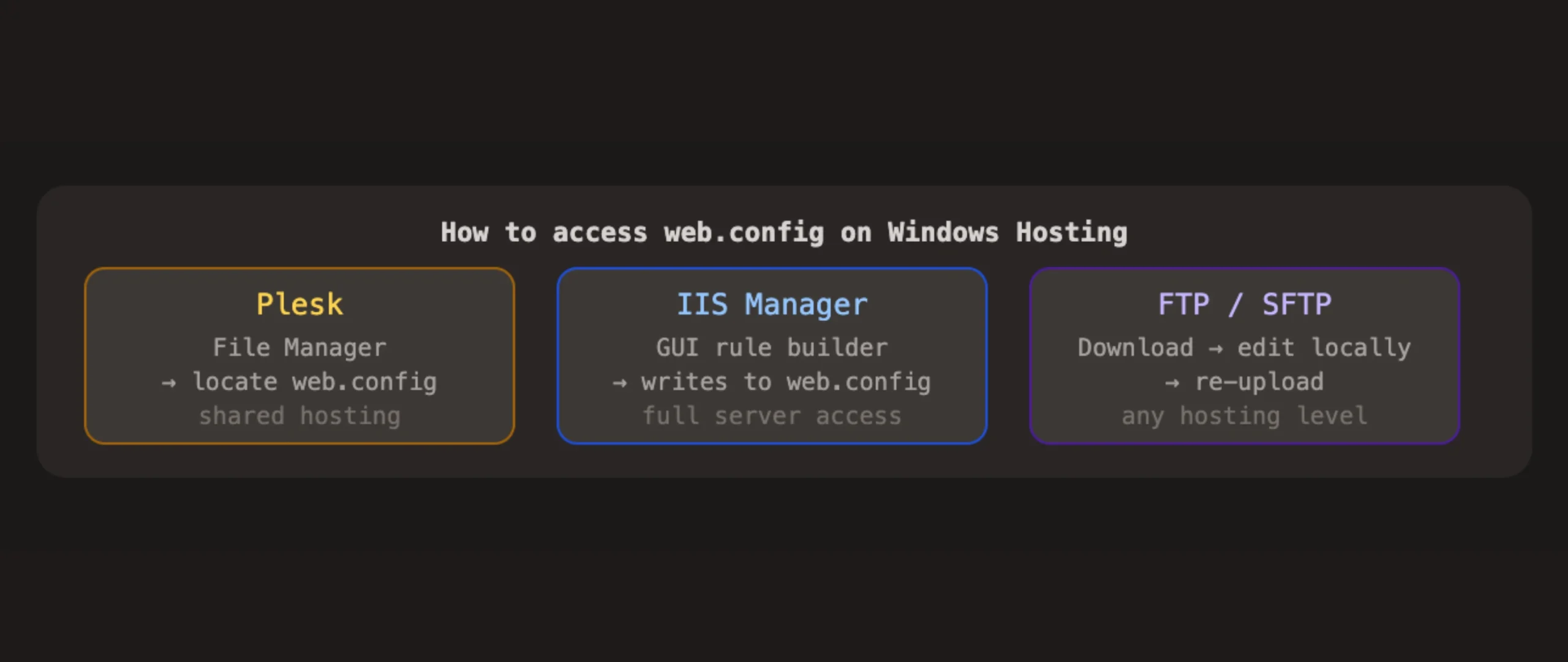
If you have full server access, IIS Manager can also be used to create and manage rewrite rules.
Useful IIS URL Rewrite Rules You Can Copy and Adapt
These examples cover common tasks you may need on a Windows-hosted website. Adapt the domain names, paths, and application details to your own setup and test each rule before using it on a live website.
Only add rules that solve an actual problem your website has.
1) Force HTTPS
If your website receives requests over HTTP, you can redirect them to HTTPS.
A rule can look like this:
<rule name="Redirect to HTTPS" stopProcessing="true">
  <match url="(.*)" />
  <conditions>
    <add input="{HTTPS}" pattern="^OFF$" />
  </conditions>
  <action type="Redirect"
          url="https://{HTTP_HOST}/{R:1}"
          redirectType="Permanent" />
</rule>
The <match> element matches the requested URL path. The {HTTPS} condition checks if HTTPS is currently off. The <action> element performs the redirect.
{HTTP_HOST} keeps the requested hostname, while {R:1} carries the matched path into the destination URL.
The HTTPS condition is important because it prevents the rule from redirecting requests that are already using HTTPS.
If your hosting environment already handles HTTPS redirection elsewhere, don’t create another competing rule.
2) Redirect an Old URL to a New URL
Suppose an old page was /old-services and the replacement page is /services/web-design, you can use:
<rule name="Redirect old services page" stopProcessing="true">
  <match url="^old-services$" />
  <action type="Redirect"
          url="/services/web-design"
          redirectType="Permanent" />
</rule>
The match looks specifically for old-services. When it finds that URL, IIS redirects the visitor to /services/web-design.
A permanent redirect is useful when the old address has been replaced permanently.
For a website with hundreds or thousands of old URLs, creating a separate rule for every address can become difficult to maintain. Rewrite maps can help with larger collections of URL mappings.
3) Choose WWW or Non-WWW
You can also redirect one version of your hostname to another.
For example, if your preferred version is https://www.example.pk you can redirect requests made to https://example.pk using a rule such as:
<rule name="Redirect to WWW" stopProcessing="true">
  <match url="(.*)" />
  <conditions>
    <add input="{HTTP_HOST}" pattern="^example\.pk$" />
  </conditions>
  <action type="Redirect"
          url="https://www.example.pk/{R:1}"
          redirectType="Permanent" />
</rule>
Replace example.pk with your own domain.
The {HTTP_HOST} condition checks which hostname the visitor requested.
The action sends requests from the non-www version to the preferred www version while keeping the requested path.
The important part is consistency. Don’t create another rule that sends the www version back to the non-www version, as the two rules can create a redirect loop.
4) Rewrite a Clean Product URL
Suppose your application expects product.aspx?id=123 but you want visitors to use product/123, you can use:
<rule name="Rewrite product URL" stopProcessing="true">
  <match url="^product/([0-9]+)$" />
  <action type="Rewrite"
          url="product.aspx?id={R:1}" />
</rule>
When someone visits /product/123 the rule matches 123 as the first captured group. {R:1} then passes that value to the application’s internal URL, product.aspx?id=123. The visitor continues to see /product/123 because this is a rewrite rather than a redirect.
5) Redirect a Specific Old Product URL
Sometimes you only need to move one product. Suppose the old URL is /old-product and the new URL is /products/new-product, you can use:
<rule name="Redirect old product" stopProcessing="true">
  <match url="^old-product$" />
  <action type="Redirect"
          url="/products/new-product"
          redirectType="Permanent" />
</rule>
The rule targets the old product URL and sends visitors to its new location.
Keeping the pattern specific helps prevent unrelated URLs from being caught by the same redirect.
6) Custom 404 Handling
IIS can also be configured to control how missing resources are handled. For example, if someone visits /products/missing-item and the page doesn’t exist, you can configure the website to return a custom 404 response.
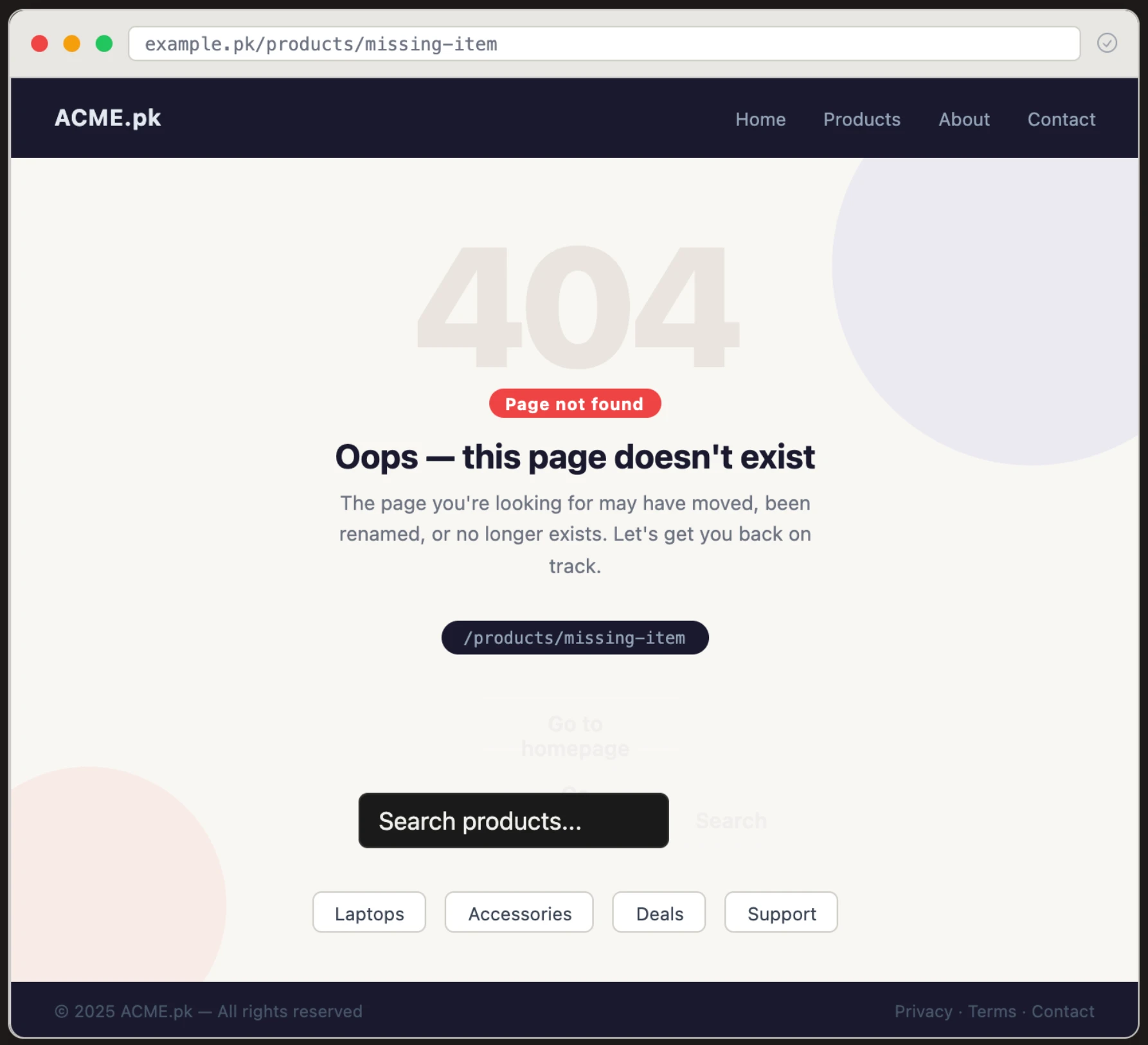
The custom page should tell the visitor that the requested page wasn’t found and provide useful options for continuing through the website.
Avoid sending every missing URL silently to the homepage. A visitor looking for a missing product may have no idea that the page they requested no longer exists.
A simple IIS configuration can point missing resources to a custom error page:
<system.webServer>
  <httpErrors errorMode="Custom" existingResponse="Replace">
    <remove statusCode="404" subStatusCode="-1" />
    <error statusCode="404"
           path="/404.html"
           responseMode="ExecuteURL" />
  </httpErrors>
</system.webServer>
The 404 status tells IIS which error the configuration handles. The path specifies the custom page.
The exact setup can vary depending on how your application handles errors, so test this alongside your application’s own 404 handling.
7) Image Hotlink Protection
URL Rewrite can also be used to limit direct image requests from other websites. For example, a hotlink protection rule can check the referring website before allowing an image request to proceed.
A basic example is:
<rule name="Prevent Image Hotlinking" stopProcessing="true">
  <match url=".*\.(jpg|jpeg|png|gif)$" />
  <conditions>
    <add input="{HTTP_REFERER}"
         pattern="^$|https?://(www\.)?example\.pk/.*"
         negate="true" />
  </conditions>
  <action type="Redirect"
          url="/images/hotlink-blocked.jpg"
          redirectType="Temporary" />
</rule>
The <match> element limits the rule to common image extensions. The condition checks the HTTP referrer and allows requests from your own website. The action sends other requests to an alternative image.
Replace example.pk with your own domain and adjust the image extensions and destination to suit your website.
Hotlink protection needs careful testing because some legitimate requests may not include a referrer. A restrictive rule can also interfere with services that load your images legitimately.
Troubleshooting IIS URL Rewrite Problems
1. 500 Internal Server Error: Check web.config first. Look for malformed XML, incorrect nesting, or unsupported configuration. If the error appeared immediately after editing the file, restore your previous working copy and test again.
2. Redirect Loop: Make sure your HTTPS or www/non-www rule doesn’t redirect a request that has already reached its destination. For HTTPS, check the {HTTPS} condition. For hostname redirects, check that the rule only redirects toward your chosen version.
3. Rule Isn’t Matching: Check your regular expression carefully. For example, ^product/([0-9]+)$ matches /product/123 but not /products/123. The pattern has to match the requested path for IIS to apply the rule.
4. WordPress Permalinks Return 404: WordPress on IIS needs IIS-compatible rewrite configuration. An .htaccess file from a Linux server will not work as an IIS rewrite configuration.
If WordPress pages open correctly through their direct URLs but friendly permalinks return 404 errors, check if IIS URL Rewrite is available and if the WordPress rewrite configuration has been applied correctly.
5. Rules Conflict: IIS processes rules in order. A broad rule near the top can interfere with a more specific rule later.
stopProcessing="true" can prevent further rules from being processed after a matching rule has completed its action.
For example:
<rule name="Redirect old page" stopProcessing="true">This tells IIS to stop processing subsequent rules after that rule has handled the request.
Changes Are Not Taking Effect
If your rule looks correct but the website isn’t behaving differently, check:
- If the edited
web.configis in the correct application directory - If the rule was saved correctly
- If the rule is inside the correct
<rewrite>section - Application/IIS configuration caching
- Application pool behavior where you have access
- Hosting-provider restrictions
If you have access to IIS diagnostics, Failed Request Tracing can also help developers investigate why a rule did or did not execute.
Advanced IIS URL Rewrite Features
1. Outbound Rules: Outbound rules can modify elements of an HTTP response rather than only processing incoming URLs. For example, they can be used to modify links in generated HTML.
2. Rewrite Maps: Rewrite maps can make large numbers of URL mappings easier to maintain than dozens of individual rules. They can be useful during a website migration where many old URLs need to point to new destinations.
3. Application Request Routing (ARR): ARR is an IIS extension used for scenarios such as:
- Reverse proxying
- Load balancing
- Routing requests to backend applications
ARR should be kept separate from ordinary URL Rewrite functionality. URL Rewrite applies rules to requests and responses, while ARR is used for routing traffic between applications or backend servers.
4. Failed Request Tracing: IIS diagnostics can help developers investigate why a rule did or did not execute. This becomes useful when several rules and conditions interact and the result isn’t what you expected.
Server-level features such as ARR and additional IIS modules may require administrative access that isn’t available on shared hosting.
Rewrite Your IIS URLs Without Breaking Your Website
URL Rewrite in IIS can look complicated when you first open a web.config file, but the underlying idea is simple: Match a request, check any conditions, and rewrite or redirect it.
For most Windows-hosted websites, you don’t need dozens of complicated rules.
Start with the rules that solve an actual problem:
- Force HTTP traffic to HTTPS.
- Redirect old URLs after a site change.
- Create cleaner URLs where your application supports them.
- Keep your preferred domain version consistent.
- Test each rule before adding another.
If you’re running a Microsoft-based website and want a Windows environment managed through Plesk, see our Windows Hosting options.
If your project needs more control over IIS, server modules, or advanced configuration, check out our VPS hosting options.
The best rewrite configuration isn’t the one with the most rules. It’s the one that solves your website’s URL problems without creating new ones.