 Domain SearchInstantly check and register your perfect .pk or international domain
 Web HostingGet a .pk domain for as low as PKR 467
 cPanel HostingUser-friendly hosting powered by cPanel
 Reseller HostingLaunch your own hosting business with minimal technical requirements
 Windows HostingOptimized for Windows-based applications and websites
 Affiliate ProgramEarn referral commissions by promoting our services
 WordPress HostingFast & Reliable WordPress Hosting
 Domain TransferMigrate your existing domain seamlessly with zero downtime.
 All DomainsAccess 324+ top-level domains (TLDs) worldwide from a single platform
 Whois LookupIdentify the owner of any domain using our whois and rdap lookup tool
 Managed VPS Hosting
 AI Website BuilderCreate beautiful websites effortlessly using intuitive drag-and-drop features
 Online ShopLaunch a professional online shop with no technical skills required
 BlogDiscover expert guides on hosting, websites, SEO, and digital growth strategies
 ContactGet instant assistance via live chat or email
 SupportAccess help articles, tutorials, and service documentation
 SSL CertificatesEncrypt data, build trust, and boost SEO.
Domain locking is an essential security feature that every domain owner should understand and use. Without it, someone who gains access to your registrar account could move your domain away from you in minutes.
You need to lock your domain to protect it from theft or unauthorized transfer, especially if your domain is tied to your business, your brand, or your email addresses.
There are also times when you will need to unlock your domain, for instance, when you want to transfer it to a different registrar.
You may also need to unlock it briefly if you are making certain changes that require the lock to be removed.
Locking and unlocking follow similar and easy steps. Once you know where to look in your hosting control panel, you can complete either action in under two minutes.
Steps to Lock and Unlock a Domain Name in Control Panel
1) Log In To Your Domain Registrar Account
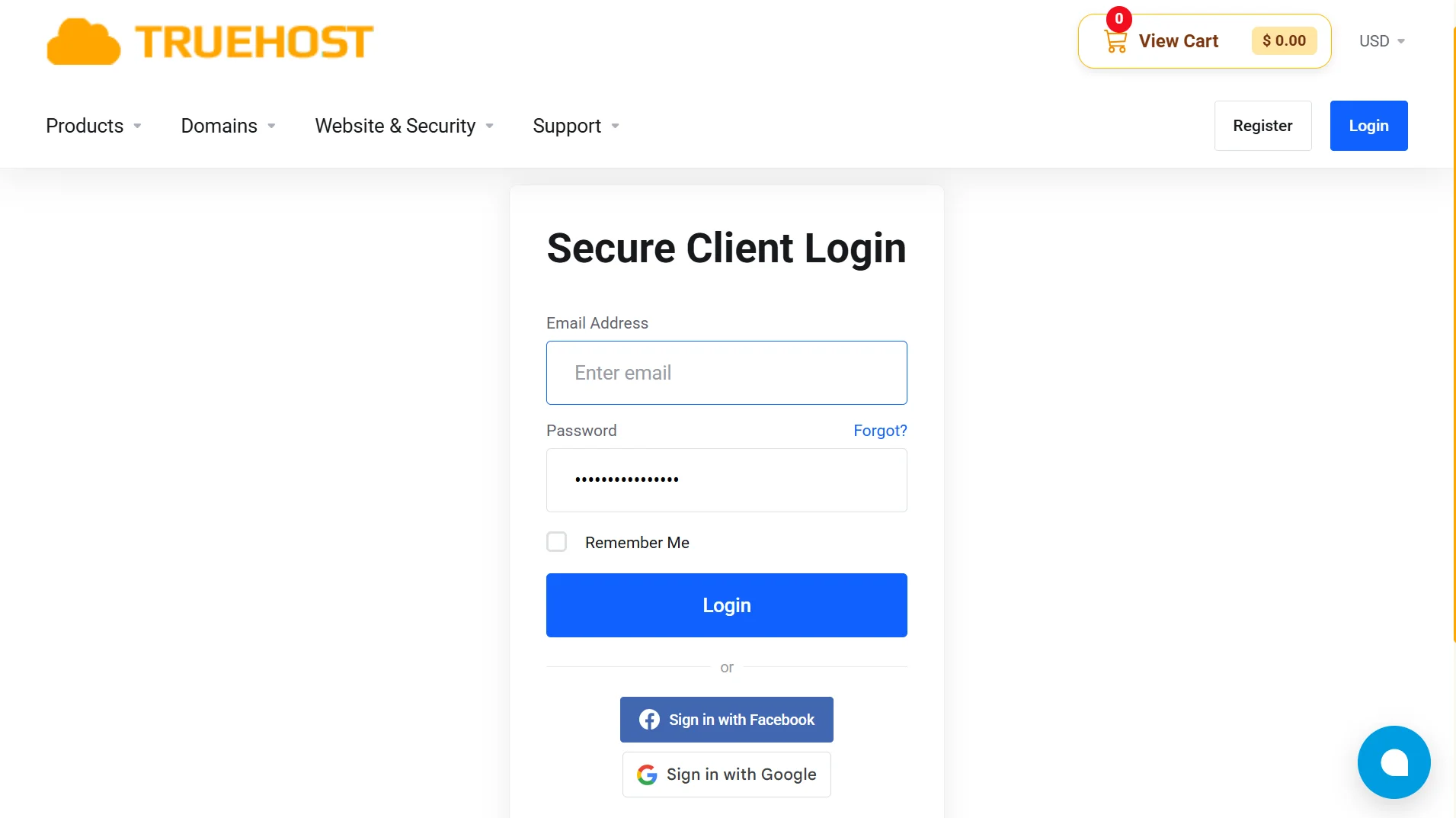
Open your browser and go to the website of the registrar or hosting company where you manage your domain.
For Truehost users, that means logging in to your Truehost client area.
Click on the login button or client area link. Enter your email address and password. If you have two-factor authentication enabled, complete that step.
Using 2FA adds an extra layer of security to your account, which is essential because your registrar account controls your domain.
2) Go to the Domains Area
Once you are logged in, find the section that manages your domains. Different control panels use different labels.
For example, you might see “My Domains,” “Domains,” “Domain Management,” or “Domain Settings” in the main menu or sidebar.
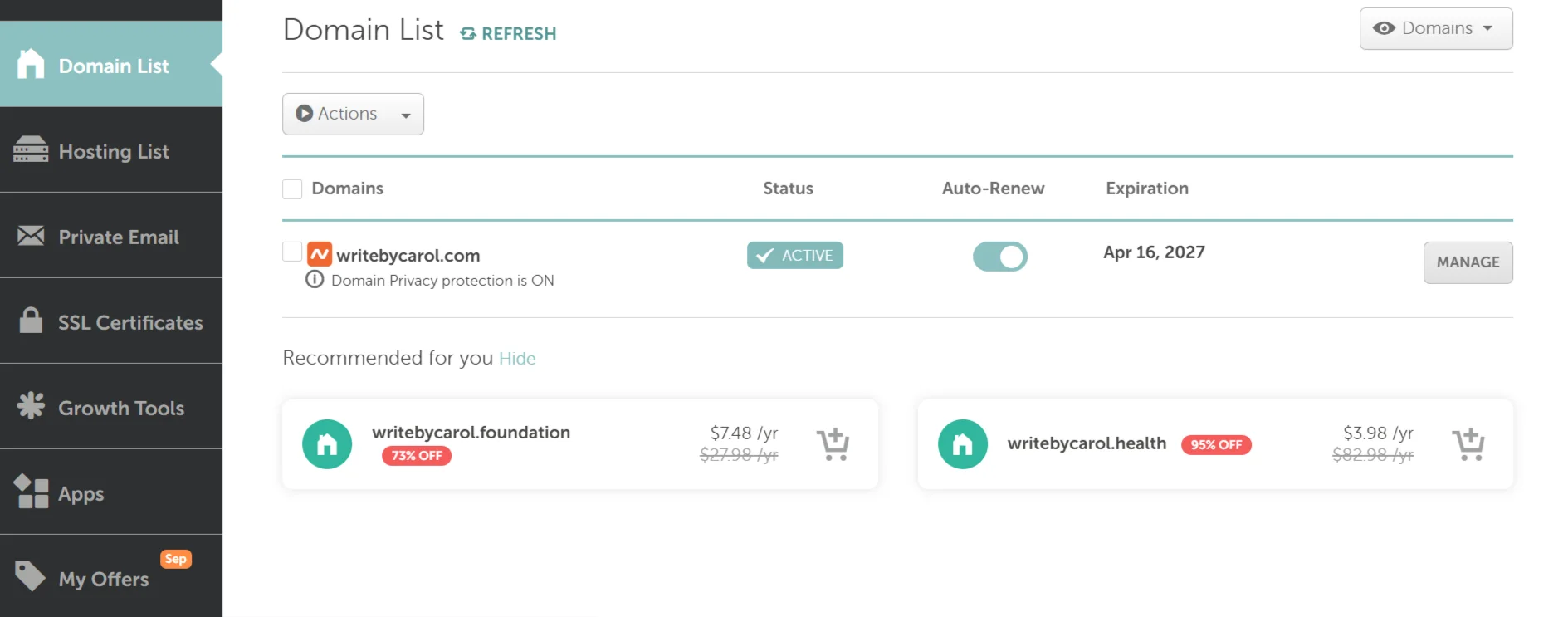
Click on that section. You will see a list of all the domains registered under your account. If you have many domains, use the search bar to find the specific one you want to work with.
3) Select the Domain You Want to Lock/Unlock
In your domain list, locate the domain you want to manage.
Next to it, you will usually see a dropdown arrow, a settings icon, or a manage button. Click on it and select “Manage Domain” or a similar option.
This opens the management page for that specific domain. You will see various settings and options related to your domain’s configuration.
4) Go to the Transfer Bar to See Domain Lock Options
Look for a section labeled Transfer or Transfer Lock. You might see it called “Registrar Lock,” “Domain Lock,” or “Transfer Lock”.
The technical term for this setting is often “clientTransferProhibited,” the status code that blocks transfers.
Your control panel simplifies this into a toggle or button you can click.
5) Lock or Unlock Domain
You’ll now see your domain lock status. It will show either locked or unlocked, or it displays as a toggle switch that is on or off.
To lock your domain, click the button or toggle to enable the lock. Confirm the action if your panel asks you to. You should see a success message confirming the change.
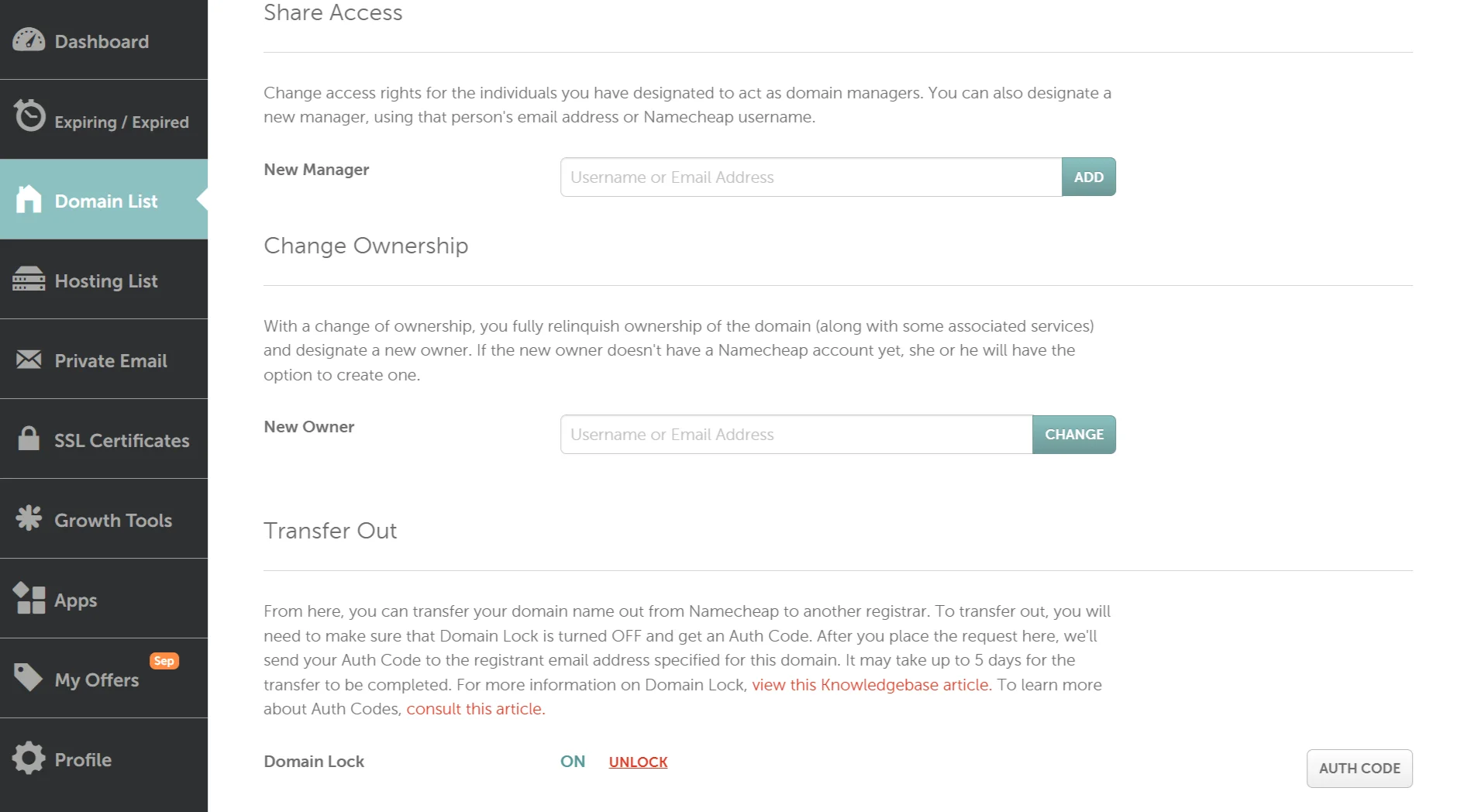
To unlock your domain, click the button or toggle to disable the lock. Again, confirm if prompted. The status should update immediately to show that the domain is now unlocked.
The lock does not affect your website, your email, or your DNS settings. Your site keeps running normally whether the domain is locked or unlocked.
The lock controls only whether you can initiate a transfer to another registrar.
When to Lock and Unlock a Domain
When to lock:
- Immediately after purchasing or transferring a domain: As soon as you register a domain or complete a transfer into your account, make sure the lock is enabled. New domains sometimes come locked by default, but verify it yourself.
- Right after updating any registrant or owner contact details: If you change your contact information or ownership details, lock the domain again afterward. This prevents anyone from exploiting a window where the domain might be less protected.
- Anytime you are not actively in the middle of a registrar transfer: The default state of your domain should be locked. If you are not transferring it right now, keep it locked.
- Immediately after obtaining an EPP code: If you request an authorization code for a transfer, keep the domain locked while you copy the code and prepare the transfer. You only need to unlock it at the moment the new registrar is ready to initiate the transfer.
- As soon as a completed transfer lands in your new account: Once your domain successfully arrives at the new registrar, lock it right away. Do not leave it unlocked after a transfer completes.
When to unlock:
- The few minutes it takes to request an EPP/Auth code for an outbound transfer: Some registrars require the domain to be unlocked before they will generate the authorization code for you. Unlock it only for the time it takes to get the code, then lock it again.
- Only when the new registrar is actively requesting the transfer: The old registrar needs to see the domain unlocked when the transfer request arrives. If your old registrar requires the unlock to approve the transfer, coordinate the timing with the new registrar so the domain is unlocked at the right moment.
How to Lock and Unlock a Domain Name FAQs
How can I check if a domain is locked?
Check your registrar’s control panel first. Look for the domain lock setting in the domain management area. It will show as locked or unlocked. You can also do a WHOIS lookup for your domain. If you see the status code “clientTransferProhibited,” the transfer lock is active.
How long is a domain locked after transfer?
After a domain transfer completes, there is a waiting period before you can transfer it again. ICANN rules previously set this at 60 days, but the standard has been updated to 30 days for many cases. This lock is automatic and separate from the registrar lock you control. Even if your registrar lock is off, you may not be able to transfer the domain again until this period passes.
What is the best way to secure a domain?
Enable the registrar lock and keep it on. Use a strong, unique password for your registrar account. Turn on two-factor authentication. Keep your contact email address current and secure that email account with the same care. For high-value domains, ask your registrar about advanced protections like registry lock, which adds manual verification requirements for critical changes.
What does unlocking a domain do?
Unlocking a domain removes the restriction that prevents transfers to another registrar. It doesn’t change your website, email, or DNS settings. It simply makes the domain eligible to be transferred away from your current registrar.
Is domain blocking the same as locking?
Domain blocking refers to preventing various actions on a domain, not just transfers. A transfer lock specifically blocks transfers to another registrar. Some registrars offer additional blocking features that restrict changes to contact information or nameservers.
How long does it take to unlock a domain?
The unlock takes effect immediately in most control panels. You click the button, confirm, and the status changes right away. The actual transfer process after unlocking takes longer, typically five to seven days if all goes smoothly.
Register and Lock Your Domain with Truehost
If you don’t have a domain yet, now is the time to claim one. Truehost offers domain registration with the security features you need from day one.
You can search for your preferred domain name directly on the Truehost website. The search tool checks availability in real time.
Once you find an available name, add it to your cart and complete the purchase. Your domain will be set up immediately, and you can enable the lock right after registration.
We offer so many domain extensions for every business need in Pakistan.
Registration for a .pk domain starts at ₨54,721.04.
Once your domain is registered, log in to your Truehost client area and lock it.
Now, search for your domain using the button below, complete the registration, and secure it with a lock. That is the simplest way to protect your online presence from the moment you own it.