 Domain SearchInstantly check and register your perfect .pk or international domain
 Web HostingGet a .pk domain for as low as PKR 467
 cPanel HostingUser-friendly hosting powered by cPanel
 Reseller HostingLaunch your own hosting business with minimal technical requirements
 Windows HostingOptimized for Windows-based applications and websites
 Affiliate ProgramEarn referral commissions by promoting our services
 WordPress HostingFast & Reliable WordPress Hosting
 Domain TransferMigrate your existing domain seamlessly with zero downtime.
 All DomainsAccess 324+ top-level domains (TLDs) worldwide from a single platform
 Whois LookupIdentify the owner of any domain using our whois and rdap lookup tool
 Managed VPS Hosting
 AI Website BuilderCreate beautiful websites effortlessly using intuitive drag-and-drop features
 Online ShopLaunch a professional online shop with no technical skills required
 BlogDiscover expert guides on hosting, websites, SEO, and digital growth strategies
 ContactGet instant assistance via live chat or email
 SupportAccess help articles, tutorials, and service documentation
 SSL CertificatesEncrypt data, build trust, and boost SEO.
A full website backup helps you restore your site after hacking, server failure, accidental deletion, or a failed update. Without a recent backup, you could lose your content and have to rebuild your site from scratch.
A complete backup has two parts:
- Website files: Themes, plugins, images, code, and uploaded files.
- Database: Posts, pages, users, settings, orders, and other site information.
You need both to restore a working website. Backing up only the files will leave out your latest content, while backing up only the database will leave out your themes, plugins, and uploaded files. WordPress documentation also recommends backing up both your files, including wp-content and wp-config.php, and your database.
Restoring a website means putting both parts back in place and making sure they work together. This guide covers three ways to back up and restore your WordPress site: using cPanel, a WordPress plugin, or a manual copy. It also explains common mistakes to avoid.
Method A: Create a full backup with cPanel
This is the quickest route for shared hosting users, but it comes with one catch you need to know before you start: cPanel can create a full backup, yet it cannot restore one on its own.
Steps
i) Open the backup tool. Log in to cPanel and go to Files → Backup, or open Backup Wizard, depending on your hosting setup.
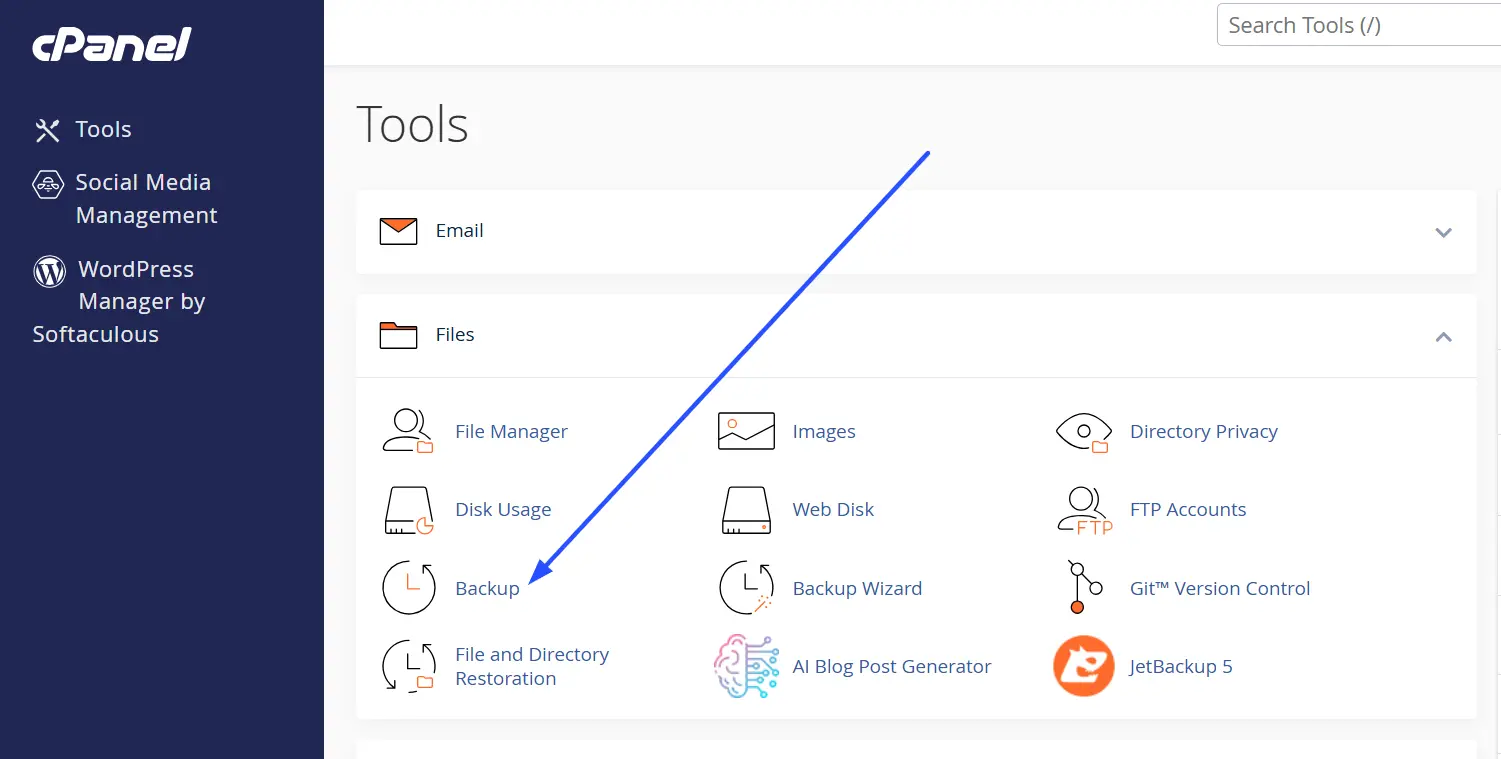
ii) Create a full account backup. Choose the full backup option, pick a destination if one is offered, start the backup and wait for it to finish. cPanel stores full backups as compressed archives, known as tarballs, with the .tar.gz extension.
iii) Download the backup. Save it to your computer or another secure location. A copy that lives only on the same hosting account will not help if that account is compromised, suspended or deleted.
iv) Check the backup. Confirm the file exists, the size looks reasonable, and the archive opens. On Linux or macOS you can list its contents without unpacking it by running tar -tzvf yourbackup.tar.gz.
What a full backup contains
A full cPanel account backup contains the home directory, databases, email, forwarders, filters and DNS zone, which is everything needed to recreate the account elsewhere. That makes it a strong safety net, and also the reason the restore works differently from what many people expect.
The restore limitation
cPanel’s own documentation is explicit: you cannot automatically restore a full backup file in cPanel, because that function is only available in WHM, the server-level admin interface. To restore one automatically, you contact your hosting provider. A hosting provider’s administrator typically does this under WHM’s Restore a Full Backup/cpmove File option.
If you only need part of a site back, there is a workaround. You can uncompress the .tar.gz file, pull the contents of the public_html folder out of its homedir directory, and upload them with cPanel’s File Manager. You can also create partial backups, such as a home directory archive or a MySQL .sql file, which you can restore yourself from the same Backup interface.
The practical lesson: treat a cPanel full backup as a copy you hand to your host’s support team when disaster strikes, and choose a plugin or manual backup if you want to be able to restore on your own.
Method B: Back up WordPress with a plugin
A backup plugin is the easiest way to get a full backup you can also restore yourself, which is exactly what a cPanel full backup does not give you. Popular options include UpdraftPlus, Duplicator, BlogVault, Jetpack Backup and All-in-One WP Migration. Most can back up both files and the database, and many support automatic schedules and remote storage.
UpdraftPlus is a useful example because it is widely used: its developers describe it as active on more than 3 million sites, and it supports scheduled backups, many remote storage services and migration. The steps below apply to most plugins, with UpdraftPlus used for the specifics.
Steps
i) Install the plugin. In WordPress, go to Plugins → Add New, search for your chosen plugin, then install and activate it.
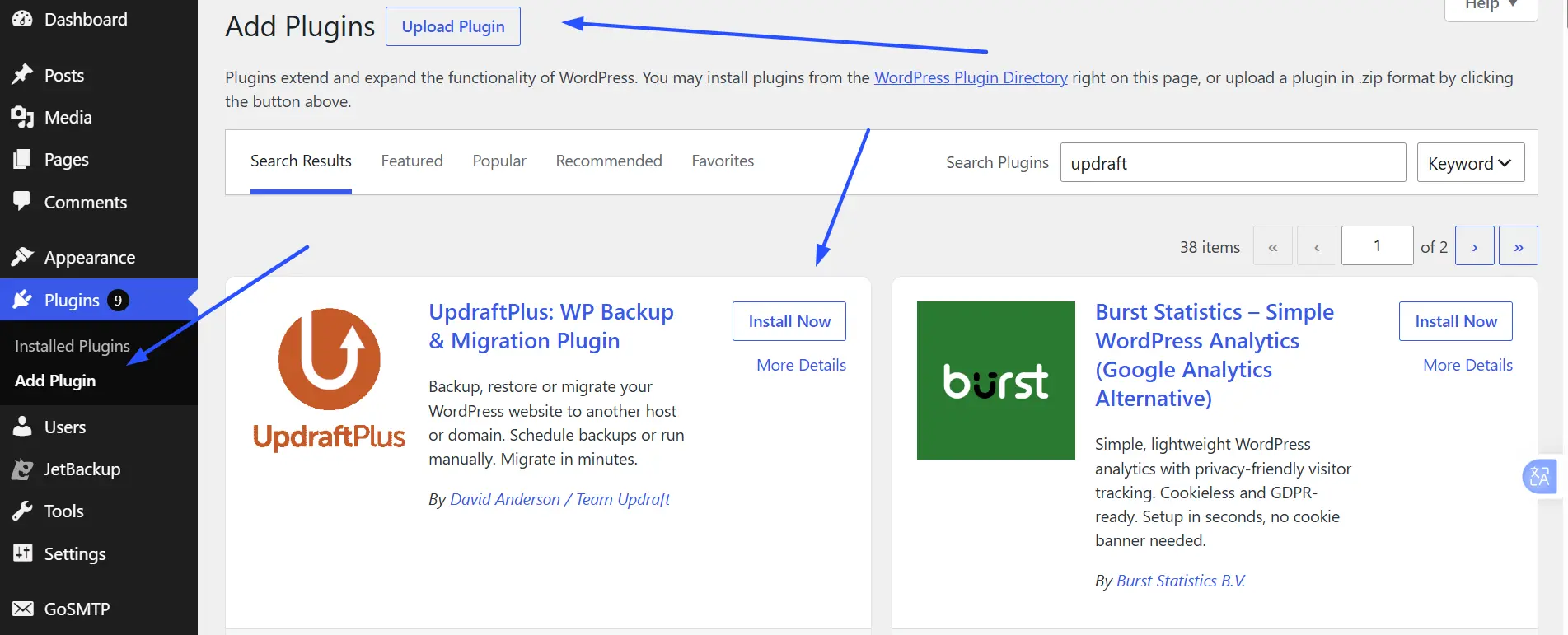
ii) Choose what to back up. Select a full backup that includes both files and the database. Some plugins let you schedule these separately, and that is useful because the database usually changes more often than the files.
iii) Set a schedule. Run backups daily, weekly or more often depending on how frequently the site changes. A common starting point is a daily database backup and a weekly files backup for an active site, keeping a few restore points rather than just one. UpdraftPlus offers intervals from every few hours up to monthly.
iv) Choose where to store it. Send a copy to a location outside your hosting account, such as Google Drive, Dropbox or Amazon S3. This step counts more than it looks: by default UpdraftPlus saves backups inside your own site, in wp-content/updraft/, so if the account is hacked, suspended or deleted, the backups go with it.
v) Run the first backup. Click Backup Now, Create Backup, or the equivalent button. In UpdraftPlus, a pop-up lets you include the database, the files, or both, and choose whether to send the result to remote storage.
vi) Check it finished. Confirm the backup completed without errors, appears in the plugin’s list of existing backups, and has arrived at your remote storage location.
vii) Test it. If you can, restore a copy on a staging site or test environment. Until you have done this once, you only know a backup file exists, not that it works.
Plugins make regular backups easier, but they are not magic. Always check what a given plugin includes (some leave out certain folders by default) and where it stores the result.
Method C: Back up WordPress manually
A manual backup needs no plugin and no host-provided tool, and it works even when WordPress itself is broken. The price is time: you save the files and the database separately, and you have to remember to repeat it.
Step 1: Back up the website files
- Open cPanel File Manager, or connect to your site with an SFTP client such as FileZilla or WinSCP. Prefer SFTP to plain FTP, because SFTP encrypts your username and password in transit.
- Find your WordPress installation folder, often public_html.
- Download the entire folder to your computer.
- Make sure wp-content is included, along with wp-config.php and .htaccess.
If you must prioritise, wp-content and wp-config.php count most. The WordPress core files are the same for everyone and can be re-downloaded from WordPress.org, but your themes, plugins and uploads cannot, and wp-config.php holds your database connection details.
Still, copying everything saves you time on restore, since you can re-upload the whole site at once rather than reinstalling WordPress first.
The wp-content folder contains:
- Themes: the design and layout files, including any you have edited.
- Plugins: every installed plugin.
- Uploads: images, video, audio and documents added through WordPress.
- Other files added to your site.
Step 2: Export the database
SFTP only downloads files. It does not touch the database, so this is a separate step.
- Open phpMyAdmin from cPanel (under Databases). If you are unsure which database belongs to your site, open wp-config.php and check the DB_NAME value.
- Select that database and click the Export tab.
- Choose the Quick export method and the SQL format, then click Go to download the file.
If you have SSH access, the WP-CLI command wp db export does the same job from the command line, using the credentials already stored in wp-config.php.
Step 3: Store and name your backup
Name the files with the site and the date, for example mysite_2026-10-23_files.zip and mysite_2026-10-23_database.sql, and keep the pair together. A database export is only useful alongside the files from the same moment, so a matched set is what you want. Store it somewhere off your server and, ideally, in more than one place.
How to restore a website, step by step
How you restore depends on how you backed up, so start by matching your situation to the method you used.
- Method A (cPanel full backup): contact your hosting provider and ask them to restore it, because cPanel cannot do this automatically. Once they confirm, skip ahead to testing the website.
- Method B (plugin): use the same plugin’s restore or import function, then follow the testing and verification steps below.
- Method C (manual): follow every step in the list that comes next.
Restoring with a plugin
In UpdraftPlus, open the Existing Backups tab and, if your backup is in remote storage, click Rescan remote storage so the plugin finds it. If you are restoring onto a fresh site, you can instead upload the backup files through the Upload backup files link, or place them by FTP in wp-content/updraft and rescan the local folder.
Then choose which components to restore (database, plugins, themes, uploads, others) and confirm.
The full manual restore
i) Check the problem. Work out what actually went wrong: a total site failure, a missing page, a database problem or a hack. This decides how much you need to restore and which backup date to use. If the site was hacked, pick a backup from before the infection.
ii) Choose where to restore. You can restore straight onto the live site, or test the backup on a staging site first. Staging is safer, because a bad backup then costs you nothing.
iii) Save the current state first. Even a broken site can hold content newer than your last backup. Take a quick copy of it before you overwrite anything.
iv) Restore the database. In phpMyAdmin, select your WordPress database and use the Import tab to load your .sql file. Make sure it is the database your site is configured to use.
v) Restore the website files. Upload the backed-up files with SFTP or File Manager and place them in the correct folders, with wp-content in the WordPress root.
vi) Check the settings. Open wp-config.php and confirm the database name, user, password, and host match the database you just restored into. Check that .htaccess is in place.
vii) Update DNS if needed. If you moved the site to a new server, point your domain at the new server and allow time for the change to take effect.
viii) Test the website. Check the main pages, images, forms, login, and any other important features to confirm everything works.
Note that restoring a database means importing the file back in, and this is a step many people forget when they only re-upload files.
Post-restore checklist
A site that loads is not necessarily a site that works, so run through this list before you call the restore finished.
- Verify functionality. Test forms, logins, media, and, if you run a shop, the full checkout.
- Update DNS or the domain pointing if you migrated to a new server.
- Rotate exposed credentials. If the problem was a hack, change passwords and API keys, including the database password and the secret keys in wp-config.php. Restoring a clean backup does not close the hole the attacker used.
- Re-enable security plugins that you switched off during the restore.
- Take a fresh backup of the restored site, so you have a known-good copy from today.
- Monitor for issues over the following days, such as broken images, failed emails or slow pages.
Common mistakes to avoid
Most backup failures come from habits, not technology. These six cause the most damage.
1) Backing up only files or only the database. Neither half restores a working site on its own.
2) Keeping the only backup on the production server. If the server is hacked, suspended or fails, the backup goes down with it. The widely used 3-2-1 rule suggests three copies, on two kinds of storage, with one stored offsite.
3) Never testing a restore. A survey by IT news site ITdaily found only about a quarter of IT professionals both follow the 3-2-1 rule and regularly test their backups. A simple test is to restore to a staging site, then confirm it loads, recent content is present and users can log in.
4) Ignoring automation and retention. Manual backups get forgotten. Schedule them, and keep several restore points so one corrupted copy does not leave you with nothing.
5) Restoring without a staging test or a copy of the broken state. Overwriting a live site blindly can make things worse, and you cannot undo it if you did not save what was there.
6) Overlooking configuration and secrets files. wp-config.php and .htaccess are small and easy to miss, but a restore without them often fails.
Keep your website safe with reliable hosting
Every Truehost hosting plan includes free daily backups, so a recent copy of your site is always available if something goes wrong. A failed update, a hacked plugin, or an accidental deletion does not have to mean starting over.
If you need a full restore, contact Truehost support and tell them which backup date you want. Since cPanel cannot automatically restore a full account backup, support handles it for you.
For extra protection, still download your own copy before major changes such as theme updates or a migration. That gives you a second, independent copy that no single account problem can touch.
Ready to host with backups built in? Check Truehost hosting plans today.