 Domain SearchInstantly check and register your perfect .pk or international domain
 Web HostingGet a .pk domain for as low as PKR 467
 cPanel HostingUser-friendly hosting powered by cPanel
 Reseller HostingLaunch your own hosting business with minimal technical requirements
 Windows HostingOptimized for Windows-based applications and websites
 Affiliate ProgramEarn referral commissions by promoting our services
 WordPress HostingFast & Reliable WordPress Hosting
 Domain TransferMigrate your existing domain seamlessly with zero downtime.
 All DomainsAccess 324+ top-level domains (TLDs) worldwide from a single platform
 Whois LookupIdentify the owner of any domain using our whois and rdap lookup tool
 Managed VPS Hosting
 AI Website BuilderCreate beautiful websites effortlessly using intuitive drag-and-drop features
 Online ShopLaunch a professional online shop with no technical skills required
 BlogDiscover expert guides on hosting, websites, SEO, and digital growth strategies
 ContactGet instant assistance via live chat or email
 SupportAccess help articles, tutorials, and service documentation
 SSL CertificatesEncrypt data, build trust, and boost SEO.

A website outage can cost you more than just visitors. It can mean lost sales, missed leads, and customers who may never return. The longer your website stays offline, the greater the damage to your business and search rankings.
But what causes a website to go down? Sometimes it’s a hosting problem, a sudden traffic spike, or a simple mistake. Other times, it’s a security attack or a faulty plugin.
Here are six common causes of website downtime, what triggers them, and how to prevent them.
1) Server and Hosting Failures
What it looks like: Your website becomes slow, displays server errors or stops loading completely because the server has failed or run out of resources such as memory, storage or processing power.
Why it happens: Several problems can cause server and hosting failures:
- Limited hosting resources: Cheap shared hosting often puts many websites on one server. If one website uses too many resources, others may slow down.
- No backup server: If your website depends on one server, a hardware failure or software crash can take it offline.
- Old or overloaded hardware: A server with failing parts or insufficient memory and storage may struggle to keep websites running.
- Data centre problems: Power outages, network failures and hardware problems can affect entire data centres. Uptime Institute’s 2025 report identified power problems as a major cause of data centre outages.

How to fix it:
- Choose scalable hosting. VPS and cloud hosting allow you to increase server resources as your website grows.
- Have a backup plan. Use backups, additional servers and database copies to make recovery easier if the main server fails.
- Check the host’s uptime record. Choose a provider with a clear uptime guarantee and a history of reliable service.
- Monitor server resources. Keep track of CPU, memory, and disk space. Set alerts so you can fix resource problems before they take your website offline.
2) Traffic Spikes and Overload
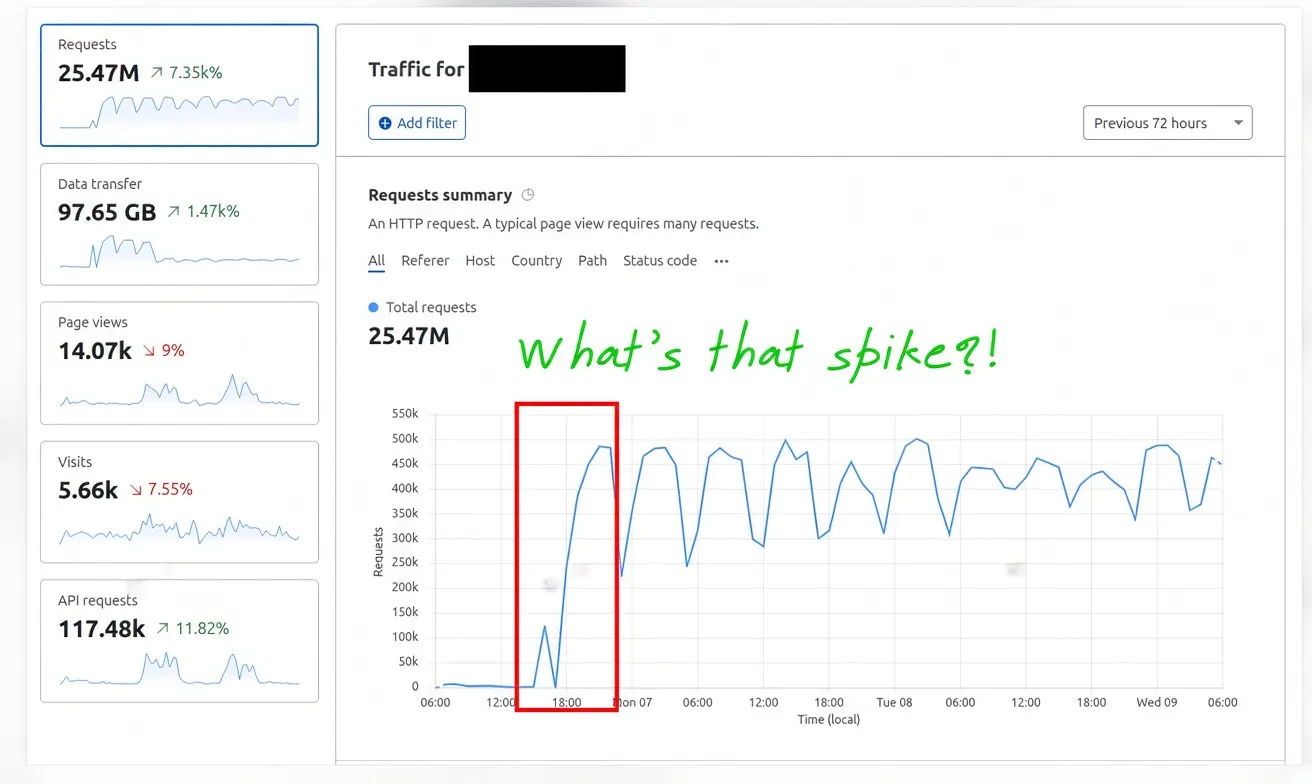
What it looks like: Your website becomes slow or stops loading during a sale, promotion, or viral social media post. This often happens when more people visit your website than your server can handle.
Why it happens: Most hosting plans are set up to handle normal daily traffic. When visitors suddenly increase, the server may run out of resources. This affects how quickly it processes requests, loads pages and retrieves information from the database. Eventually, pages may time out or stop loading.
How to fix it:
- Use a CDN. A Content Delivery Network (CDN) stores and delivers images, scripts and other files from servers closer to your visitors. This reduces the amount of work your main server has to do.
- Enable caching. Caching saves copies of frequently visited pages so your server does not have to generate them every time. Keep pages with personal information, such as checkout and account pages, out of full-page caching.
- Test your website before major campaigns. Run load tests to see how your website handles increased traffic. Test common activities such as browsing products, adding items to the cart and completing purchases.
- Choose hosting that can handle traffic growth. Look for plans that allow you to increase server resources when traffic rises. Cloud hosting with auto-scaling can add resources when needed.
- Prepare early. If you are planning a major sale or marketing campaign, check your hosting capacity several weeks beforehand. This gives you time to fix problems before visitors arrive.
One more thing: Not every traffic spike comes from real visitors. Bots and DDoS attacks can also overload your server. Check where the traffic is coming from before upgrading your hosting, as adding more resources will not stop an attack.
3) DNS Issues
What it looks like: Visitors cannot access your website even though your hosting server is working normally. Their browsers may show errors saying the website cannot be found.
Why it happens: DNS connects your domain name to your server’s IP address. If DNS cannot find the correct address, visitors cannot reach your website.
DNS problems can affect some visitors but not others because internet providers and devices may store old DNS records for a while.
Common causes include:
- An expired domain: If your domain registration expires, visitors can no longer reach your website. This can happen when automatic renewal fails because your payment card has expired.
- Wrong DNS records: A small mistake when editing DNS records or changing nameservers can send visitors to the wrong server or prevent the website from loading.
- DNS provider problems or attacks: If your DNS provider experiences an outage or a DDoS attack, visitors may struggle to reach your website. Cloudflare’s H1 2026 data showed that DNS-based attacks accounted for 34.3% of network-layer DDoS attacks.
- Incorrect TTL settings: TTL determines how long DNS records stay cached. If the value is too high, visitors may continue using an old IP address even after you fix the records.
How to fix it:
- Choose a reliable DNS provider. Look for a provider with a good uptime record and servers spread across different locations. For important websites, consider using two DNS providers so one can take over if the other fails.
- Prevent domain expiry. Enable automatic renewal, keep your payment details up to date and set reminders before your domain expires. If it expires, renew it immediately. Restoring DNS can take 24 to 48 hours.
- Set the right TTL values. Use shorter values for DNS records you may need to change. Before moving your website to another server, lower the TTL in advance. Once the changes are complete and working, you can increase it again.
- Check DNS changes before saving. Have someone review important changes, keep a backup of your DNS records, and monitor your website from different locations.
- Check the source of the problem. If your website stops loading, first confirm that your domain has not expired. Then check your nameservers and DNS records for mistakes.
4) Human Error and Bad Deployments
What it looks like: A routine update, setting change, or code release takes the site down, often within minutes of the change.
Why it happens: Someone changes the wrong setting, deletes the wrong files, uses the wrong environment variable, or ships untested code. This is not just a small-team problem. Configuration and change-management failure was the most common cause of major network outages in Uptime Institute’s data.
How to fix it:
- Test in staging first. Keep a staging environment that matches production in software versions, configuration and data shape, and deploy there before anything goes live.
- Add code review and automated checks. Automated tests, linting and configuration validation catch the mistakes people skim past. Validate generated or internal config files too, with size and format limits, as Cloudflare committed to doing after its outage.
- Roll out gradually. Release to a small share of traffic first (a canary release), watch error rates, then widen. Feature flags let you switch a faulty feature off without redeploying.
- Limit access to production. Give people only the permissions they need, require multi-factor authentication, and avoid shared admin accounts so every change can be traced.
- Keep backups and a rehearsed rollback. A backup you have never restored is a guess. Know exactly how to return to the last working version, and test that path.
- Handle planned downtime correctly. If you must take the site offline, return a 503 status with a Retry-After header rather than a 200 or a redirect. Google reads a 503 as temporary and keeps your pages in its index. Keep robots.txt returning a normal response.
5) Security Attacks
What it looks like: Your website becomes very slow or goes offline because it receives too many malicious requests. In other cases, attackers exploit security weaknesses to damage your website, install malware or lock you out.
Why it happens: Outdated software, weak security settings, exposed server addresses and a lack of DDoS protection make websites easier to attack.
These attacks are becoming more common:
- Cloudflare reported that DDoS attacks more than doubled in 2025, reaching 47.1 million attacks.
- Most attacks are short but can still cause serious damage. Cloudflare found that 90.60% of network-layer attacks in its data lasted less than 10 minutes. Even a small attack can overwhelm a server without proper protection.
- WordPress websites are also at risk because of vulnerable plugins and themes. Patchstack reported 11,334 new vulnerabilities in the WordPress ecosystem in 2025, with 91% affecting plugins.
How to fix it:
- Use a WAF and DDoS protection. A web application firewall (WAF) blocks suspicious requests before they reach your website. DDoS protection helps prevent attackers from overwhelming your server with traffic. Choose a service that provides automatic protection.
- Protect your origin server. Configure your server to accept traffic only from your CDN or security provider. This prevents attackers from bypassing your protection by accessing your server directly.
- Limit suspicious traffic. Set limits on login attempts, searches and API requests. Use bot protection to identify and block harmful automated traffic.
- Update your software and plugins. Install security updates regularly and remove plugins you no longer use. Choose plugins that receive regular updates and security fixes.
- Deal with vulnerabilities that have no fix yet. If a plugin has a known security flaw but no update is available, deactivate it until a fix is released. You can also use a security service that blocks known attacks against the vulnerability.
- Scan your website regularly. Check for malware and security weaknesses. Use strong passwords, enable multi-factor authentication and keep backups in a separate location where attackers cannot easily access them.
6) Third-Party and Plugin Failures
What it looks like: Your website slows down, stops working or displays errors because an external service or plugin has failed. This can happen even when your hosting server is working properly.
Why it happens: Many websites depend on services from other companies to perform important tasks. These include payment gateways, CDNs, login systems, APIs, analytics tools and WordPress plugins.
If one of these services experiences an outage, receives a faulty update or responds too slowly, your website may also be affected.
For example, if your checkout depends on an external payment service that stops responding, customers may be unable to complete their purchases. If your website keeps waiting for that service, it can also slow down other pages.
How to fix it:
- Keep a list of external services. Record the services your website depends on, what they do and which parts of your website they affect. Include their support contacts and status pages.
- Set time limits and backup options. Do not let your website wait indefinitely for an external service. If it fails to respond within a few seconds, show a useful message or use a backup option. For example, offer another payment method if the main gateway is unavailable.
- Control repeated requests. If a service keeps failing, stop sending requests to it temporarily. Retry after a short wait instead of repeatedly sending requests that could make the problem worse.
- Load non-essential scripts separately. Tools such as chat widgets and analytics should not prevent your main website content from loading.
- Monitor external services. Follow their status updates and regularly test important website features such as login, payments and checkout. Do not rely on checking the homepage alone.
- Test updates before installing them. Update plugins, themes and other software in a staging environment first. This helps you catch compatibility problems before they affect your live website. Install critical security updates promptly.
Choose the Right Host to Reduce Downtime
Your hosting provider plays an important role in keeping your website online. Choose one that offers a good uptime guarantee, reliable servers, DDoS protection, automatic backups, and 24/7 technical support.
Don’t just look at the advertised uptime percentage. Check what the guarantee covers, which outages are excluded and what compensation is offered if the provider fails to meet it.
Website downtime can be caused by server failures, DNS errors, security attacks, human mistakes and faulty plugins. While you cannot prevent every outage, regular updates, proper backups, website monitoring and reliable hosting can help keep your website running.
Looking for reliable hosting? Choose Truehost for affordable hosting plans to get your website online and keep it running smoothly.