 Domain SearchInstantly check and register your perfect .pk or international domain
 Web HostingGet a .pk domain for as low as PKR 467
 cPanel HostingUser-friendly hosting powered by cPanel
 Reseller HostingLaunch your own hosting business with minimal technical requirements
 Windows HostingOptimized for Windows-based applications and websites
 Affiliate ProgramEarn referral commissions by promoting our services
 WordPress HostingFast & Reliable WordPress Hosting
 Domain TransferMigrate your existing domain seamlessly with zero downtime.
 All DomainsAccess 324+ top-level domains (TLDs) worldwide from a single platform
 Whois LookupIdentify the owner of any domain using our whois and rdap lookup tool
 Managed VPS Hosting
 AI Website BuilderCreate beautiful websites effortlessly using intuitive drag-and-drop features
 Online ShopLaunch a professional online shop with no technical skills required
 BlogDiscover expert guides on hosting, websites, SEO, and digital growth strategies
 ContactGet instant assistance via live chat or email
 SupportAccess help articles, tutorials, and service documentation
 SSL CertificatesEncrypt data, build trust, and boost SEO.
GitHub Pages is a free service that publishes a website straight from a GitHub repository. You get an address ending in github.io, and you can attach your own domain if you prefer.
It suits sites made of fixed files:
- Portfolios
- Blogs
- Resumes
- Project pages
- Documentation
Pages serves HTML, CSS and JavaScript. It does not run server-side languages such as PHP, Ruby or Python, and it has no database, so anything that needs a back end must live elsewhere.
Two Ways to Publish
GitHub recommends a branch deployment when you need no control over the build, and a GitHub Actions workflow when you want a build tool other than Jekyll or no dedicated branch for compiled files.
| Deploy from a branch | Deploy with GitHub Actions | |
| Best for | Simple sites and beginners | Sites that must be built before publishing |
| Setup | Pick a branch and folder in Settings | Write a workflow, then set it as the source |
| Typical tools | Plain HTML, or Jekyll | Hugo, Jekyll, JavaScript site generators |
If your repository contains symbolic links, you must use a GitHub Actions workflow.
Method A: Deploy From a Branch
This is the simplest route: GitHub takes the files on one branch and publishes them as they are, with no build setup on your side. Choose it for plain HTML, CSS and JavaScript sites.
1) Create a repository
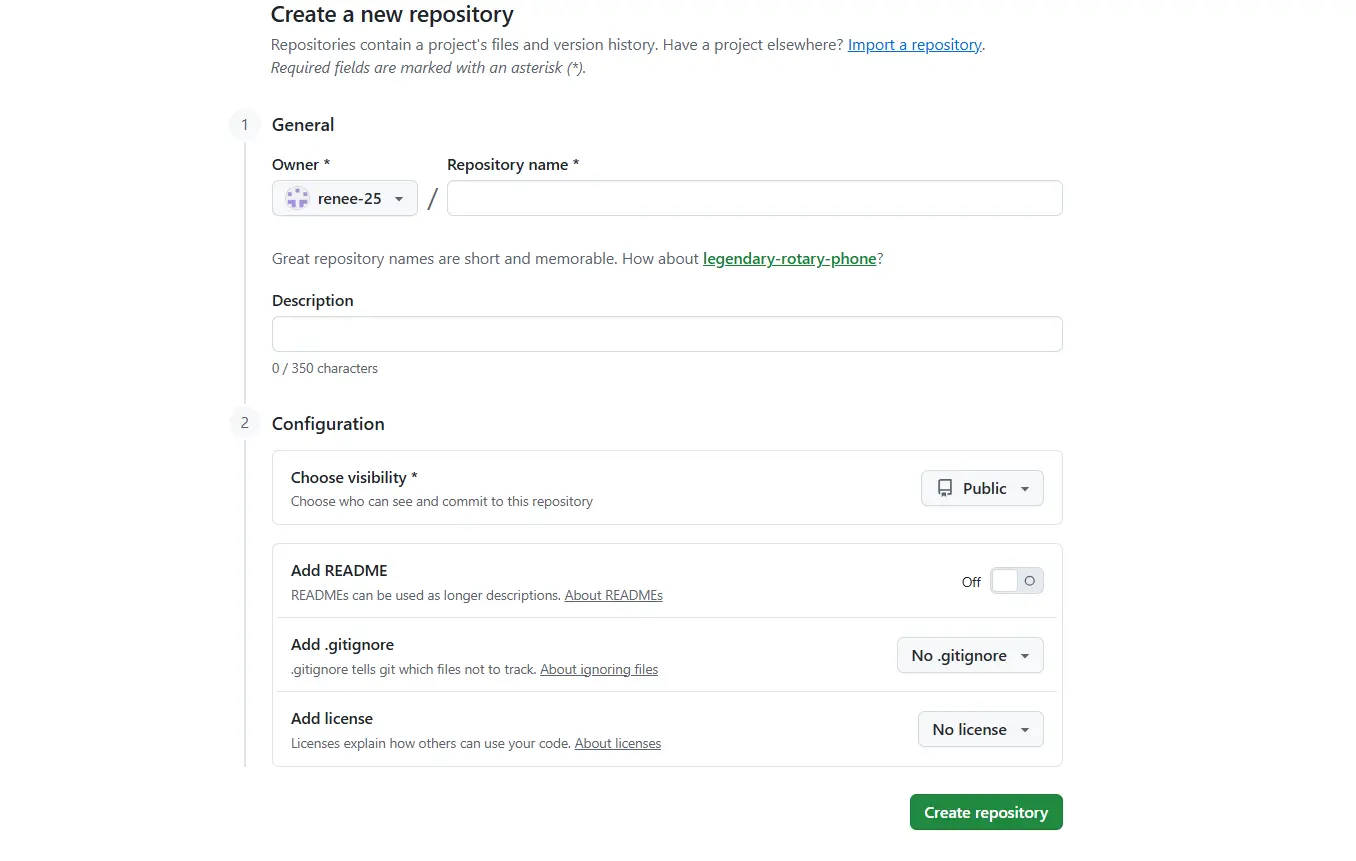
The repository name decides your site’s address.
- Personal site: name it username.github.io, using your own GitHub username. The site is served at
https://username.github.io/. You can have only one of these per account. - Project site: use any other name, such as my-portfolio. The site is served at
https://username.github.io/my-portfolio/.
On GitHub Free the repository must be public.
2) Add your website files
Place index.html in the root of the repository. It is the page visitors see first. If you prefer to keep the site separate from other project files, put everything in a /docs folder instead and choose that folder in step 4.
Keep file names short and free of spaces, for example about-me.html rather than About Me.html. Links to files with spaces or mixed capitals often break, because the server treats names as case-sensitive.
3) Upload or push your files
You have two options:
- In the browser: open the repository, choose Add file → Upload files, drop your files in and commit.
- With Git: commit locally, then run git push origin main.
4) Turn on GitHub Pages
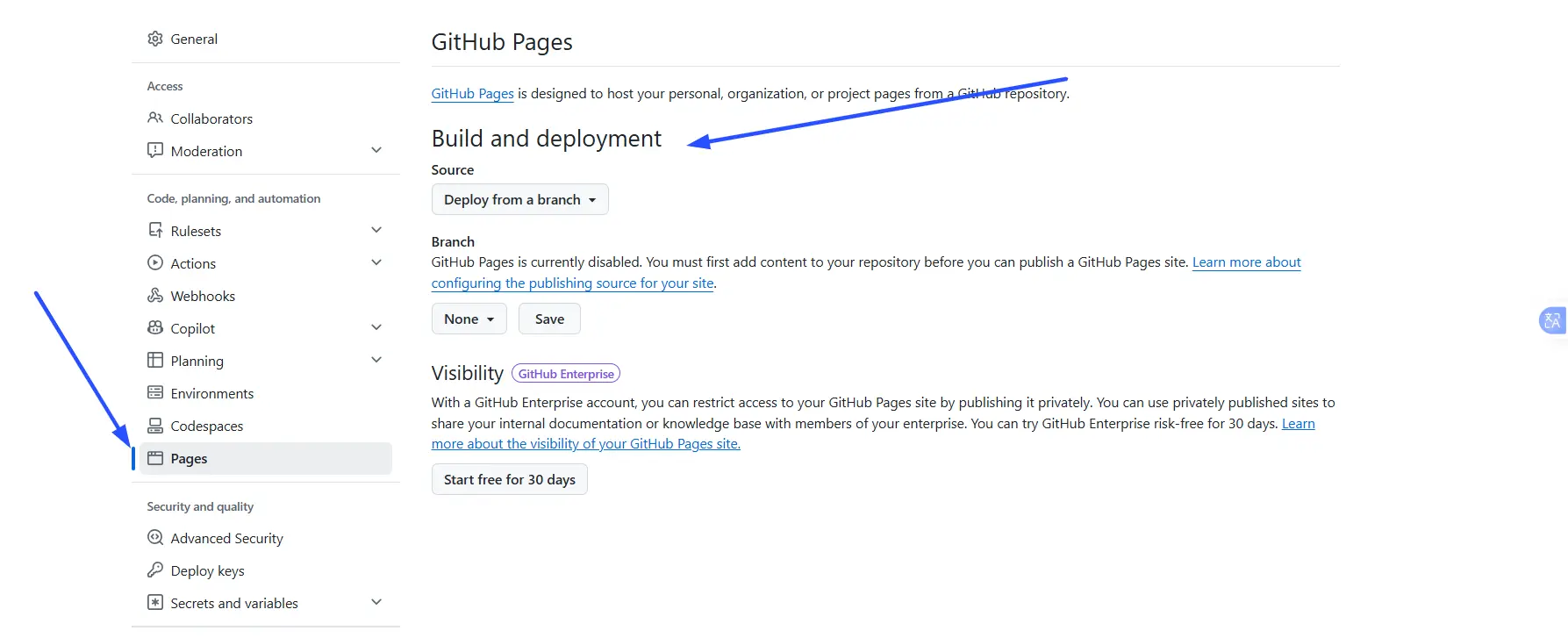
- Open the repository and go to Settings → Pages.
- Under “Build and deployment”, set Source to “Deploy from a branch”.
- Choose the branch, usually main.
- Choose the folder: / (root) or /docs.
- Click Save.
You need admin or maintainer permissions on the repository to change this setting.
5) Open your website
GitHub builds and publishes the site automatically, and the address appears at the top of the Pages settings. Changes can take up to 10 minutes to go live after each push. If the site still looks unchanged after an hour, open the Actions tab and look at the latest workflow run for errors.
When to add a .nojekyll file
Publishing from a branch passes your files through Jekyll, a site generator, by default. Jekyll ignores files and folders whose names begin with an underscore, so a folder like _assets would never be served. If your site has any, add an empty file named .nojekyll to the root of the published folder, and Jekyll is skipped.
One thing to avoid
If you publish from /docs and later delete or rename that folder, the build fails with a missing-folder error. Restore the folder or choose a new one in Settings → Pages.
Method B: Deploy With GitHub Actions
Use this when your site must be built first, for example with Hugo, Jekyll or a JavaScript static site generator.
- In Settings → Pages, set Source to “GitHub Actions”. GitHub then suggests workflow templates for common setups.
- Create a workflow file in .github/workflows/. GitHub’s templates run on every push to the default branch and can also be started by hand from the Actions tab.
- In the workflow, check out the repository with actions/checkout, then run your build command, such as npm run build.
- Upload the output folder with actions/upload-pages-artifact.
- Publish it with actions/deploy-pages. This step is skipped when the run was triggered by a pull request.
- Push your changes and watch the run in the Actions tab.
The templates deploy to an environment called github-pages, which GitHub creates if it does not exist. GitHub recommends a deployment protection rule so only the default branch can deploy to it.
A side benefit: the soft limit of 10 builds per hour does not apply to sites built and published with a custom workflow.
Check Your Live Website
Confirm the deployment finished in the Pages settings or the Actions tab, then open the live URL and test:
- The homepage and every navigation link
- CSS, so styling loads
- Images
- JavaScript features
Project sites live under a sub-path, so a link like /style.css points at the wrong place. Use relative paths such as style.css or ./images/logo.png.
Using a Custom Domain
You can replace the default github.io address with your own domain. Do the steps in this order.
- Add the domain in GitHub first. Go to Settings → Pages → Custom domain and enter it. Doing this before changing DNS lowers the risk of someone else claiming the domain for their own Pages site.
- Verify ownership (recommended). In your profile or organization settings under Pages, choose Add a domain and create the TXT record GitHub shows. Verification covers the domain and its immediate subdomains and blocks takeovers. Keep the TXT record in place afterwards. Avoid wildcard DNS records such as *.example.com, which GitHub warns create takeover risk even on verified domains.
- Update DNS. The record depends on the domain type:
| Domain type | Example | DNS record |
| Apex | example.com | The A (or related) records GitHub documents for Pages |
| Subdomain | www.example.com | CNAME pointing to username.github.io |
- Wait for DNS. Changes can be immediate or take up to 24 hours. You can check with dig.
- Enable HTTPS. Pages supports HTTPS on custom domains, though it can take a while to become available. Once it does, tick Enforce HTTPS. If you use CAA records, they must allow Let’s Encrypt to issue certificates.
Copy the apex IP addresses from GitHub’s current documentation rather than from a blog post, since third-party guides can go out of date.
Troubleshooting Common Problems
| Problem | What to check |
| 404 error | The correct branch and folder are selected, and index.html is in that folder. |
| Custom domain stops working | When publishing from a branch, the domain is stored in a CNAME file. A build or deploy process that overwrites the branch without it drops the domain, so keep the file in your published output. With a GitHub Actions source, set the domain in Settings instead; a CNAME file there does not add or remove it. |
| Broken CSS, images or links | File paths. Relative paths are safer for project sites. |
| HTTPS or URL problems | Avoid repository names with leading, trailing or consecutive dashes. |
| Site not updating after a push | Wait up to 10 minutes, then check the workflow run. Commits pushed by a workflow using the default GITHUB_TOKEN do not trigger a Pages build. |
Outgrown Static Hosting? Your Next Step
GitHub Pages is a good place to start, but it has limits.
- Public repositories on Free. Pages is available for public repositories on GitHub Free, so anyone can read your source. Private repositories need GitHub Pro, Team or Enterprise Cloud.
- Size. Published sites may be no larger than 1 GB, and source repositories have a recommended limit of 1 GB.
- Bandwidth. The soft limit is 100 GB per month. Heavy traffic can bring a warning email, rate limiting (HTTP 429) or a site that cannot be served.
- Builds. A soft limit of 10 builds per hour applies to branch deployments, and deployments time out after 10 minutes.
- Commercial use. Pages is not allowed for running an online business, e-commerce site or SaaS product, and should not handle sensitive transactions such as passwords or card numbers.
If you hit these, you have outgrown free static hosting. A VPS gives you dedicated resources and full root access, and it can run what Pages cannot: PHP, databases, and Node.js apps.
Truehost offers VPS plans with free migration and a 30-day money-back guarantee; check the current terms on their site before you buy.