 Domain SearchInstantly check and register your perfect .pk or international domain
 Web HostingGet a .pk domain for as low as PKR 467
 cPanel HostingUser-friendly hosting powered by cPanel
 Reseller HostingLaunch your own hosting business with minimal technical requirements
 Windows HostingOptimized for Windows-based applications and websites
 Affiliate ProgramEarn referral commissions by promoting our services
 WordPress HostingFast & Reliable WordPress Hosting
 Domain TransferMigrate your existing domain seamlessly with zero downtime.
 All DomainsAccess 324+ top-level domains (TLDs) worldwide from a single platform
 Whois LookupIdentify the owner of any domain using our whois and rdap lookup tool
 Managed VPS Hosting
 AI Website BuilderCreate beautiful websites effortlessly using intuitive drag-and-drop features
 Online ShopLaunch a professional online shop with no technical skills required
 BlogDiscover expert guides on hosting, websites, SEO, and digital growth strategies
 ContactGet instant assistance via live chat or email
 SupportAccess help articles, tutorials, and service documentation
 SSL CertificatesEncrypt data, build trust, and boost SEO.
Pakistan had about 117 million internet users at the start of 2026, according to DataReportal. Many of those people and businesses want a website that loads fast, stays secure, and costs little.
AWS can deliver that. It runs on a global network, and it performs well for visitors across Pakistan. But it can feel complicated, and bills can surprise beginners.
This guide shows you how to host a website on AWS in simple steps. You will end up with a static site that loads fast and runs on HTTPS.
What you will learn
- Set up an AWS account
- Connect your domain with Route 53
- Store files on S3
- Add free SSL with AWS Certificate Manager
- Speed up the site with CloudFront
- Point your domain to the website
Let’s start with the account.
Getting Started
Before you host a website on AWS, you need an account. It takes about ten minutes.
Create a free AWS account. You need an email address and a credit or debit card.
Current Free Tier
This applies to accounts created after 15 July 2025. New accounts get $100 in credits at sign-up. You can earn another $100 by finishing onboarding tasks, for a total of up to $200.
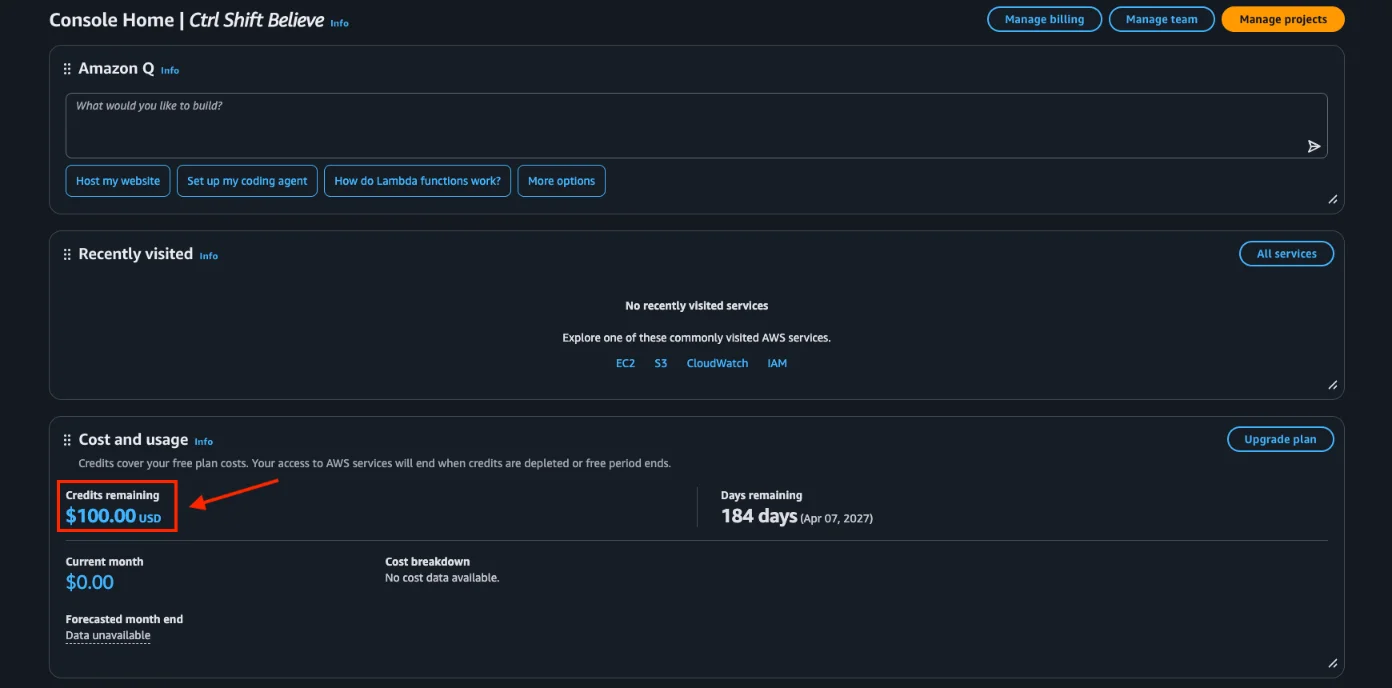
The tasks are:
- Launch an instance on Amazon EC2
- Try a model in the Amazon Bedrock playground
- Set up a budget in AWS Budgets
- Build a web app with AWS Lambda
- Create an Amazon RDS database
A quick warning: AWS says the EC2, Bedrock, Lambda and RDS tasks use real resources. Their costs come out of your credits.
You then choose between two plans:
- Free plan: Zero charges. It ends after 6 months, or when your credits run out, whichever comes first.
- Paid plan: Your credits are used first. Standard billing starts only after they are gone.
Both plans include 30+ always-free services, within monthly limits. For a static site, the useful ones are:
- CloudFront: 1 TB of data transfer out and 10 million requests per month
- Free SSL certificates through ACM
That is enough for a small business site, a portfolio, a blog, or a student project.
Tip: The free plan is the safest start. It cannot bill you. You can upgrade later with one click.
Main tools used
You will use four services:
- Route 53: DNS. It tells browsers where your site lives.
- S3: File storage. Your HTML, CSS, JS and images sit here.
- ACM: SSL certificates for HTTPS.
- CloudFront: A CDN. It serves your site from servers near your visitors.
Next, the part everyone worries about: money.
Costs
A small static site usually stays inside the free allowances. After your credits end, expect only a few hundred PKR per month at most.
Here is where each cost comes from:
| Service | What you pay | Source |
|---|---|---|
| S3 | Your credits cover storage at the start. After that, small sites pay very little. | AWS S3 pricing |
| CloudFront | 1 TB + 10 million requests free every month | AWS CloudFront pricing |
| Route 53 | $0.50 (PKR 139) per hosted zone per month, plus $0.40 (PKR 111)per million queries | AWS Route 53 pricing |
| ACM | Free for public certificates used with CloudFront | AWS ACM pricing |
One detail saves you money. Queries to an alias record that points at CloudFront cost nothing extra. So Route 53 is mostly the $0.50 (PKR 139) zone fee.
Always watch the numbers. Open the AWS Billing dashboard and set a budget with an alert. It takes two minutes and prevents surprises.
Flat-rate option
CloudFront also has newer flat-rate plans. They suit you if you want one fixed price with no overage charges.
- Free: $0 per month
- Pro: $15 (approx. PKR 4,156) per month
- Business: $200 (approx. PKR 55,400) per month
- Premium: from $1,000 (approx. PKR 277,055) per month
The plans also bundle security tools like a web application firewall and DDoS protection. You do not need them for a simple site.
Want a fixed local price in rupees instead? Our hosting plans at Truehost Pakistan bill in PKR. More on that near the end.
Step 1: Configuring DNS with Route 53
Your domain is your web address. An example is yourbusiness.pk or yourbusiness.com.pk.
Without it, visitors would type a long AWS address. A domain makes your site easy to find and remember.
Buy your domain
We at Truehost recommend you buy your domain with us. You get local support and PKR pricing.
Current Truehost.pk price: From ₨54,721.04
Steps
- After you buy your domain from us at Truehost, sign in to your AWS account.
- In the search bar, type Route 53 and open it.
- If you see the Get started screen, select Create hosted zones and click Get started. If you land on the Hosted zones page instead, click Create hosted zone.
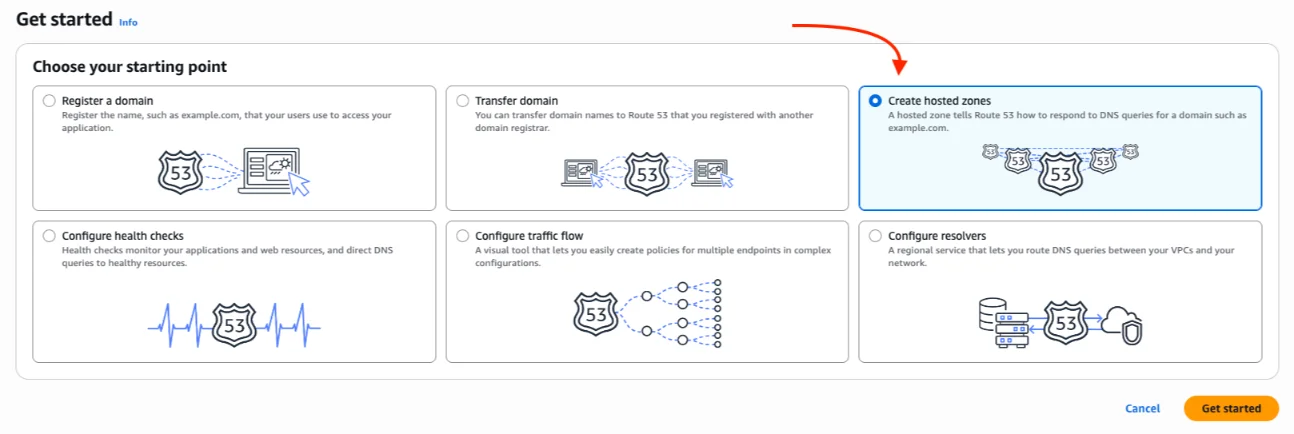
- In Domain name, type your domain, for example
yourbusiness.pk.
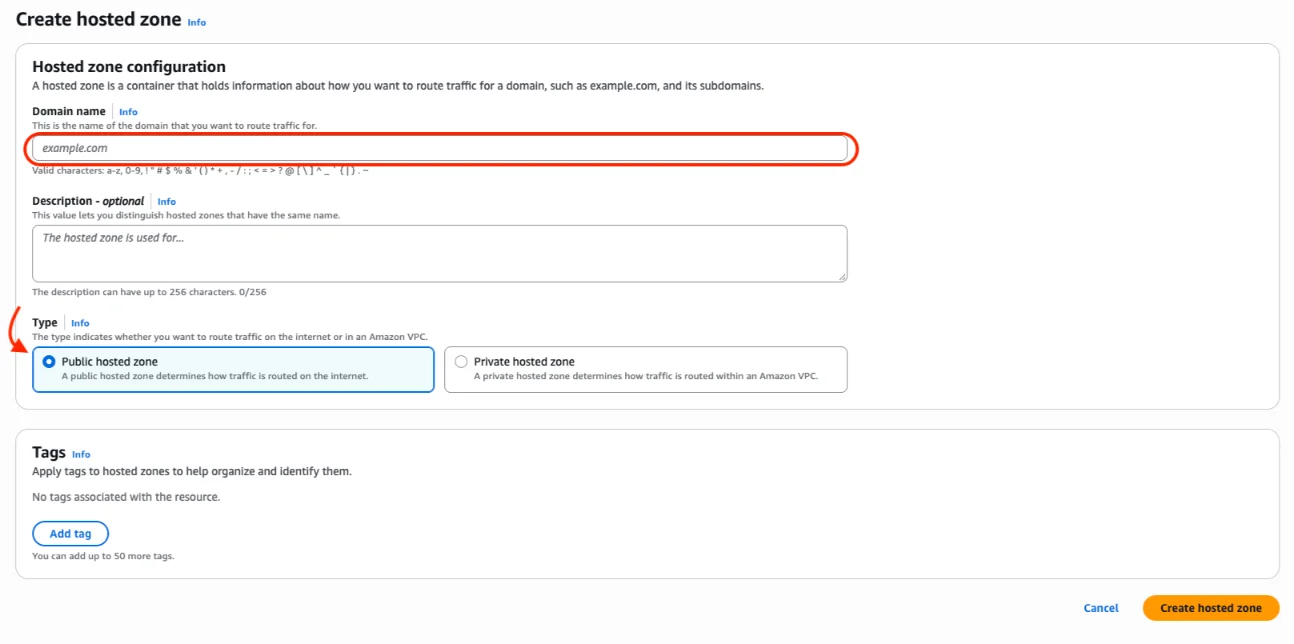
- Leave Description empty. Under Type, keep Public hosted zone selected.
- Click Create hosted zone. AWS shows a green message saying the zone was successfully created.
- In the Records table, find the row with the type NS. Copy the four values under Value/Route traffic to.
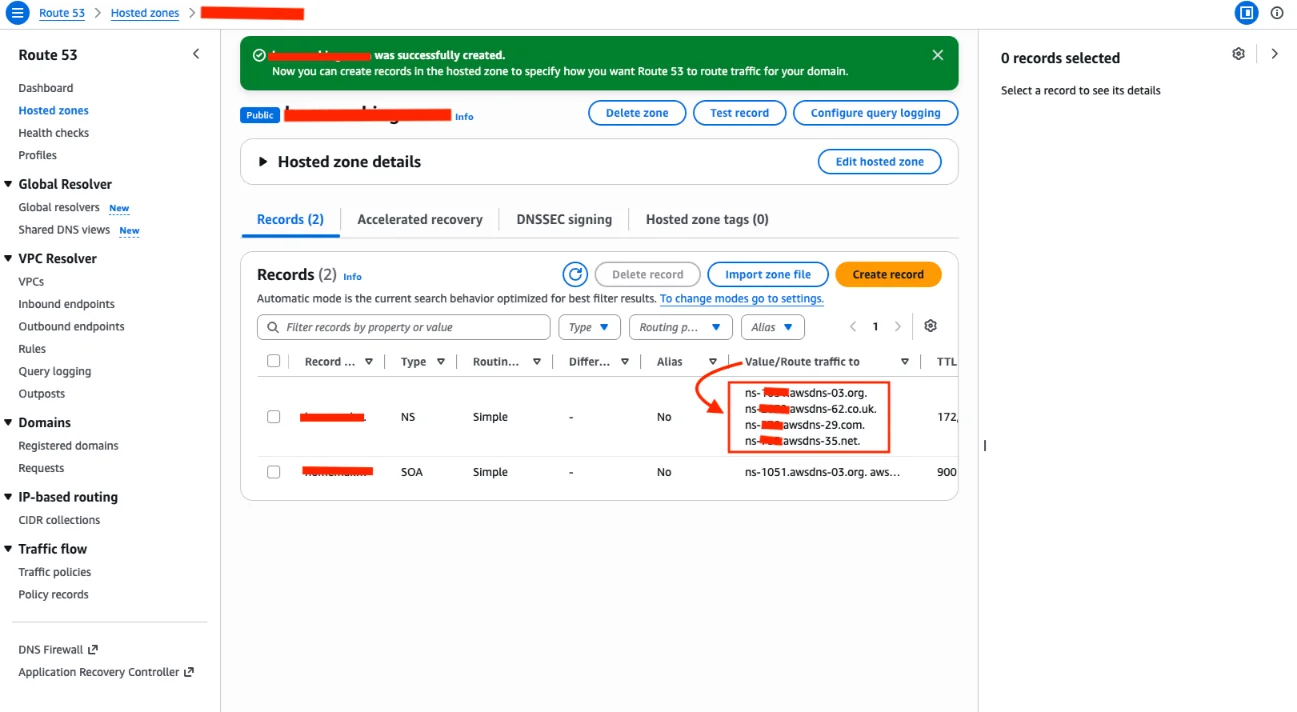
- Log in to Truehost.pk (or your registrar). Replace the nameservers with the four from AWS.
- Wait for propagation. It can take up to 48 hours, though it is often faster.
Good to know: AWS gives each hosted zone its own four nameservers, so yours will differ from anyone else’s. If the values look cut off, widen your browser window or click the NS row to see them in full.
Do this first. The later steps need your domain to resolve.
Record types
You will see a few record types in Route 53. Here is what each one does:
| Record | What it does |
|---|---|
| A | Points a domain name to an IP address or an AWS resource |
| CNAME | Points one name to another name, like www to your root domain |
| MX | Routes your email to a mail server |
| TXT | Holds text for verification and email security, like SPF |
Next, you will give your site a home.
Step 2: Setting Up an S3 Bucket
S3 is ideal for static websites. That means HTML, CSS, JS and images.
It does not run server code. If you need PHP or a database, jump to the hosting alternatives below.
Steps
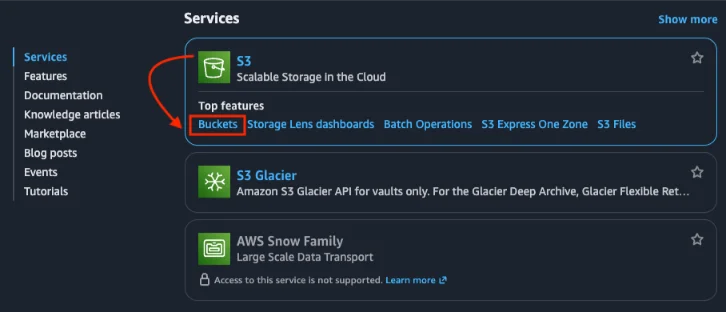
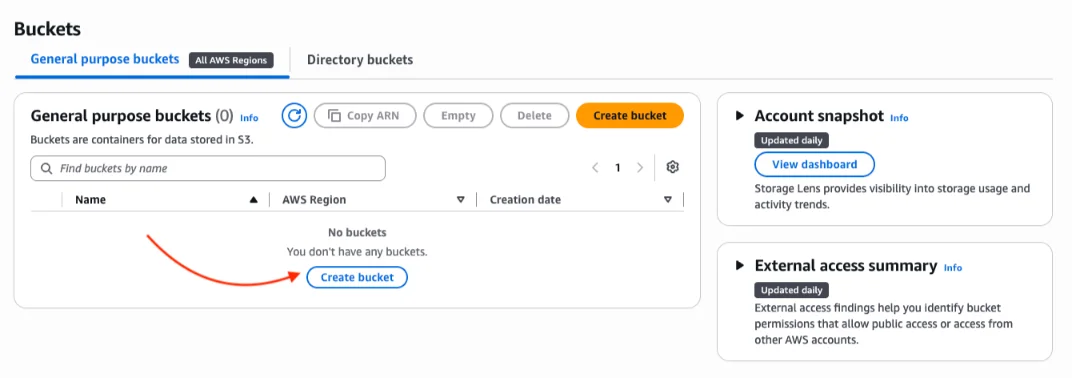
- Sign in to AWS and open S3. On the Buckets page, click Create bucket.
- On the form, look at the AWS Region line under General configuration. This is the region your bucket will be created in.
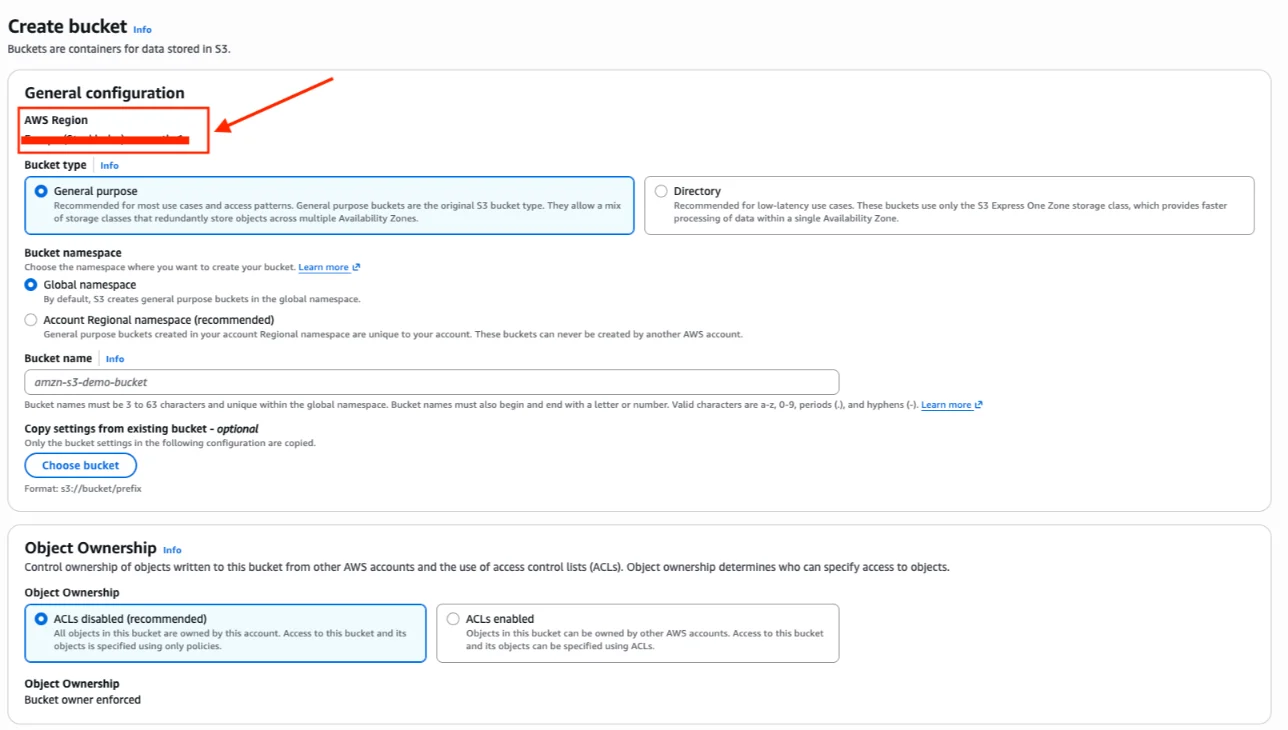
- For Pakistan, I suggest Asia Pacific (Mumbai) ap-south-1. It is the closest AWS region on the map. Bahrain (me-south-1) is also a strong option.
- If the form shows a different region, cancel and change the region using the region menu in the top bar of the AWS console. Then click Create bucket again.
- Keep Bucket type on General purpose and Bucket namespace on Global namespace.
- In Bucket name, type your domain, for example
yourbusiness.pk. - Leave Object Ownership on ACLs disabled (recommended).
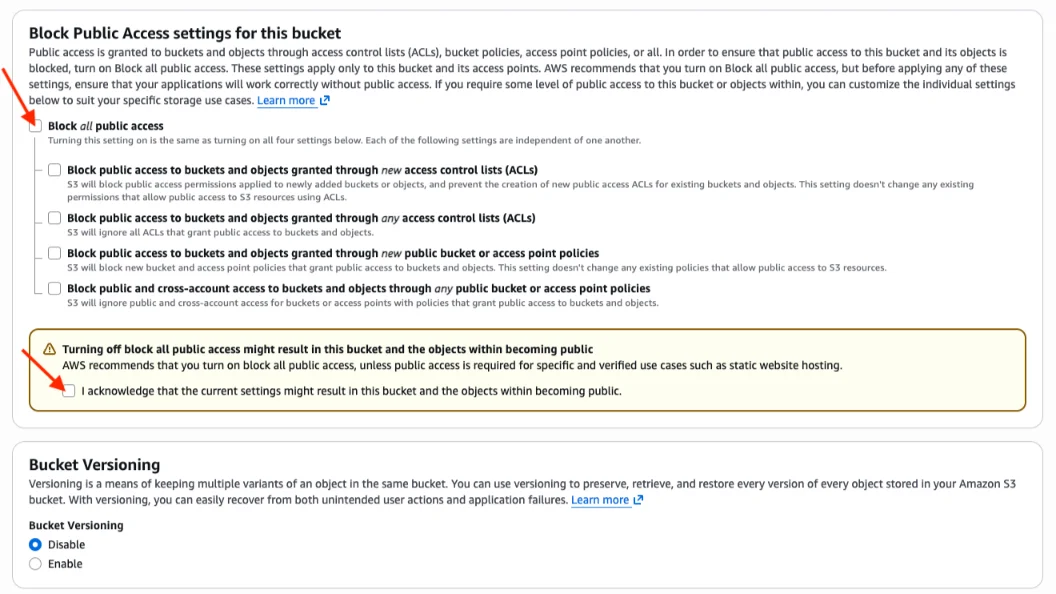
- Under Block Public Access settings for this bucket, untick Block all public access. Tick the acknowledgement box that appears.
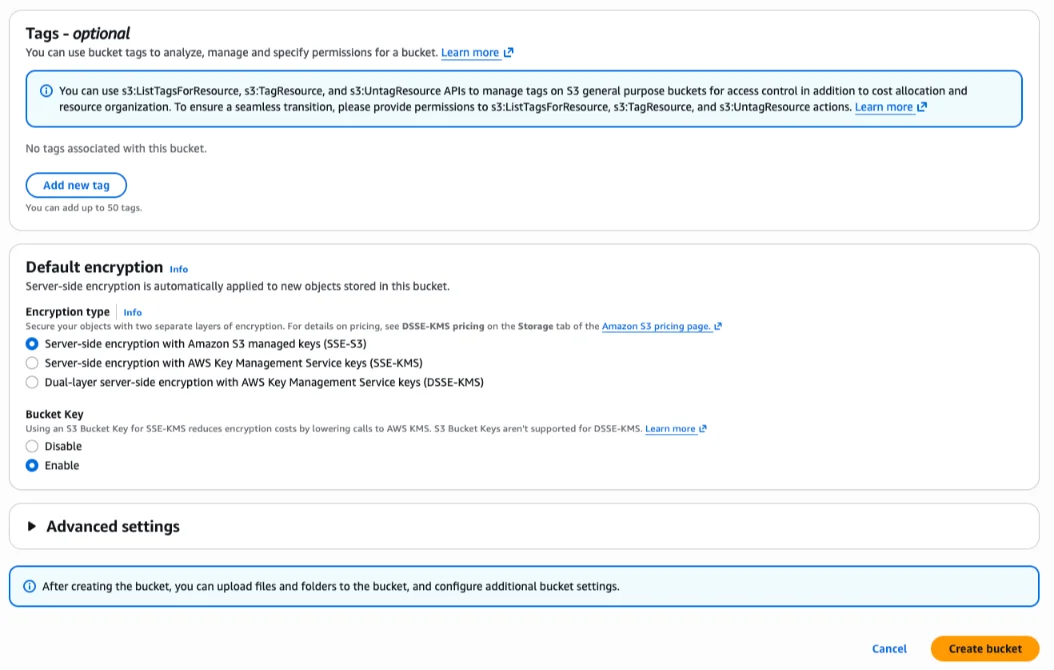
- Leave Bucket Versioning, Tags and Default encryption as they are. Keep SSE-S3 selected.
- Click Create bucket.
- Open your new bucket and upload your files. Make sure index.html is in the root.
- Open the Properties tab. Find Static website hosting, click Edit, and choose Enable. Set the index document to index.html.
- Open the Permissions tab. Under Bucket policy, add the policy below. Replace
yourbusiness.pkwith your bucket name.
{
  "Version": "2012-10-17",
  "Statement": [
    {
      "Sid": "PublicReadGetObject",
      "Effect": "Allow",
      "Principal": "*",
      "Action": "s3:GetObject",
      "Resource": "arn:aws:s3:::yourbusiness.pk/*"
    }
  ]
}
- Test the S3 website endpoint. It looks like
http://yourbusiness.pk.s3-website.ap-south-1.amazonaws.com.
Good to know: AWS states that S3 website endpoints do not support HTTPS. That is why you need CloudFront and a certificate. You set both up next.
A note on risk: This policy makes every file in the bucket public. Never upload private files here.
Step 3: Adding an SSL Certificate with ACM
HTTPS keeps data private between your visitor and your site. Browsers warn users away from sites without it. Google also asks site owners whether their pages are served securely, as part of its page experience guidance.
ACM certificates are free and auto-renew. Auto-renewal works when you use DNS validation and keep the validation record in place.
Important: Certificates for CloudFront must be requested in the us-east-1 region. Request one anywhere else and CloudFront will not see it.
Steps
- Switch your region to us-east-1 (N. Virginia).
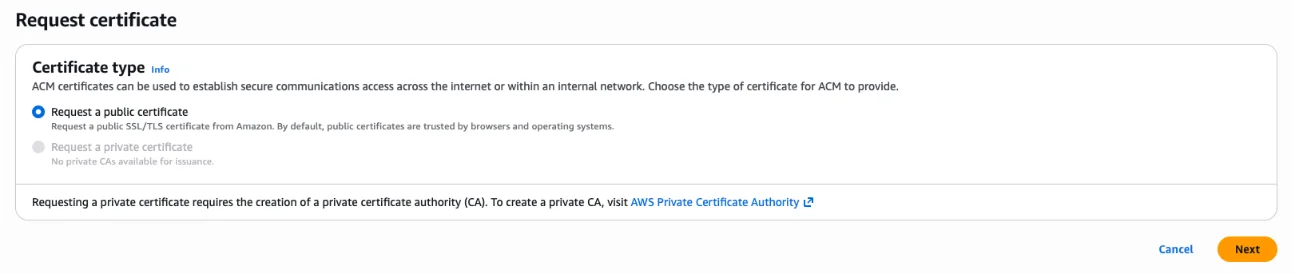
- Open Certificate Manager and click Request a public certificate.
- Add your domain and the www version, such as
yourbusiness.pkandwww.yourbusiness.pk. - Choose DNS validation. Click Create records in Route 53.
- Wait until the status shows Issued. It usually takes a few minutes.
Your certificate is ready. Time to put it to work.
Step 4: Speeding Up Your Site with CloudFront
CloudFront is a CDN. It caches your site at edge locations closer to users in Pakistan. That means faster loading. AWS says CloudFront has over 750 edge locations worldwide.
We use the classic distribution setup here. It works with the always-free 1 TB and 10 million requests.
Steps
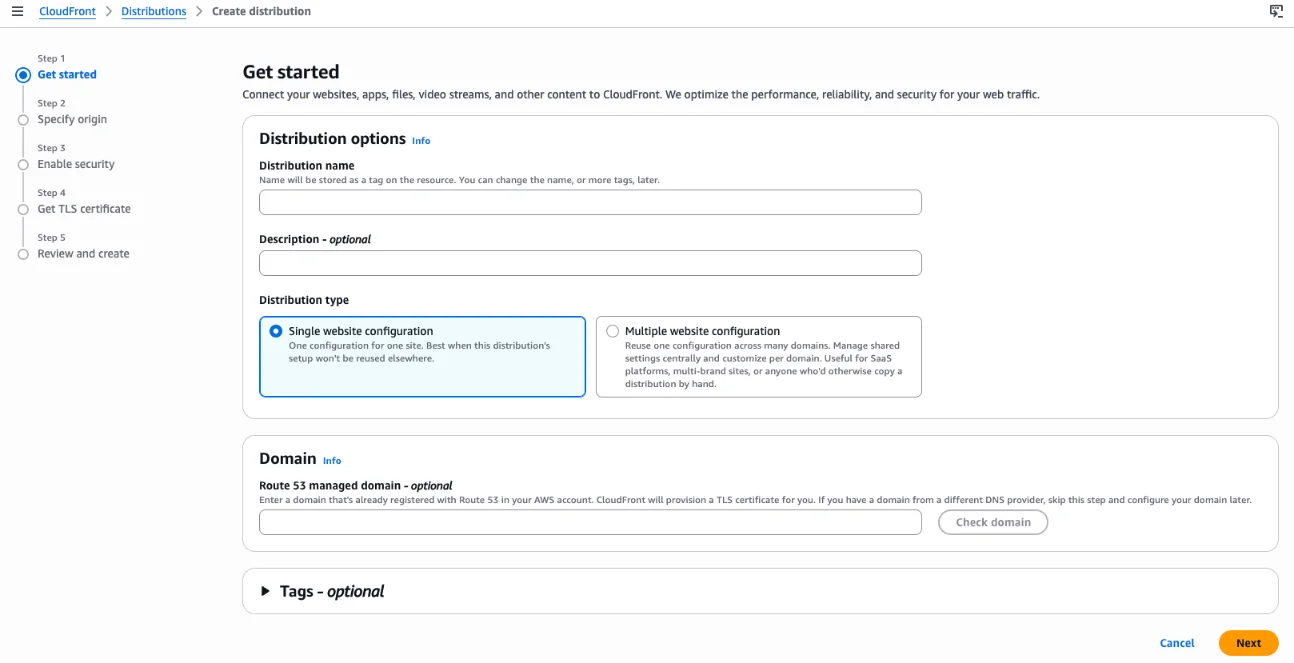
- Open CloudFront, then click Create distribution.
- For the origin, paste your S3 website endpoint. Do not pick the bucket from the dropdown.
- Set the origin protocol to HTTP only. The website endpoint does not speak HTTPS.
- Set the viewer protocol to Redirect HTTP to HTTPS.
- Add your CNAMEs:
yourdomain.pkandwww.yourdomain.pk. - Select the ACM certificate from Step 3.
- Set the default root object to index.html.
- Click Create distribution and wait for deployment. It can take up to 30 minutes.
- Test the CloudFront domain, which ends in cloudfront.net.
Small static sites almost always stay inside the free 1 TB and 10 million requests.
Alternative: flat-rate plans
Newer flat-rate plans exist. They are Free at $0, Pro at $15 (approx. PKR 4,156), Business at $200 (approx. PKR 55,400), and Premium from $1,000 (approx. PKR 277,055).
Pick one if you want a single fixed monthly price. They also include WAF and DDoS protection. Per AWS, the plans have no overage charges.
The trade-off: the Free plan has a lower allowance than the classic setup. It includes 1 million requests and 100 GB per month.
Your site is fast and secure. One last step connects it to your domain.
Step 5: Pointing Your Domain to CloudFront
You are back in Route 53 for this one.
In Route 53
- Create an A record (Alias) for the root domain. Point it to your CloudFront distribution.
- Create an A record for www. Choose Alias and point it to the same distribution.
- Wait a few minutes. Then test your domain with HTTPS.
Type https://yourdomain.pk in your browser. You should see a padlock and your homepage.
If it fails, check three things. Are the nameservers updated? Are the CNAMEs in CloudFront correct? Is the certificate in us-east-1?
Local Pakistani Hosting Alternatives
AWS gives you full control, global performance and very low cost for a static site. But it needs more technical steps: S3, CloudFront, Route 53 and certificates.
Local Pakistani hosting is a simpler path. You get a fully managed service, local support and PKR billing.
Truehost (recommended local option)
We at Truehost offer shared hosting from ₨3,391.80 per year. Our plans include:
- Free SSL certificate
- Daily automatic backups
- One-click WordPress installation
- Unlimited email accounts
- 24/7 local support by phone, chat and email
- Billing in Pakistani Rupees, with no dollar conversion surprises
See our shared hosting plans for details.
Outgrowing a static site? We also offer:
- VPS hosting for apps and busy WordPress sites
- Dedicated servers for heavy workloads
- n8n hosting to run your automations
- OpenClaw hosting and AI Workers for AI-powered tasks
See all of them on the Truehost Pakistan website.
Other local providers
These providers offer similar managed hosting:
- MiddleHost
- WebSouls
- Hostbreak
Managed hosting suits you best if you want to focus on content or business. You skip the work of managing servers, DNS and CDN settings.
Let’s wrap it up
You now have a fast, secure static website on AWS, ready for visitors across Pakistan. Here is what you did:
- Created your AWS account and picked a plan
- Set up a Route 53 hosted zone and updated your nameservers
- Created an S3 bucket and turned on static website hosting
- Requested a free ACM certificate in us-east-1
- Built a CloudFront distribution with HTTPS
- Pointed your domain to CloudFront with alias records
One piece of advice: check the AWS Billing dashboard often. A budget alert is your best protection against unexpected charges.
That is how you host a website on AWS without the guesswork.
Prefer a simpler, fully managed solution with local support?
Check Truehost Pakistan’s hosting plans, starting from just ₨3,391.80 per year. You get free SSL, daily backups, one-click WordPress, PKR billing and 24/7 local support.