 Domain SearchInstantly check and register your perfect .pk or international domain
 Web HostingGet a .pk domain for as low as PKR 467
 cPanel HostingUser-friendly hosting powered by cPanel
 Reseller HostingLaunch your own hosting business with minimal technical requirements
 Windows HostingOptimized for Windows-based applications and websites
 Affiliate ProgramEarn referral commissions by promoting our services
 WordPress HostingFast & Reliable WordPress Hosting
 Domain TransferMigrate your existing domain seamlessly with zero downtime.
 All DomainsAccess 324+ top-level domains (TLDs) worldwide from a single platform
 Whois LookupIdentify the owner of any domain using our whois and rdap lookup tool
 Managed VPS Hosting
 AI Website BuilderCreate beautiful websites effortlessly using intuitive drag-and-drop features
 Online ShopLaunch a professional online shop with no technical skills required
 BlogDiscover expert guides on hosting, websites, SEO, and digital growth strategies
 ContactGet instant assistance via live chat or email
 SupportAccess help articles, tutorials, and service documentation
 SSL CertificatesEncrypt data, build trust, and boost SEO.
You don’t need a disaster to make hosting problems expensive. If your site is simply slow, you’ll lose traffic.
A hacked site costs you trust and possibly customer data; emails that don’t arrive mean lost orders, missed messages, and frustrated clients; and downtime during a busy sales period can cost you thousands in just a few hours.
Most hosting happen for predictable reasons: Images get too large, plugins conflict with each other, DNS records get changed by accident, storage fills up with old backups nobody remembered to delete.
This guide walks through the nine hosting problems that come up most often. For each one, you’ll get a clear explanation of what’s going wrong and practical steps to fix it.
Some fixes take five minutes. Others might point you toward a hosting plan that actually fits what your site has become.
9 Common Hosting Issues + Fixes
1) Slow Website
A slow site is sometimes the first warning sign that something else is wrong. On shared hosting, you’re drawing from a pool of server resources shared with other accounts.

Slowness usually comes from one of two directions: something on your site is inefficient, or your traffic has grown enough that you’re regularly pushing against your plan’s CPU and memory limits.
The symptoms are similar from the outside. Both produce pages that take longer to load, especially during traffic spikes.
Start with the free fixes:
- Enable caching if it isn’t already active
- Compress and resize images before uploading them rather than after
- Deactivate any plugin you’re not actively using, because most plugins add their own CSS and JavaScript files that slow down page rendering.
- Check that your site runs on a current PHP version through your hosting control panel.
Images are usually the biggest culprit. On most sites, images account for most bandwidth consumption. One uncompressed photo can be 10 to 20 megabytes when it should be under 500 kilobytes.
Run your site through a performance testing tool to see what’s actually dragging you down.
If performance stays sluggish after caching, image optimization, and plugin cleanup, check your resource usage graphs in the control panel.
A steady upward trend means your site’s requirements are growing. That’s not a performance bug. That’s your site telling you it has outgrown its current plan.
2) Email Issues
You’ve got a business email attached to your domain, but messages aren’t arriving. Or they’re being flagged as spam. Or your contact form says “message sent” but nothing shows up in your inbox.
Email problems mostly come down to DNS records. Specifically, check three records: SPF, DKIM, and DMARC.
Log into your hosting control panel and verify your SMTP, IMAP, and POP3 email settings. Then check your DNS records to make sure your MX records point to the right server.
If you’re using Cloudflare for DNS, make sure the MX record is not proxied. Cloudflare’s proxy doesn’t work for mail.
Check if your email client or internet provider is blocking outgoing SMTP connections. If you’re on port 25, try switching to port 587 or 465 instead. ISPs often block port 25 to prevent spam.
One missing character in your DNS records is enough to break email delivery. Use a tool like MXToolbox to scan your setup and see exactly what’s wrong.
3) Security Breach
You open your site, and it’s redirecting to something spammy, or a visitor emails you saying their antivirus flagged your site as unsafe, or you notice files in your hosting panel that you definitely didn’t create.
Most website compromises stem from basic security hygiene failures: outdated WordPress plugins, weak admin passwords, or simply not keeping your core software updated.
Hackers don’t need to be geniuses; they just look for sites that haven’t been maintained.
If you suspect your site has been hacked, change your passwords immediately.
That means your hosting control panel password, your FTP credentials, your database password, and every WordPress administrator account password.
Hackers leave backdoors so they can get back in even after you think you’ve cleaned things up.
Use a security plugin like Wordfence or Sucuri to scan your files for malicious code. If you find infected files, restore them from a clean backup if you have one.
If you don’t have a backup, you’ll need to manually clean the injected code or hire someone who can do it properly.
Going forward, enable automatic updates for WordPress core and plugins. Use strong passwords that you don’t reuse anywhere else.
Set up two-factor authentication on your admin accounts. These three steps prevent most attacks.
4) Website Downtime
Start by checking your domain. An expired domain is a more common cause than most people expect.
Log into your registrar account and check the expiration date.
If the domain is fine, check your DNS settings. Recent DNS changes can take 24 to 48 hours to propagate across the internet fully.
During that window, your site might load for some visitors and fail for others. Don’t make further DNS changes mid-propagation because that resets the clock.
Check whether the problem is on your end or the host’s end. Try accessing your site from a different network or using mobile data instead of Wi-Fi.
If it loads on mobile data but not your home internet, the problem is your local network or ISP, not your hosting.
If nothing works and your hosting control panel is also unreachable, the issue is likely on the host’s side.
Check their status page for reported incidents. If you don’t see anything, contact support with your domain name, the exact error message, and the approximate start time of the outage.
5) Not Enough Storage
Running out of storage can show up as failed uploads, broken backups, or emails that stop arriving.
Old backups and log files pile up because nobody cleans them out. Your media library grows with every image and video you upload.
Email storage counts against the same quota as your website files. Leftover files from old themes or plugins often sit in your file manager and take up space.
But don’t start deleting things unthinkingly. Open the disk usage breakdown in your hosting control panel. It shows what’s taking up space, so you’re not guessing.
Clear old backups and log files first since those are usually the largest and safest to remove.
Next, empty your email trash and spam folders.
If your media library is the main driver, compress existing images rather than deleting them, or move large files to an external service and link to them instead of hosting them directly.
If storage remains consistently full after cleanup, compare your usage with what higher hosting tiers offer. You might simply need more room.
6) Database Errors
A database connection error means your site’s front end is fine, but it can’t talk to the database that stores your content.
On a CMS-driven site, this usually takes the whole site down.
The most common trigger is incorrect database credentials; this happens after a migration or a manual edit that went slightly wrong.
Open your configuration file (wp-config.php if you’re on WordPress) and check that the database name, username, password, and host match exactly what’s shown in your hosting control panel. One mismatched character can break everything.
If the credentials check out, log into phpMyAdmin and repair your database tables. Corruption after an interrupted update or a bad plugin is common enough to rule out early.
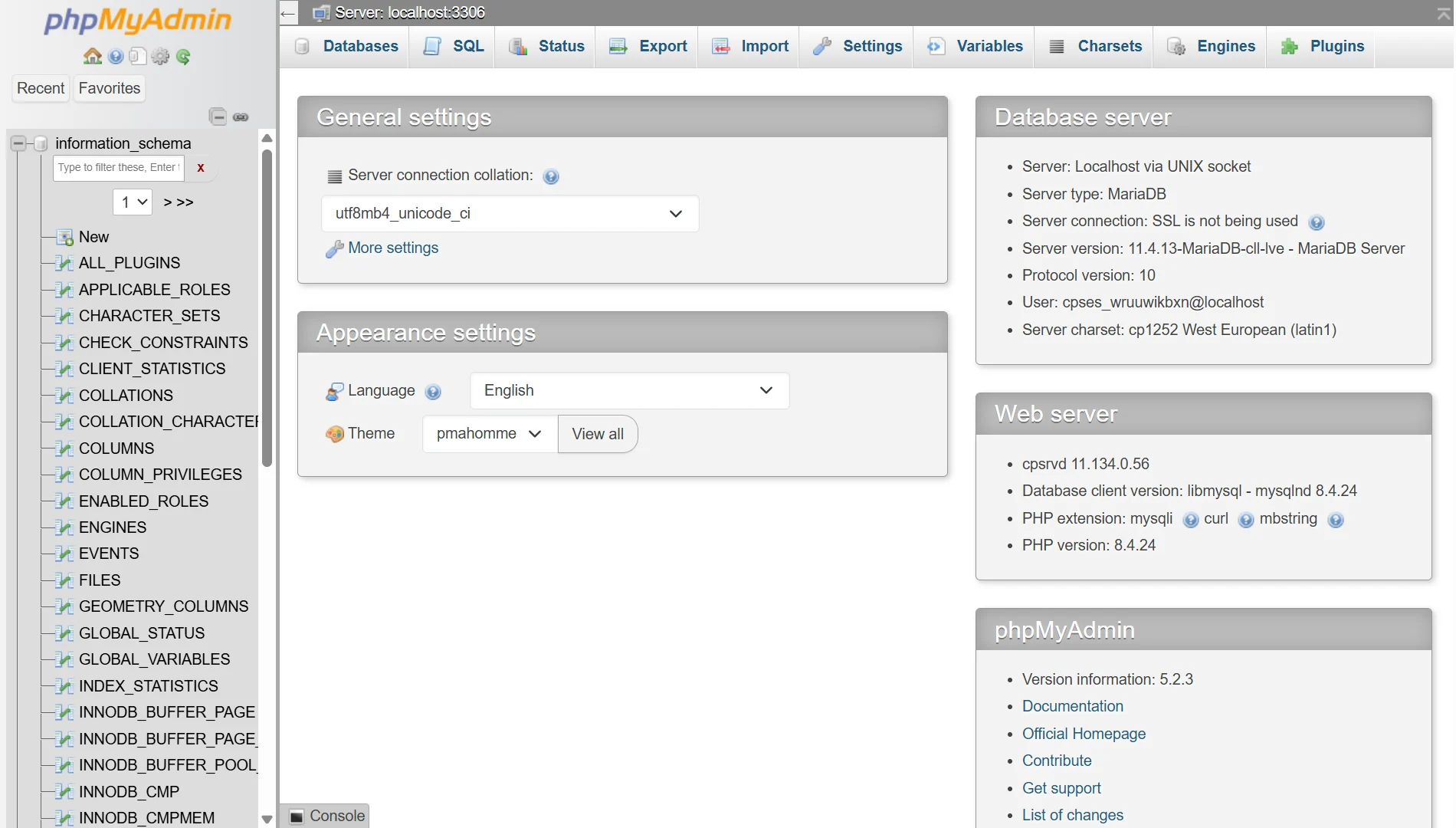
Next, check your control panel for a connection-limit warning. If you’re consistently hitting it, that’s a resource constraint, not a configuration bug. It points toward the same ceiling that causes slow performance.
If none of this resolves the issue and your control panel shows the database server itself as unresponsive, that’s on your host’s side. Contact them with the details.
7) Incompatible Plugins
Plugin conflicts are the most common WordPress-specific cause of crashes, especially when the site was fine until a recent update.
WordPress itself has a recovery mode that kicks in after fatal errors, but sometimes the conflict is severe enough that you can’t even access your admin dashboard.
The standard troubleshooting method is to deactivate all plugins and reactivate them one at a time.
Connect to your site via FTP or the hosting file manager and rename the plugins folder to something like plugins_old. WordPress will skip every plugin it can’t find. If the site loads, you know a plugin caused the crash.
Rename the folder back and toggle individual plugin folders to identify which one broke it.
If you can access your WordPress admin, go to the Plugins page, select all plugins, and choose Deactivate from the bulk actions menu.
Then reactivate them one by one, checking the site after each activation.
Once you identify the problematic plugin, check if there’s an update available. If there is, installing it might fix the conflict.
If not, contact the plugin’s support team or replace it with an alternative that does the same job.
8) DNS Issues
DNS is the system that translates your domain name into the IP address where your website lives. When DNS breaks, your site becomes unreachable even though the server itself is running fine.
You can spot DNS issues by testing your domain with a tool like whatsmydns.net. It shows whether your domain resolves correctly from different locations around the world.
If some locations work and others don’t, you’re probably mid-propagation. DNS changes can take 24 to 48 hours to fully spread, and there’s nothing you can do but wait.
The classic DNS failure after a hosting migration is nameservers still pointing at the old host.
Log into your registrar panel and verify the nameserver settings against what your new host specifies.
One extra check tells you which layer is at fault: if email for the domain is also down, the problem is wider than just the website and belongs to the domain or account level.
You can also use command-line tools like dig or nslookup to query your DNS records directly and see what they return.
These tools are a bit technical, but they give you definitive answers about whether your DNS is configured correctly.
9) Resources Overuse
If you are on a shared hosting plan, there are limits on CPU, memory, and the number of processes your account can run.
When your site regularly hits those limits, you’ll see error codes like 508, 500, or 503, or your site will just feel painfully slow.
The first step is knowing what’s causing the overuse.
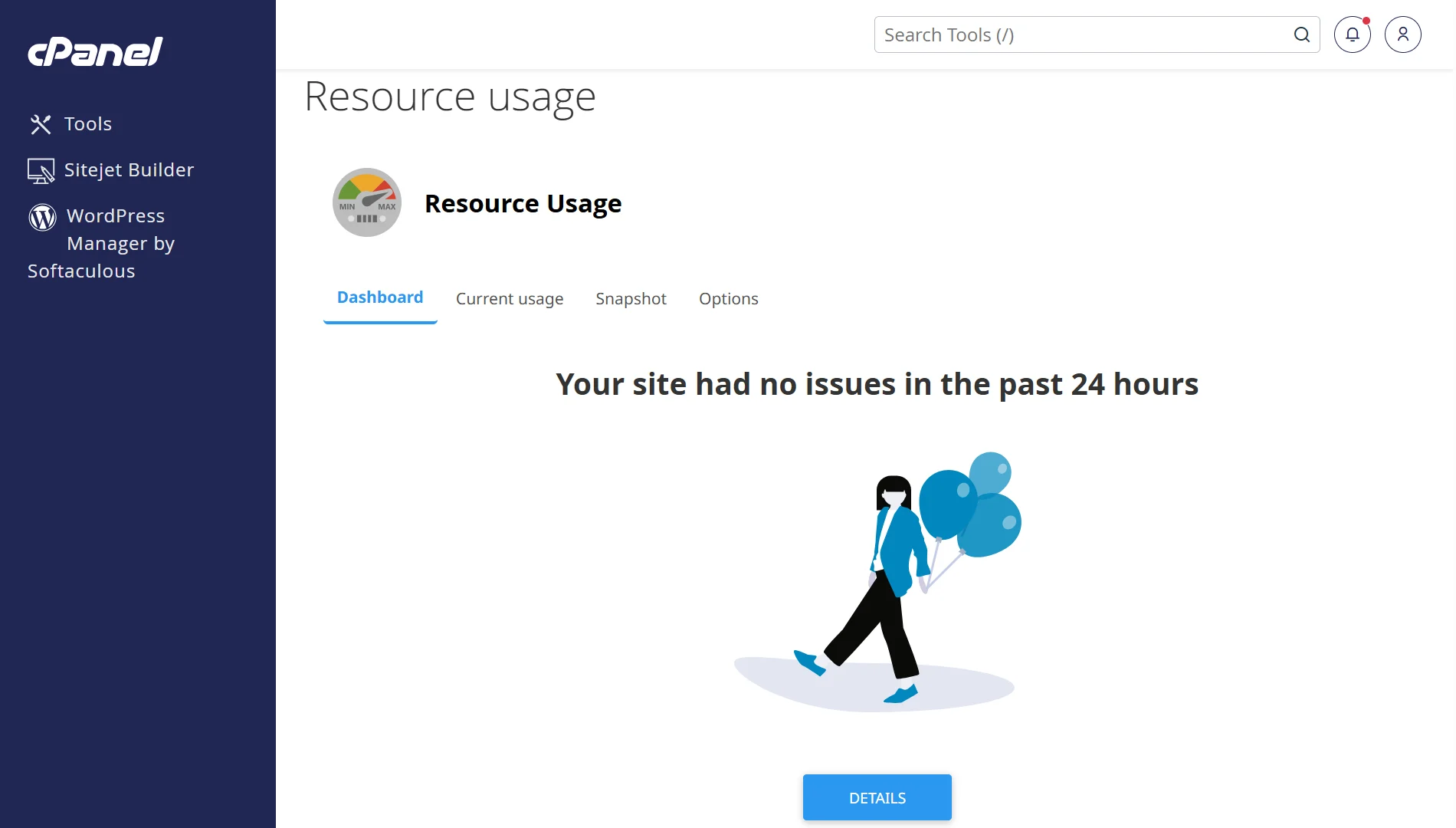
Check your resource usage in cPanel. If the issue lasted more than a few minutes, you can check active running processes at the time of overuse.
If it was a brief spike, look at the resource usage history over the past 30 days to spot patterns.
Common causes include recent site updates, a new plugin or theme that’s heavier than expected, or a traffic spike.
If you installed something new and then started having resource issues, disable it and monitor your usage for an hour.
If your traffic has genuinely grown and your site regularly hits limits, you’ve outgrown shared hosting.
A steady increase in resource usage means your site needs more room than the current plan can provide. So, you just need an upgrade.
Tired of Fixing Hosting Problems?
We know how exhausting it is to spend your time troubleshooting. That’s why we built TrueHost to be a host you can rely on, without constant issues.
We offer friendly support that helps when you need it. You get free SSL certificates and automated setup. Our cPanel dashboard is easy to use and more advanced than DirectAdmin.
And we have plans for every business need and budget:
| Plan | Annual Pricing (per month) | Best For |
| Starter | ₨282.65 | New websites, portfolios, student projects, blogs, brochure sites |
| Pro | ₨296.78 | Small businesses, blogs, company websites |
| Unlimited | ₨4,149.77 | Agencies, developers, eCommerce stores |
Every TrueHost plan includes high-speed SSD storage, readiness for WordPress, Joomla, and Drupal, unlimited custom email addresses, free SSL certificates, automatic daily backups, and one-click installs with Softaculous.
Plus, if you’re moving from another host, we’ll transfer your site for free. You save more over time with some of the lowest renewal rates in Pakistan.
You can host multiple websites even on our lowest plan using addon domains. And you get full nameserver control and DNS zone management right from your dashboard.
You can trust us with your website.