 Domain SearchInstantly check and register your perfect .pk or international domain
 Web HostingGet a .pk domain for as low as PKR 467
 cPanel HostingUser-friendly hosting powered by cPanel
 Reseller HostingLaunch your own hosting business with minimal technical requirements
 Windows HostingOptimized for Windows-based applications and websites
 Affiliate ProgramEarn referral commissions by promoting our services
 WordPress HostingFast & Reliable WordPress Hosting
 Domain TransferMigrate your existing domain seamlessly with zero downtime.
 All DomainsAccess 324+ top-level domains (TLDs) worldwide from a single platform
 Whois LookupIdentify the owner of any domain using our whois and rdap lookup tool
 Managed VPS Hosting
 AI Website BuilderCreate beautiful websites effortlessly using intuitive drag-and-drop features
 Online ShopLaunch a professional online shop with no technical skills required
 BlogDiscover expert guides on hosting, websites, SEO, and digital growth strategies
 ContactGet instant assistance via live chat or email
 SupportAccess help articles, tutorials, and service documentation
 SSL CertificatesEncrypt data, build trust, and boost SEO.
If you host more than one website, you already know how quickly things can get complicated. Between websites, DNS records, SSL certificates, redirects, and email, it’s easy to lose track of what’s configured where, especially when different tasks live in different places. cPanel solves this by bringing domain-related tools into a single, organized dashboard.
Whether you’re adding a new domain, wiring up DNS, securing a site with HTTPS, or setting up domain-specific email, knowing which cPanel tool to reach for and in what order will save you time and prevent the kind of small misconfigurations that cause outages, broken email, or SSL errors.
This guide walks through the key concepts and practical steps for managing your domains efficiently, securely, and without unnecessary guesswork.
1) Understanding Domain Types in cPanel
Before touching any settings, it helps to know exactly what you’re working with. cPanel organizes domains into a few distinct categories, and mixing them up is one of the most common sources of confusion for new users.
- Primary domain: the main domain tied to your hosting account. It’s typically served from the public_html folder and can’t be removed from the account; it’s the anchor everything else is built around.
- Addon domains: additional, fully independent websites hosted under the same account. Each addon domain can have its own document root, its own email accounts, and functions essentially like a separate site.
- Aliases (sometimes called parked domains): extra domain names that point to and display the same content as another domain. These are commonly used to protect a brand by capturing similar or common misspellings of a domain, or to let several domain names resolve to one site.
- Subdomains: extensions of your main domain, such as
blog.example.comorshop.example.com. A subdomain can serve content from its own dedicated folder or share an existing one, and it’s created automatically with its own DNS record. - Temporary domains: some hosts provide a temporary system-generated domain for testing a site before a real domain is connected. These often come with limitations around DNS control, email, SSL issuance, or search visibility, so they’re best treated as a staging tool rather than a long-term address.
The practical difference between these types comes down to how each one uses a document root, whether it supports its own email accounts, how it affects SEO, and how much of your hosting account’s resources it consumes.
Addon domains behave like separate websites and use resources accordingly, while aliases are lightweight because they simply mirror existing content.
If you’re new to how domain names work, especially if you’re registering a .pk or international domain for the first time, ICANN’s overview of domain names is a solid primer on how the DNS hierarchy fits together, from top-level domains down to the records cPanel lets you manage.
2) Accessing the cPanel Domains Interface
Modern versions of cPanel consolidate domain management into a single Domains interface, replacing what used to be separate Addon Domains, Subdomains, and Parked Domains sections.
Depending on your hosting provider, the exact name or layout may vary slightly, but the core functionality is consistent.
From cPanel, go to Domains. The page typically displays:
- Domain name
- Document root
- Redirect status
- Force HTTPS Redirect toggle
- Management options (via a “Manage” link or icon)
- Options to create email accounts directly from the domain row
From here you can drill into a specific domain to adjust its settings, view related subdomains, and in some cases apply certain changes across multiple domains at once. Before making any significant change, especially removing a domain or altering its document root, back up your website files and databases first. It’s a small step that prevents a lot of regret.
3) Adding and Configuring a Domain
A few things should be true before you add a new domain to cPanel:
- The domain must already be registered with a registrar.
- Its nameservers should point to your hosting provider (or, if DNS is managed elsewhere, the relevant records need to be configured correctly there).
- DNS changes take time to propagate; don’t expect instant results after pointing nameservers.
To add a domain:
- Go to cPanel → Domains.
- Click Create a New Domain.
- Enter the domain name.
- Decide whether it should share the existing document root or use a separate one.
- If it needs its own document root, choose a distinct folder for its files.
- Submit to create the domain.
A helpful habit is naming folders clearly and consistently, something like public_html/example.com, so that when you’re managing several sites, it’s immediately obvious which folder belongs to which domain.
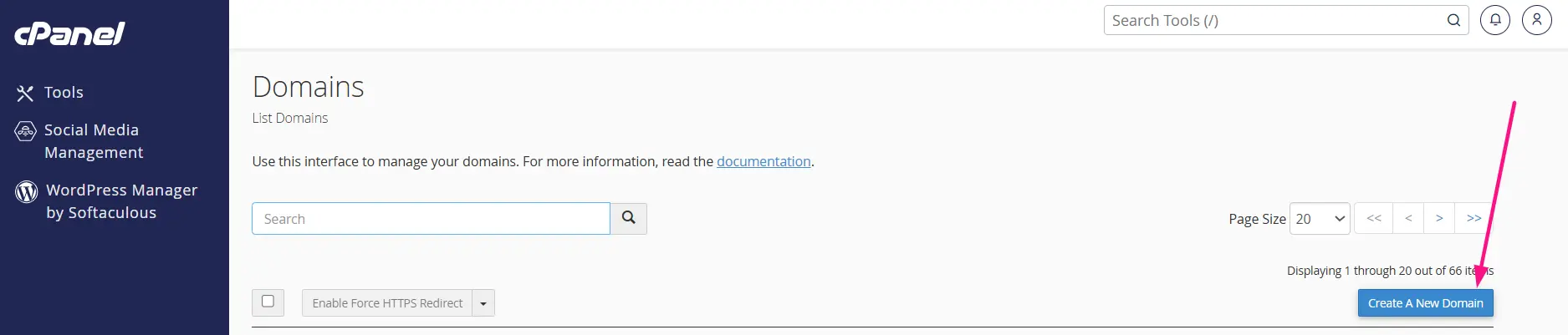
Creating specific domain types works slightly differently:
- Alias: keep the “share document root” option enabled so the alias displays the same content as its target domain.
- Addon domain: use a separate document root so the site functions independently.
- Subdomain: enter the subdomain you want (for example, blog.example.com) and select or create its folder.
After a domain is created, cPanel will often attempt to secure it automatically with an SSL certificate. If that process doesn’t complete right away, check that DNS is properly configured before troubleshooting the certificate itself; a DNS issue is the most common root cause of failed SSL issuance.
4) Managing, Renaming, and Removing Domains
Changing the document root. You can point a domain to a different folder on the server, but doing so does not move your existing files; you’ll need to relocate them manually so the site doesn’t appear broken after the change.
Renaming a domain. This isn’t a simple label change. Renaming can ripple into email configuration, DNS records, and site settings tied to the original name, so review your full setup before proceeding rather than assuming everything will update automatically.
Removing a domain. Before removing anything:
- Back up the website files.
- Check associated databases.
- Review any email accounts tied to the domain.
- Look over DNS records and active redirects.
Removing a domain from cPanel doesn’t necessarily delete the underlying files from the server, but the domain will no longer be configured or served the same way, and its associated services may stop functioning. Note that the primary domain can’t be removed the way an addon domain can; it’s permanently tied to the account.
If you originally set a domain up as an alias but later want it to function as its own independent site, the simplest path is to remove it and re-add it as an addon domain without sharing the document root.
5) Managing DNS With Zone Editor
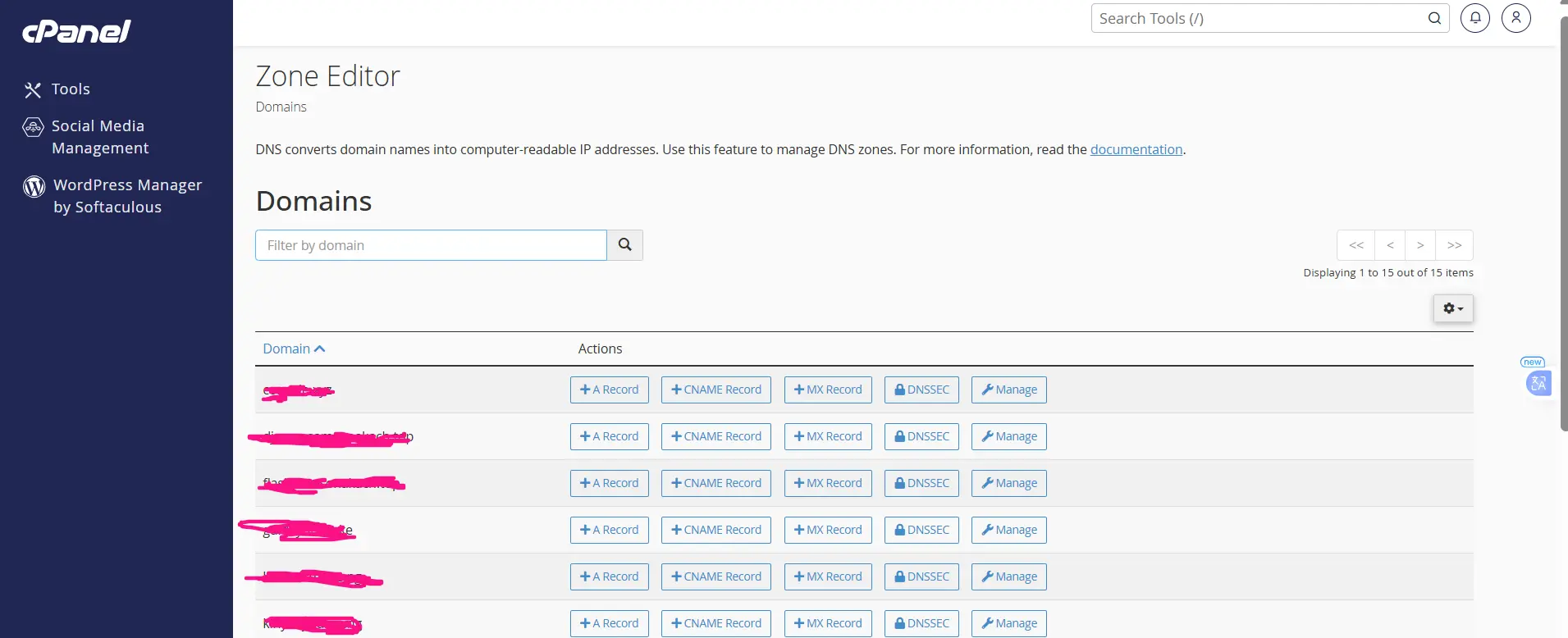
cPanel’s Zone Editor gives you a graphical way to manage the DNS records for domains hosted on your account, without needing to hand-edit raw zone files.
The record types you’ll encounter most often:
- A / AAAA: point a domain or subdomain to an IPv4 or IPv6 address.
- CNAME: point one hostname to another hostname (commonly used for www redirects or third-party service verification).
- MX: direct incoming email to the correct mail server.
- TXT: used for services like SPF, DKIM, DMARC, and various domain-ownership verification checks.
- CAA: restricts which certificate authorities are permitted to issue SSL certificates for your domain.
A few DNS habits worth keeping:
- Review existing records before changing anything; it’s easy to overwrite something you didn’t mean to touch.
- Avoid deleting default records unless you understand exactly what they control.
- Keep a written record of significant DNS changes, including dates, in case something needs to be rolled back.
- Back up or document your zone settings before major edits.
- Remember that DNS changes made in cPanel have no effect if the domain’s nameservers point elsewhere; you’d need to make the change at that authoritative source instead.
- Give changes time to propagate before assuming something is broken.
Depending on your hosting environment, you may also come across more advanced DNS features such as DNSSEC or Dynamic DNS support.
6) SSL/TLS and Domain Security
HTTPS is no longer optional for a credible website, and cPanel makes it straightforward to get there.
AutoSSL. Most modern cPanel hosting environments include AutoSSL, which automatically issues and renews SSL certificates for eligible domains without manual intervention.
Force HTTPS Redirect. Once a valid certificate is active on a domain, enabling this toggle will automatically send visitors from the HTTP version of your site to the secure HTTPS version.
Checking SSL status. The SSL/TLS Status page lets you see which domains currently have valid certificates, flag certificate problems, spot domains that aren’t secured at all, and review any AutoSSL issues that need attention.
Common reasons SSL issuance fails:
- DNS is pointing to the wrong server.
- The domain hasn’t fully propagated yet.
- A CAA record is blocking the certificate authority from issuing a certificate.
- Port 80 can’t be reached, which blocks the standard validation method.
- .htaccess rules are interfering with the validation request.
- The certificate authority’s issuance rate limit has been hit.
Beyond certificates, it’s worth enabling two-factor authentication on your cPanel account itself and periodically reviewing your DNS records for changes you didn’t make; both are simple habits that meaningfully reduce your exposure to account compromise.
7) Using Redirects to Manage Traffic
The Redirects tool lets you send visitors from one URL to another without editing code.
- 301 redirect: signals a permanent move; search engines will generally update their index to reflect the new address.
- 302 redirect: signals a temporary move; search engines keep indexing the original URL.
Redirects are commonly used when:
- Moving an entire site to a new domain.
- Changing the URL structure of a specific page.
- Consolidating multiple domains into one.
- Sending visitors from a retired page to its replacement.
A few practices worth following:
- Use 301s for anything permanent; this is what helps preserve accumulated search visibility.
- Watch out for redirect loops and unnecessarily long redirect chains, both of which slow down page loads and confuse search crawlers.
- Test every redirect after setting it up rather than assuming it works.
- Be cautious when cPanel redirects overlap with WordPress redirect plugins or existing .htaccess rules; conflicting rules are a frequent source of loops.
- If you’re behind a CDN or reverse proxy and see HTTPS redirect loops, check that service’s SSL/proxy settings rather than only looking at cPanel.
8) Managing Domain Email and Deliverability
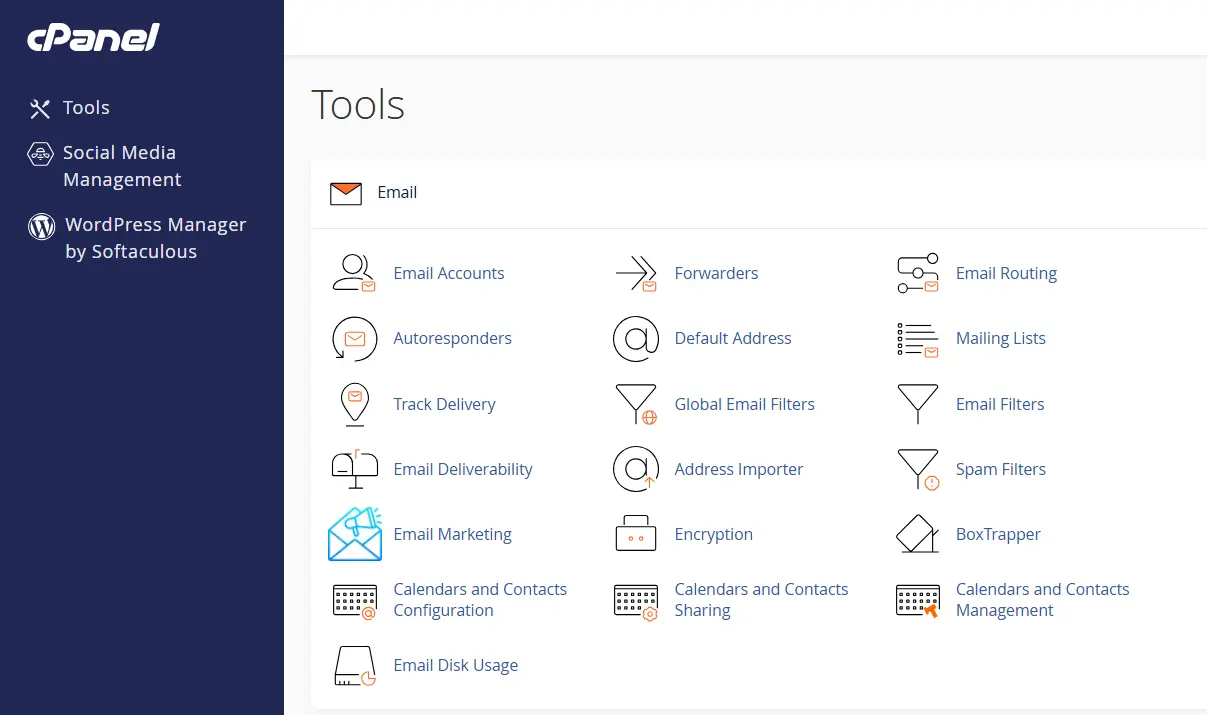
Email accounts for your domains can be created through Email Accounts, or directly from the relevant domain row in the Domains interface.
Getting email to actually land in the inbox, rather than a spam folder, depends on a handful of DNS-based authentication records:
- MX records: direct incoming mail to the correct mail server.
- SPF: declares which servers are authorized to send mail on your domain’s behalf.
- DKIM: attaches a cryptographic signature to outgoing mail so receiving servers can verify it wasn’t altered in transit.
- DMARC: tells receiving mail servers what to do with messages that fail SPF or DKIM checks, and can provide reporting on authentication failures.
cPanel’s Email Deliverability tool is worth checking regularly; it scans for common authentication and DNS misconfigurations and points out exactly what’s missing or incorrect for each domain.
Other good habits:
- Set sensible mailbox storage quotas rather than leaving them unlimited by default.
- Create email forwarders only when there’s a real need for them.
- Configure autoresponders carefully, and remember to turn them off when no longer needed.
- Check existing MX records before making any DNS changes, so you don’t accidentally break inbound mail.
- Avoid changing email-related DNS records unless you’re certain which mail service is actually handling that domain’s email; this counts especially if email is hosted separately from your website.
Common Mistakes to Avoid
A short list of the errors that come up again and again:
- Adding a domain before its nameservers have been updated.
- Forgetting to enable Force HTTPS or verify SSL after launch.
- Removing a domain without backing up its files, databases, or email first.
- Setting an incorrect document root, leaving files in the wrong place.
- Piling too many domains into a single hosting account, which can strain shared resources and slow every site down.
- Making DNS changes blindly, or not accounting for propagation time before troubleshooting.
- Forgetting that cPanel can’t renew a domain’s registration; that has to be handled at the registrar, not in cPanel.
Make Domain Management Simpler With cPanel
None of this needs to feel overwhelming once you know the order things happen in. Get DNS right first, confirm SSL once that’s settled, then layer in redirects and email authentication on top. Almost every mistake on the list above comes from skipping a step rather than getting one wrong. Slow down, work through Domains, Zone Editor, SSL/TLS, Redirects, and Email Deliverability in sequence, and a multi-domain setup stays organized and easy to maintain instead of turning into a mess of half-finished configurations.
Of course, all of this is only as easy as the hosting platform it runs on. A slow dashboard or an unreliable AutoSSL process turns even simple domain management into a chore.
If you’re setting up a new site or looking to move away from a host that’s making this harder than it should be, Truehost’s cPanel hosting gives you the full cPanel toolkit covered in this guide: Domains, Zone Editor, SSL, Redirects, and Email Deliverability, on infrastructure built to keep it fast and dependable.
Check Truehost’s cPanel hosting plans and get your domains organized the right way from day one.