 Domain SearchInstantly check and register your perfect .pk or international domain
 Web HostingGet a .pk domain for as low as PKR 467
 cPanel HostingUser-friendly hosting powered by cPanel
 Reseller HostingLaunch your own hosting business with minimal technical requirements
 Windows HostingOptimized for Windows-based applications and websites
 Affiliate ProgramEarn referral commissions by promoting our services
 WordPress HostingFast & Reliable WordPress Hosting
 Domain TransferMigrate your existing domain seamlessly with zero downtime.
 All DomainsAccess 324+ top-level domains (TLDs) worldwide from a single platform
 Whois LookupIdentify the owner of any domain using our whois and rdap lookup tool
 Managed VPS Hosting
 AI Website BuilderCreate beautiful websites effortlessly using intuitive drag-and-drop features
 Online ShopLaunch a professional online shop with no technical skills required
 BlogDiscover expert guides on hosting, websites, SEO, and digital growth strategies
 ContactGet instant assistance via live chat or email
 SupportAccess help articles, tutorials, and service documentation
 SSL CertificatesEncrypt data, build trust, and boost SEO.
You have a server, root access, and a terminal showing root@server, but no clear idea what to do next.
That is a fair place to be. A VPS gives you root access to a private slice of a server, and that means you are not locked into whatever a shared hosting panel allows. You decide what runs on the machine, and that opens the door to a lot more than one WordPress site.
This makes more sense once you are already paying for a VPS and it is sitting there half-used. An idle server is still a bill every month, logged in or not.
So, what can you really build on a VPS today, this week, with software you can install in under an hour?
This is a list of seven of the things you can do with a VPS, each with the software to use, the RAM it needs, and the first step to get it running.
1) Build Your Own VPN
A VPS can act as a private VPN server, giving you an encrypted connection when using public Wi-Fi or accessing services through your own server.
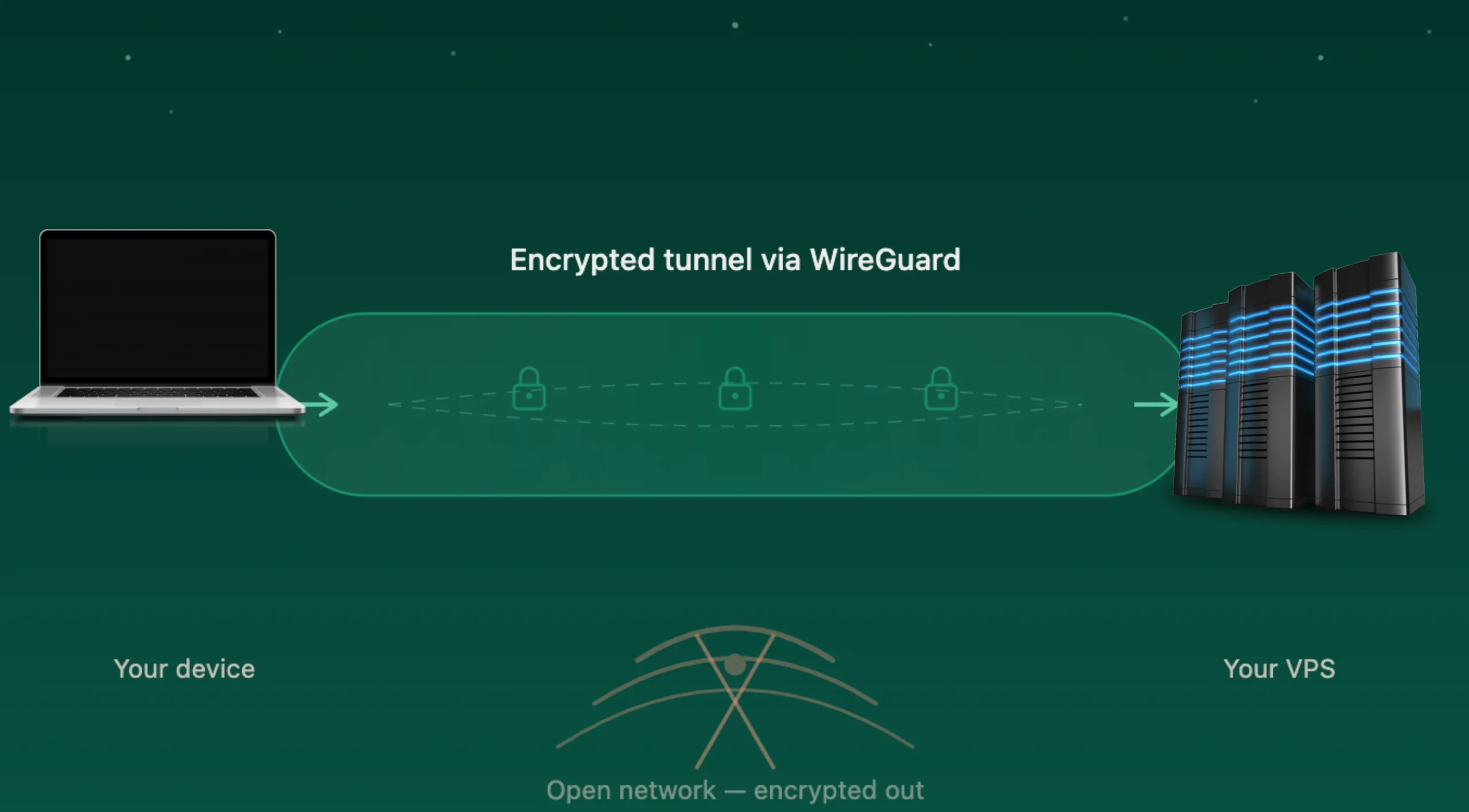
You can use WireGuard or OpenVPN as the older alternative.
WireGuard is lightweight, fast, uses modern encryption, and works across phones, laptops, and other devices. OpenVPN is another option if you prefer an older, widely established VPN solution.
A basic WireGuard setup does not need much server memory. Around 512 MB of RAM is enough for a small VPN installation.
Getting it running involves:
- Installing WireGuard on your VPS.
- Generating the server and client keys.
- Creating your first peer.
- Connecting from your phone or laptop.
Once that config is imported into the WireGuard app on your device, everything that leaves your machine gets encrypted before it touches the network. Public Wi-Fi at a café or airport stops being a gamble.
2) Run a Self-Hosted Password Manager
Freelancers and small agencies can end up managing dozens of client credentials across hosting accounts, domains, email services, and business tools.
A browser’s built-in password saver handles personal logins reasonably well, but the moment you are juggling client accounts across multiple platforms, you need something more deliberate.
Vaultwarden is the tool for this job.
It is a lightweight, self-hosted alternative compatible with the Bitwarden ecosystem, built by the community, not by Bitwarden officially, but fully compatible with all the official Bitwarden apps and browser extensions.
A small installation can work with around 256 MB of RAM.
The setup starts with installing Docker, pulling the Vaultwarden image, and pointing a subdomain to your VPS. From there, secure the installation with HTTPS and create your vault.
Because the server will hold sensitive credentials, security deserves extra attention. Use strong credentials, HTTPS, regular backups, and sensible server security practices from the start.
3) Automate Your Freelance/Client Work
A VPS can run automations continuously without leaving a personal computer switched on.
That is the part that changes things. A script running on your laptop only works while the laptop is open and charged. A script running on a VPS runs at 3 AM on a Sunday the same way it runs on a Tuesday afternoon.
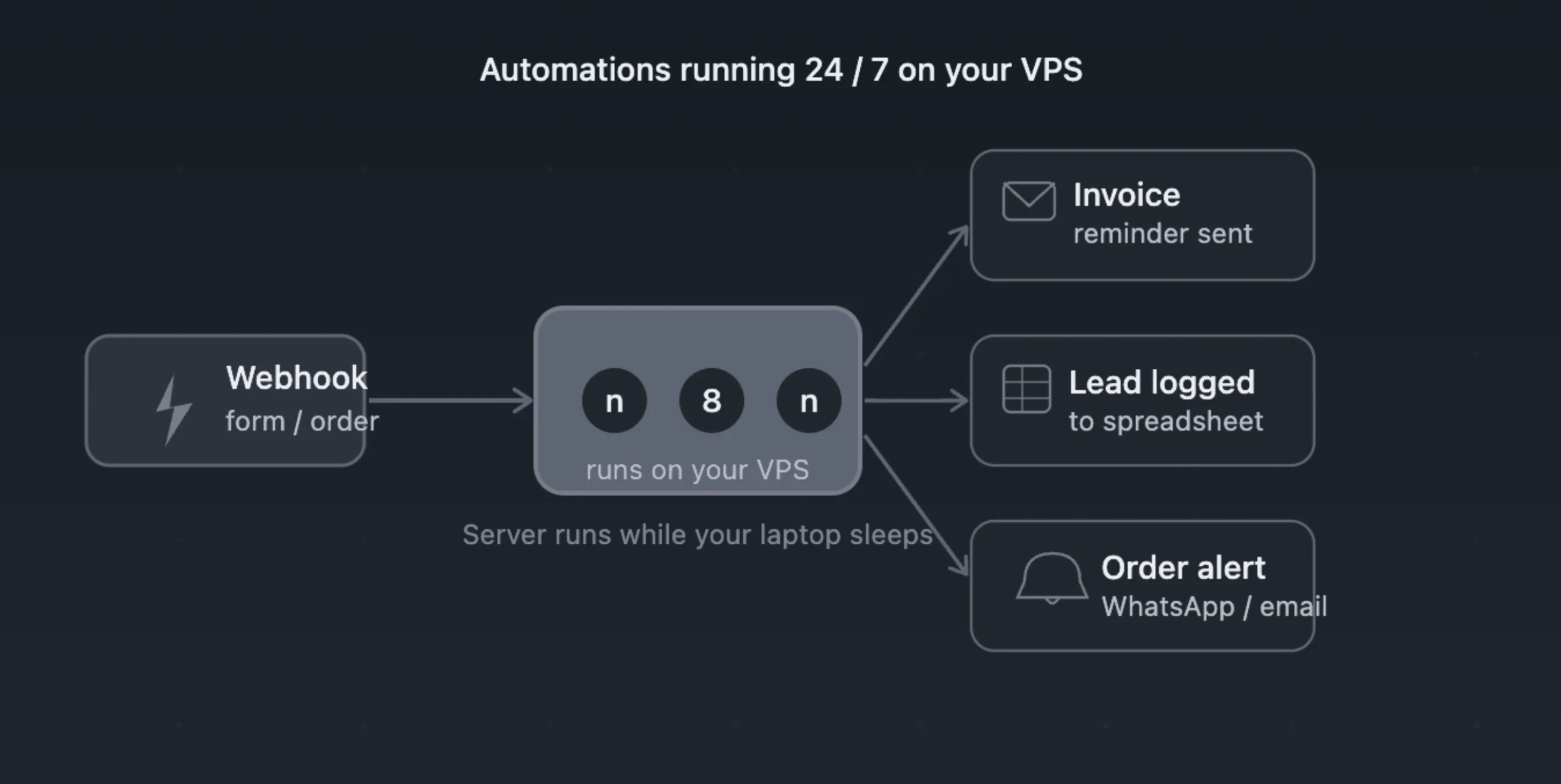
n8n is your tool here because it lets you connect different services and build workflows visually.
You could use it to send invoice reminders, receive website form submissions, send order or lead notifications, add incoming leads to a spreadsheet, trigger email notifications from webhooks, or connect different client tools and services.
For smaller workloads, around 512 MB–1 GB of RAM is a reasonable starting point. More complicated workflows or heavier usage can require additional resources.
You can start with one simple workflow: Webhook, n8n, then Action
For example, a website form could send information to n8n through a webhook. n8n could then add the submission to a spreadsheet and send you an email notification.
But first, install n8n, open its visual editor, connect your trigger, and add the action you want it to perform. Once the workflow works, the VPS can keep running it in the background without your laptop being switched on.
Also, get one workflow running reliably first, then add the next one.
4) Keep Client Sites Monitored 24/7
If you’re a freelancer, developer, or small agency responsible for client websites, waiting for a client to tell you that a site is down means you have already missed the first warning.
You can use a tool like Uptime Kuma to monitor websites, APIs, servers, ports, and other services and alert you when something stops responding.
It is also light on resources. Around 256 MB of RAM is enough for a small monitoring setup.
To Start:
- Install Uptime Kuma via Docker.
- Add the first website you want to watch.
- Set the monitoring interval.
- Connect an email or Telegram notification channel.
- Test an alert to confirm it fires correctly.
The VPS keeps checking in the background while you work on other things.
For a freelancer or small agency, that can also become a useful addition to a website maintenance service. Clients appreciate knowing someone is watching their site around the clock, and this costs you nothing extra once the VPS is already running.
5) Host Your Own Private Cloud
A VPS can give you your own environment for storing and synchronizing files rather than relying entirely on third-party cloud storage. Your files stay on infrastructure you control, and they sync to whichever devices you connect.
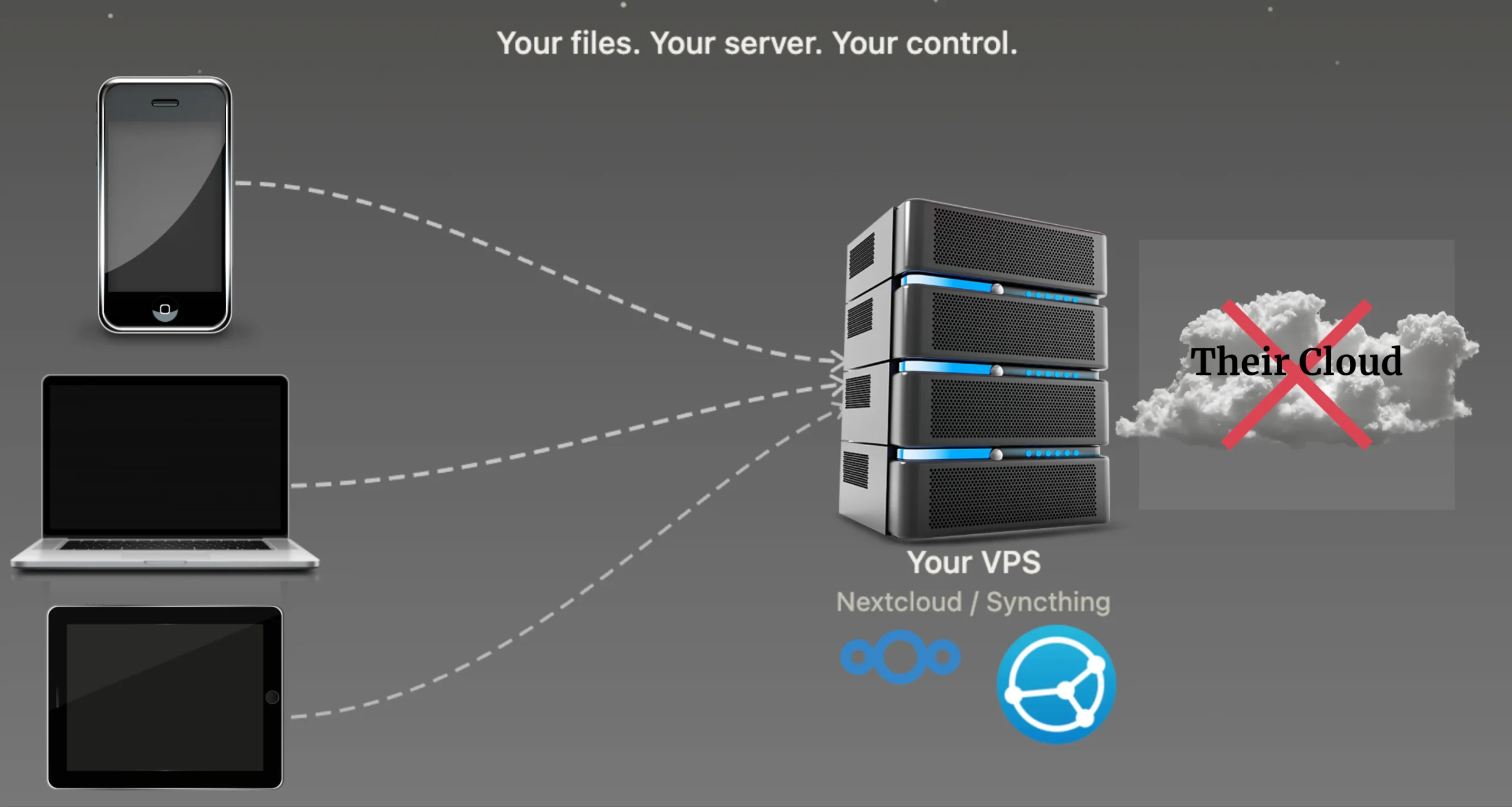
For tools, you get two options:
- Nextcloud: better for a broader private cloud experience that includes calendars, contacts, and document editing alongside file sync
- Syncthing: better when the main requirement is device-to-device file synchronization without the extra features
Plan for around 1-2 GB of RAM, depending on which application you choose and how heavily you use it.
Once you have chosen the software, install it on the VPS, configure the storage location, connect your desktop or mobile devices, and set up backups.
That last step is the one people skip and regret. Self-hosted does not automatically mean backed up. Your private cloud still needs a separate backup strategy, because a drive failure on the VPS takes everything with it if you have no copy elsewhere.
6) Run a Private Git Server for Client Code
Agencies and developers can keep internal repositories under their own control, which is crucial when client code is involved. Pushing a client’s proprietary codebase to a public repository, even accidentally, is the kind of mistake that is very hard to walk back.
Gitea works great here.
It gives you the core features most developers expect from a Git hosting platform: repositories, issue tracking, pull requests, and access control. It does all of this without requiring repositories to be publicly hosted.
A small installation can run with around 512 MB-1 GB of RAM.
You can install Gitea using Docker or its binary, create an account, create your first repository, and push your first commit. If you are working with someone else, you can then invite them to the repository.
This works well for client websites, internal applications, scripts, documentation, and other private development projects.
Instead of keeping project code scattered across different machines, you have a central repository that you control.
7) Build a Privacy-Friendly Analytics Dashboard
If you manage websites for clients, useful visitor statistics are not optional, but sending every analytics event to a large third-party platform means someone else is collecting that data too.
Self-hosted analytics give you the same core numbers without that trade-off.
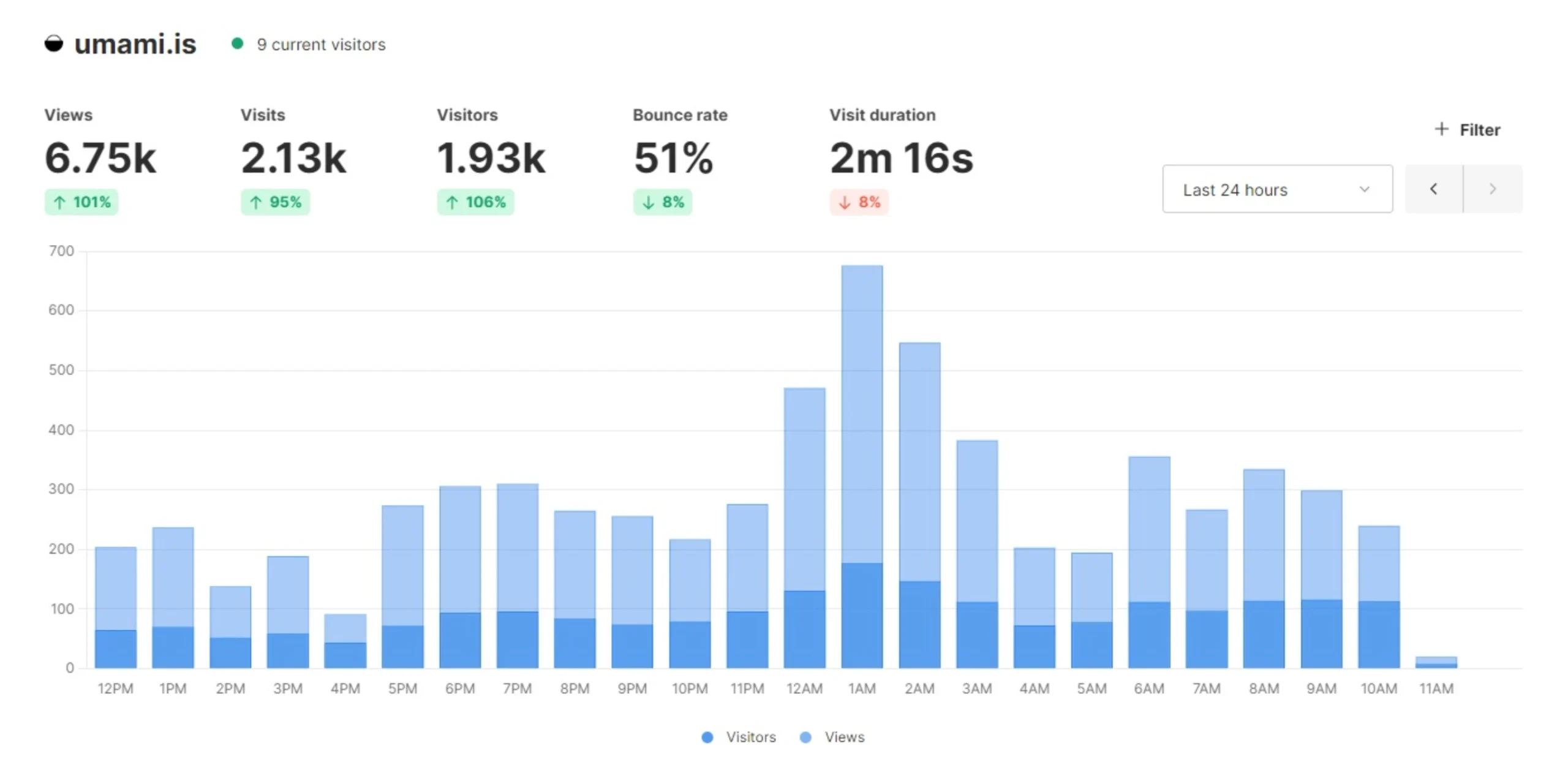
Umami and Plausible are two self-hosted analytics options. They can provide information such as visits, pageviews, and referral sources while allowing you to run the analytics software on your own VPS.
A small installation can start with around 512 MB-1 GB of RAM, although traffic levels and configuration will affect the resources you need.
To get going, install your chosen analytics platform, create a website or property inside the dashboard, and add its tracking script to the website. Once visitors start arriving, the dashboard can collect the traffic data and show you the results.
For agencies managing several client sites, this can also give you one central analytics setup without paying for a separate analytics service for every website.
How Much VPS Do You Really Need
Sizing your plan correctly upfront saves you from a mid-project upgrade.
As a rough guide, 1 GB of RAM can comfortably run a single lightweight application on its own, such as Vaultwarden or Uptime Kuma.
With 2 GB of RAM, you can run several of the lighter tools together, which covers much of this list when the workloads are small.
Once you add something heavier, such as Nextcloud, or start running several applications side by side with more users and traffic, 4 GB of RAM or more gives you more room.
RAM is only one part of VPS sizing, though. CPU usage, storage, databases, network traffic, background processes, and the number of users can all affect the resources your setup needs.
FAQs For Cool Things You Can Do With a VPS
Which OS is best for VPS?
Linux is a common starting point for these projects, with Ubuntu and Debian among the options widely supported by VPS software and documentation. The right choice also depends on the applications you plan to install, so check their operating-system requirements before deploying your server.
What are the disadvantages of VPS hosting?
A VPS gives you more control, but that control also comes with more responsibility. Depending on your hosting plan, you may need to handle operating-system updates, application updates, firewall rules, backups, user permissions, and server security. Managed VPS hosting can reduce some of this administrative work if you prefer to have the hosting provider handle more of the server management.
Can I run WordPress on a VPS?
Yes. WordPress can run on a VPS, and you can host one or several WordPress websites depending on the available resources and server configuration. You also get more control over the server environment, PHP versions, databases, caching, and other components supporting your websites.
Can I host my own VPS?
You can create virtual machines on your own physical server using virtualization software, but that is different from renting a VPS from a hosting provider. With a provider, the physical server, network, power, and underlying infrastructure are managed in the provider’s data center. Running your own VPS infrastructure means taking responsibility for those components yourself.
Start With One Project This Week
A VPS earns its cost the moment one of these seven projects goes live, not while it sits idle waiting for the perfect setup.
Pick the one that solves a problem you already have right now and get it running before moving on to another project.
A VPN can give you your own private connection, n8n can take repetitive tasks off your hands, Uptime Kuma can keep watch over your websites, and tools such as Gitea or Vaultwarden can give you services you would otherwise rent separately.
If you don’t have a VPS yet, we built our VPS hosting plans in Pakistan around exactly this kind of use, with root access from day one and enough headroom to grow past a single project.
Compare our current plans and pick the tier that matches the tools you want to run.