 Domain SearchInstantly check and register your perfect .pk or international domain
 Web HostingGet a .pk domain for as low as PKR 467
 cPanel HostingUser-friendly hosting powered by cPanel
 Reseller HostingLaunch your own hosting business with minimal technical requirements
 Windows HostingOptimized for Windows-based applications and websites
 Affiliate ProgramEarn referral commissions by promoting our services
 WordPress HostingFast & Reliable WordPress Hosting
 Domain TransferMigrate your existing domain seamlessly with zero downtime.
 All DomainsAccess 324+ top-level domains (TLDs) worldwide from a single platform
 Whois LookupIdentify the owner of any domain using our whois and rdap lookup tool
 Managed VPS Hosting
 AI Website BuilderCreate beautiful websites effortlessly using intuitive drag-and-drop features
 Online ShopLaunch a professional online shop with no technical skills required
 BlogDiscover expert guides on hosting, websites, SEO, and digital growth strategies
 ContactGet instant assistance via live chat or email
 SupportAccess help articles, tutorials, and service documentation
 SSL CertificatesEncrypt data, build trust, and boost SEO.
If you’re choosing a VPS, one of the biggest questions is: how much RAM do you actually need? The answer depends on what you plan to run on the server. A small website may work well with 1–2 GB of RAM, while WordPress sites, online stores, databases, and multiple applications may need 4 GB, 8 GB, or more.
Choosing too little RAM can lead to slow performance, crashes, and out-of-memory errors. Your server may use swap, which is disk space used when RAM runs low. While swap can prevent a server from crashing, it is much slower than RAM, so relying on it regularly can make your website and applications sluggish.
On the other hand, choosing too much RAM means paying for resources you don’t use.
Here, we’ll look at how much RAM different VPS workloads need, what affects RAM usage, and how to choose the right amount for your server.
VPS RAM Requirements by Use Case
RAM requirements vary widely depending on what’s running on your server. A simple business website might need only 2 GB, while ecommerce stores, multi-site hosting setups, containerized applications, and database-heavy workloads can require 4 GB, 8 GB, or more. Here’s how that breaks down across common use cases.
1) Small Business Website
Recommended: 2–4 GB
A typical small business site- a company website with a handful of pages, mostly static or cached content, a contact form, and low-to-moderate traffic- doesn’t need much memory to run smoothly.
- 2 GB is generally suitable for a basic, well-optimized site.
- 4 GB gives you more headroom for growth, additional services, or a traffic increase without needing to resize immediately.
2) WordPress Website
Recommended: 2–4 GB for a typical site; 4–8 GB for heavier workloads
WordPress sites carry more moving parts than a static site: WordPress core, PHP, a database (MySQL or MariaDB), the web server itself, themes, plugins, caching layers, and the overhead of handling higher traffic and concurrent requests.
- 2 GB works for a small, optimized WordPress install with a lean plugin list.
- 4–8 GB is a better fit for sites with more plugins, more traffic, or resource-intensive features like page builders, membership systems, or heavy media libraries.
It’s worth flagging a common point of confusion here: your WordPress or PHP memory limit (set in wp-config.php or php.ini) is not the same thing as your total VPS RAM. The PHP memory limit only governs how much memory a single PHP process can consume. Your VPS still needs separate memory for the operating system, the database, the web server, and every other background service running alongside WordPress.
3) WooCommerce or Online Store
Recommended: 4–8 GB
Ecommerce adds a meaningfully heavier workload than a standard content site. Product queries, shopping carts, checkout flows, payment gateway integrations, product search and filtering, customer accounts, background jobs, and database activity all draw on memory, and they tend to spike together during traffic surges like sales events or seasonal promotions.
- 4 GB is a reasonable starting point for a small online store.
- 8 GB+ is the safer choice for larger catalogs, higher traffic, or more complex store operations (subscriptions, multi-vendor setups, custom integrations).
4) Multiple Websites
Recommended: 4–8 GB+
Hosting several sites on one VPS, whether that’s a handful of small business sites, multiple WordPress installs, sites with separate databases, or added services like email hosting, multiplies the number of processes and services competing for memory.
- 4 GB can support a small number of lightweight sites.
- 8 GB+ is more appropriate as the number of sites, their traffic levels, or the additional services they rely on increases.
A useful principle here: don’t calculate RAM by simply assigning a fixed amount per domain. What actually counts is the combined workload and concurrent activity across all the sites, not the raw site count. Ten quiet, mostly-static sites can use far less memory than two busy, database-driven ones.
5) cPanel VPS Hosting
Recommended: 4 GB as a practical starting point
Running cPanel/WHM adds its own memory overhead on top of whatever websites and applications it manages, plus MySQL/MariaDB, email services, security and antivirus tools, and routine backup processes.
- 2 GB is cPanel’s documented minimum for supported Linux installations.
- 4 GB is cPanel’s officially recommended amount.
- 4 GB+ becomes more appropriate once you’re hosting multiple sites, dealing with higher traffic, or running additional services alongside the control panel.
6) Plesk VPS
Recommended: 2–4 GB+ depending on workload
Plesk’s control panel overhead sits alongside your websites, PHP applications, databases, email services, and any extensions you’ve installed.
- 1 GB + 1 GB swap is Plesk’s documented minimum for Linux.
- 2 GB is the documented minimum for Windows.
- 2–4 GB+ is the more realistic range for production hosting, depending on the actual workload running under the panel.
7) Docker and Containerized Applications
Recommended: 4–8 GB+
Containerized stacks, WordPress paired with a database, Node.js with PostgreSQL, automation tools like n8n with PostgreSQL, Redis alongside an application server, or a cluster of microservices with background workers and monitoring, each consume their own slice of the VPS’s available RAM.
- 4 GB suits smaller containerized workloads, such as a single application stack.
- 8 GB+ is better once you’re running several containers simultaneously or anything resource-intensive.
It’s worth noting that Docker itself supports memory limits and reservations per container, which lets you cap or guarantee memory for individual services rather than letting them compete uncontrolled for the host’s total RAM.
8) Development and Staging Servers

Recommended: 4–8 GB
Development environments tend to run more simultaneously than production ones: Git, databases, Docker containers, testing tools, CI/CD services, and application servers often all need to be active at once while you work.
- 4 GB is workable for smaller development environments.
- 8 GB+ is the better fit for multiple projects, containerized services, or heavier development tooling running side by side.
9) Database Servers
Recommended: 4–16 GB+ depending on workload
Dedicated database servers, running MySQL, MariaDB, or PostgreSQL, are one of the most memory-sensitive workloads on this list. Large datasets, database-level caching, query processing, multiple concurrent connections, and complex queries can all drive memory usage up quickly.
- 4 GB suits smaller database workloads.
- 8 GB is better for moderate workloads with more data or more concurrent connections.
- 16 GB+ is appropriate for larger databases and demanding, high-concurrency workloads.
Database RAM needs, more than almost any other workload here, depend heavily on the specifics: total database size, the nature of your query patterns, how many connections you handle concurrently, and how much you rely on caching.
What Determines How Much VPS RAM You Need?
Beyond the general use case, several specific factors shape how much RAM your particular VPS setup actually requires.
i) Operating System: Linux generally has lower baseline memory requirements than Windows, which typically needs more RAM even for a lightweight setup. Ubuntu Server’s basic installation, for example, recommends at least 2 GB of RAM on its own, before you’ve installed anything else. Whatever the OS consumes is memory unavailable to your applications, so a heavier OS effectively shrinks your usable capacity.
ii) Control Panel: Control panels such as cPanel, Plesk, or DirectAdmin all consume a portion of your VPS’s RAM just to run, which reduces what’s left over for the websites and applications they manage.
iii) Number of Websites: More websites generally mean more running processes, databases, and services, which can increase total RAM usage. But site count alone isn’t the whole story; the size and activity level of each site count just as much.
iv) Traffic and Users: Daily visitor counts, concurrent users, request volume, and traffic spikes all factor in. Concurrent users are especially important: it’s not the total number of visitors per day that strains memory most, but how many are hitting the server at the same moment.
v) Type of Application: Static websites, WordPress, WooCommerce, Laravel, Node.js, Python applications, Java applications, databases, Docker, and AI applications all have meaningfully different memory profiles. As a rule, more architecturally complex applications require more RAM than simple websites.
vi) Plugins and Extensions: WordPress plugins, WooCommerce extensions, CMS extensions, themes, and other add-ons all add to the memory footprint. Heavy or poorly optimized plugins in particular can drive usage up disproportionately to what they add in functionality.
vii) Database Workload: Large databases, complex queries, many simultaneous connections, database-level caching, search and indexing features, and generally frequent database activity all increase RAM requirements.
viii) Background Processes: It’s easy to account for the “visible” application and forget everything running quietly behind it: cron jobs, backups, email services, queues, monitoring tools, security software, and automated scripts all draw on the same pool of memory.
ix) Caching: Caching cuts both ways. Tools like Redis and Memcached use RAM themselves to store frequently accessed data,, but by doing so, they reduce repeated database and application processing, which can improve overall performance and reduce the load on other server resources. A well-configured cache is often a better investment than simply adding raw RAM.
x) Your domain and DNS setup: While your domain name itself does not determine how much RAM your VPS needs, DNS is what connects a domain name to the server hosting your website. Understanding how the Domain Name System (DNS) works can help you see how your domain, server, and website fit together.
xi) Future Growth: Finally, leave room for where you’re headed, not just where you are. Account for traffic growth, seasonal spikes and campaigns, and any websites, applications, plugins, or features you’re likely to add. Sizing a VPS strictly to today’s usage numbers is a common way to end up needing an upgrade sooner than expected.
How to Calculate Your Own RAM Needs
You can arrive at a reasonably accurate estimate by adding up your workload piece by piece:
- Start with the operating system and control panel. Add the baseline RAM they require just to run.
- Add the web server and other core services. This includes your web server software (Nginx, Apache, etc.) and any other services that run regardless of application load.
- Add your applications and their active processes. Account for the memory footprint of whatever application stack you’re running.
- Add your database’s requirements. Base this on its size and typical query/connection workload.
- Include caching services. Factor in Redis, Memcached, or similar tools if you’re using them.
- Add everything together, then add 15–20% extra. This buffer covers normal day-to-day usage and traffic spikes rather than leaving you running right at the edge of capacity.
- Round up to the next available VPS plan. This gives your server genuine room to grow rather than sizing it to the bare minimum.
Signs You Need More RAM
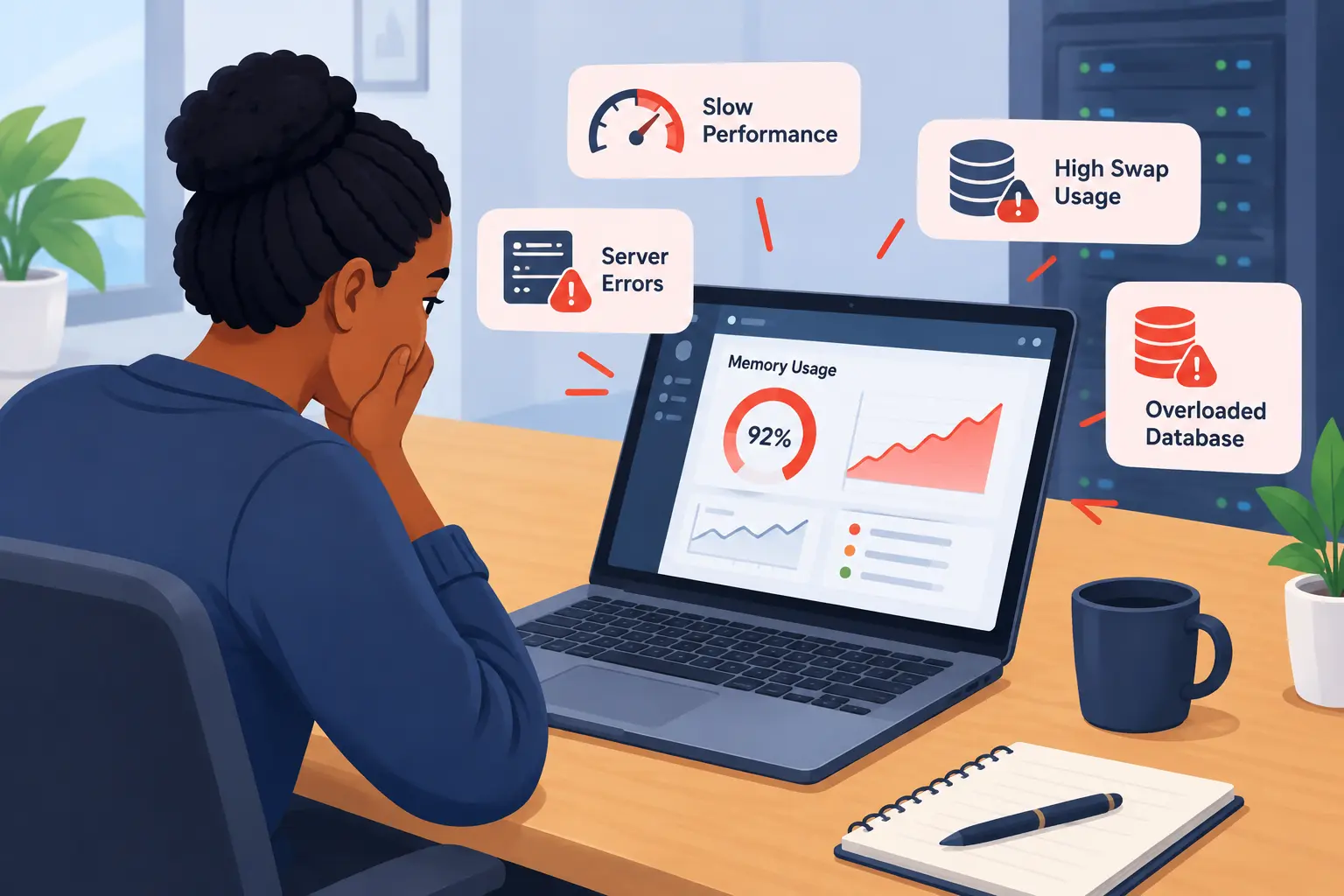
If your VPS is already running, a few warning signs suggest it’s time to look at upgrading rather than waiting for a full outage:
- Frequent 502 or 504 errors
- Application processes being killed or restarted unexpectedly
- High or sustained swap usage
- Slower response times as soon as traffic increases
- Database performance that degrades noticeably under heavier load
Any one of these on its own might be a configuration issue, but seeing several together, especially alongside high memory utilization, is a strong signal that your current RAM allocation is undersized for your workload.
How Much RAM Do I Need for My VPS? FAQs
How Much RAM Should You Leave Free on a VPS?
As a general guideline, aim to keep somewhere around 15–20% of your total RAM free rather than running consistently at or near 100% utilization. This buffer absorbs normal fluctuations in traffic and background processes without immediately tipping into swap. If your server is routinely sitting above 80–85% memory usage under normal conditions, it’s a sign you’re due for more RAM rather than more optimization.
How to Check VPS RAM Usage
On most Linux VPS setups, you can check current memory usage directly from the command line with tools like free -h (a quick summary of total, used, and available memory), top or htop (a live, process-by-process view), or vmstat for a broader look at memory and swap activity over time. Many control panels, including cPanel and Plesk, also surface memory usage graphs directly in their dashboards, which is often the easiest place to start if you’re not comfortable in the terminal. Watching these numbers over time, rather than as a single snapshot, gives a much clearer picture of whether you’re dealing with a temporary spike or a genuine capacity problem.
Is More RAM Always Better?
Not necessarily. More RAM can improve performance up to the point where your workload can actually make use of it, but beyond that, additional memory sitting idle doesn’t speed anything up; it’s just an unused resource you’re paying for. RAM also isn’t a substitute for fixing underlying inefficiencies: a poorly optimized database query or a bloated, badly coded plugin will still be slow on a server with abundant memory. The most cost-effective approach is usually to right-size your RAM to your actual workload and address performance bottlenecks at the source, rather than treating extra memory as a blanket fix.
Can I Upgrade VPS RAM Later Without Downtime?
In many cases, yes, but it depends on your hosting provider and how your VPS is provisioned. Some providers support live RAM upgrades (sometimes called “hot” resizing) that apply without rebooting the server, particularly on cloud-based or KVM-based VPS platforms. Others require a reboot to apply the new memory allocation, which typically means a few minutes of downtime rather than none at all. If minimizing disruption counts to you, it’s worth checking your provider’s specific upgrade process before you need it, ideally as part of choosing a host in the first place, since the ability to scale RAM smoothly is a meaningful convenience once your workload starts to grow.
How Much RAM Should You Get?
There’s no single amount of RAM that’s right for every VPS. The best choice depends on what you’re running, how much traffic you get, and how much your workload is likely to grow. A simple website may only need 1–2 GB, while WordPress sites, online stores, databases, and multiple applications may need 4 GB, 8 GB, or more. Use these figures as a starting point, then adjust based on your actual needs. If you’re choosing between two VPS plans, going with the higher RAM option can be a smart choice, especially if the price difference is small. Having extra memory gives your server room to handle traffic spikes and future growth without affecting performance.
Ready to pick the right VPS plan for your workload? Choose Truehost VPS Hosting and get the RAM, CPU, and storage that match what you’re running.