 Domain SearchInstantly check and register your perfect .pk or international domain
 Web HostingGet a .pk domain for as low as PKR 467
 cPanel HostingUser-friendly hosting powered by cPanel
 Reseller HostingLaunch your own hosting business with minimal technical requirements
 Windows HostingOptimized for Windows-based applications and websites
 Affiliate ProgramEarn referral commissions by promoting our services
 WordPress HostingFast & Reliable WordPress Hosting
 Domain TransferMigrate your existing domain seamlessly with zero downtime.
 All DomainsAccess 324+ top-level domains (TLDs) worldwide from a single platform
 Whois LookupIdentify the owner of any domain using our whois and rdap lookup tool
 Managed VPS Hosting
 AI Website BuilderCreate beautiful websites effortlessly using intuitive drag-and-drop features
 Online ShopLaunch a professional online shop with no technical skills required
 BlogDiscover expert guides on hosting, websites, SEO, and digital growth strategies
 ContactGet instant assistance via live chat or email
 SupportAccess help articles, tutorials, and service documentation
 SSL CertificatesEncrypt data, build trust, and boost SEO.
cPanel is a Linux-based web hosting control panel that lets you manage your website, emails, files, and databases through a visual dashboard. You can handle everyday hosting tasks without typing complex server commands.
For website owners in Pakistan, cPanel makes it easier to manage the technical side of running a website.
So, if you’re setting up a website today, cPanel may be the interface between you and a live online business.
Instead of handling server tasks manually, you can use its dashboard to install WordPress, create professional email addresses, manage website files, and configure essential security settings.
Let’s look at what is cPanel used for and how it can help you maintain your website.
Why Is cPanel Popular in the Web Hosting World?
Well, cPanel has been around for quite some time. It was established in 1996 and has since become a widely used hosting management platform.
Its long history in the hosting industry has contributed to its adoption by hosting providers and website administrators around the world.

These are some reasons why website owners use it:
1) Easy to Use
Managing a website or an app involves several tasks, from uploading files to setting up email accounts and databases. Without a control panel, some of these jobs may require command-line access or help from a server administrator.
cPanel brings many of these tasks together in a graphical interface.
For example, you can open File Manager to upload website files or use Email Accounts to create an address linked to your domain. You can also access database management tools without working directly with server commands.
You may need technical help for more advanced configurations, but everyday hosting tasks are manageable for many non-tech people.
This makes getting a website online less intimidating, especially if you’re managing your first hosting account.
2) Consistent Across Hosting Providers
Many hosting companies use cPanel, so the skills you learn with one provider can help you manage your account with another.
The dashboard layout, available tools, and account permissions may differ depending on the hosting company and package. However, the main functions remain familiar. You’ll generally know where to look for files, email accounts, databases, and security settings.
This can also help if you decide to migrate your website.
Although moving a website still requires careful preparation, familiarity with cPanel can make it easier to locate the files, databases, and settings you need.
3) WordPress and Softaculous Integration
WordPress is widely used for blogs, business websites, and online stores.
If your hosting plan includes cPanel and Softaculous, you can simplify WordPress installation through an automated installer instead of manually downloading and configuring every installation component.
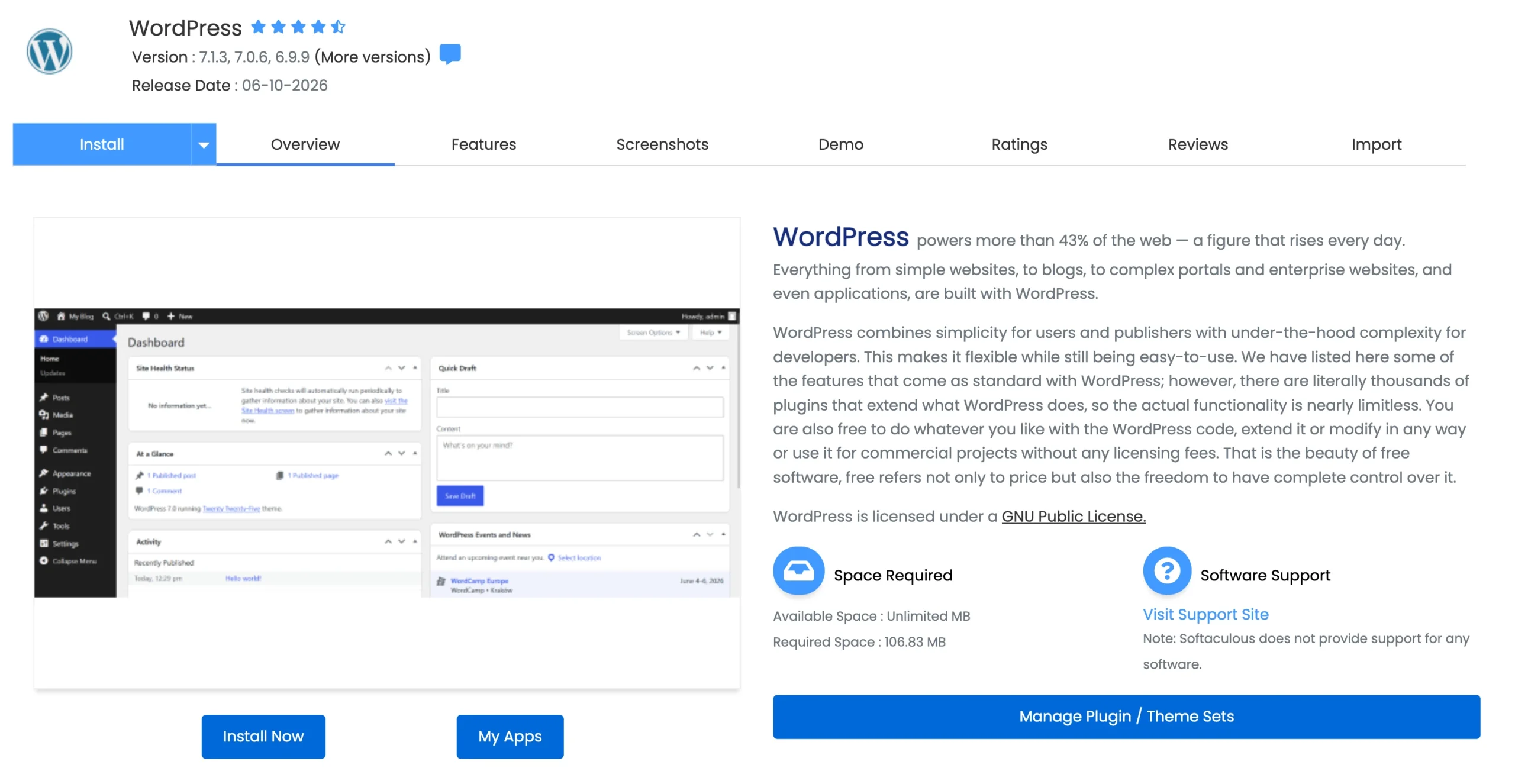
You’ll select WordPress, click “Install Now,” choose your domain, enter your administrator details, and confirm the installation.
Softaculous also supports other applications, including Joomla, depending on your hosting configuration.
This gives you a convenient way to get started with preconfigured installations.
4) Hosting Performance
Your website’s speed depends on several factors, including server location, network routing, hosting resources, and website optimization.
A hosting provider with infrastructure suited to your target visitors may help reduce network latency. For businesses serving customers in Pakistan, it’s worth checking how a provider’s servers and network perform for local visitors.
Although cPanel doesn’t independently determine how fast your website loads, it makes management easier.
cPanel Features
After logging in to cPanel, you’ll find different tools grouped according to their purpose. The available features depend on your hosting provider and the permissions assigned to your account.
These are the main tools you’ll find:
a) Files
File Manager lets you upload, organize, edit, rename, and delete website files directly through your browser. You can use it to upload HTML pages, images, stylesheets, and other files needed to run your website.
The public_html folder is commonly used as the document root for your primary website. Files placed in the correct location can be served to visitors through your domain.
Take care when deleting or editing files because changing the wrong item can break part of your website.
b) Domains
The Domains section helps you manage domains and subdomains supported by your hosting account. Depending on your plan, you may be able to host additional domains or create separate sections of your website.
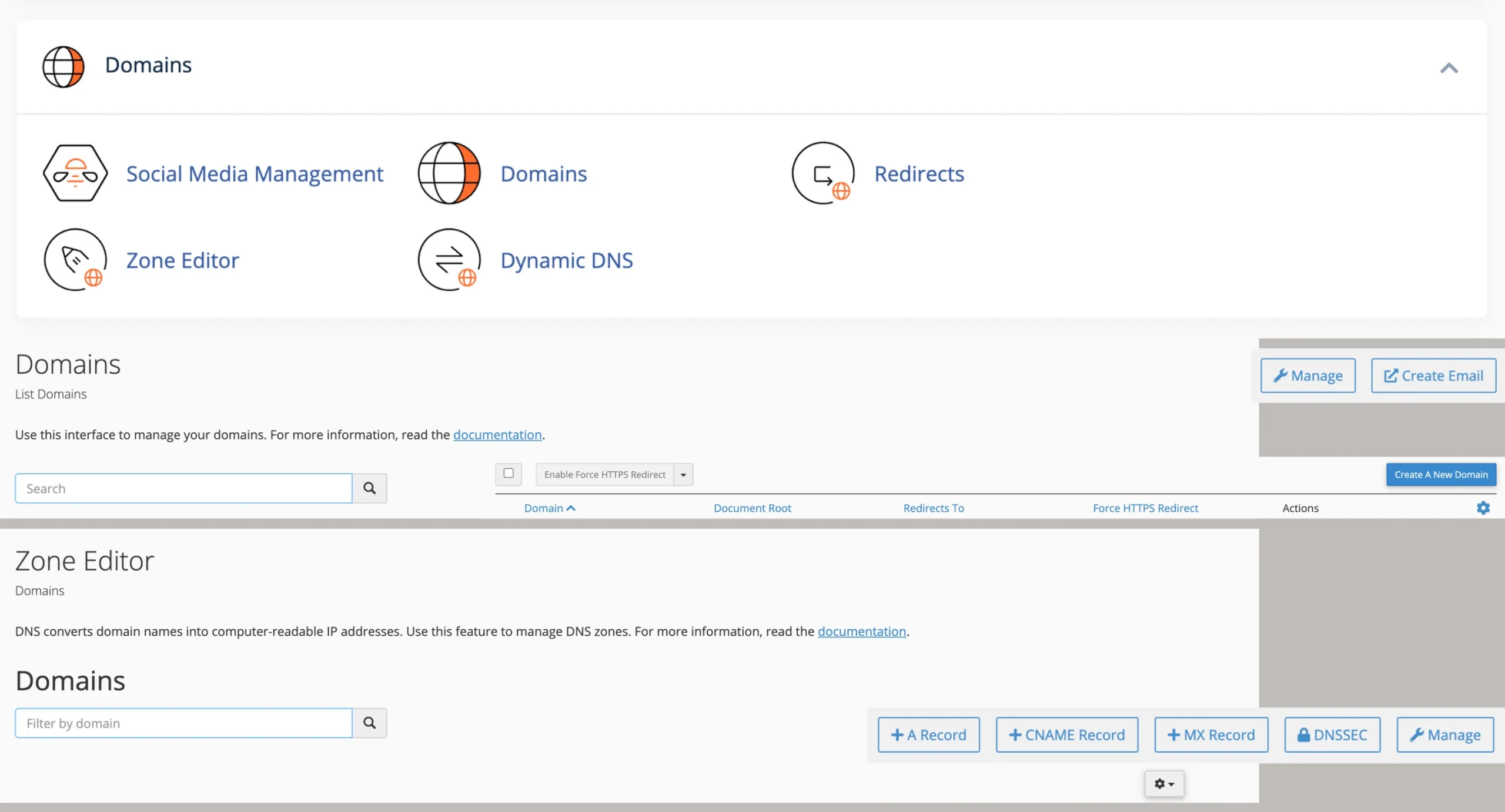
The Zone Editor provides access to DNS records, including A, CNAME, and MX records. These records help direct visitors to your website and route email to the appropriate servers.
Before changing them, confirm the required values with your hosting or DNS provider.
c) Email
The Email section lets you create professional addresses such as [email protected] or [email protected].
Depending on your plan, you can manage mailboxes, set up forwarders, and access messages through webmail.
A domain-based email address can help customers recognize your business. If you use an external email service, check if your hosting plan supports the required configuration and DNS records.
d) Databases
Many websites rely on databases to store content, account details, settings, and other information. WordPress, for example, uses a database to store posts, pages, and configuration details.
cPanel provides tools for creating and managing MySQL databases and database users.
You may also have access to phpMyAdmin, which lets you view and manage database tables through a browser.
Handle these tools carefully because deleting or modifying the wrong data can affect your website.
e) Security
Depending on your hosting package, security tools may include SSL management, IP blocking, malware scanning, and firewall protection.
SSL certificates enable HTTPS connections between your website and its visitors.
Other security tools may help you manage access or identify suspicious activity. Their availability varies by provider, so check which protections your package includes.
f) Software
Softaculous can simplify the installation of WordPress, Joomla, and other supported applications.
Instead of downloading files and configuring every component manually, you can follow the installer’s prompts.
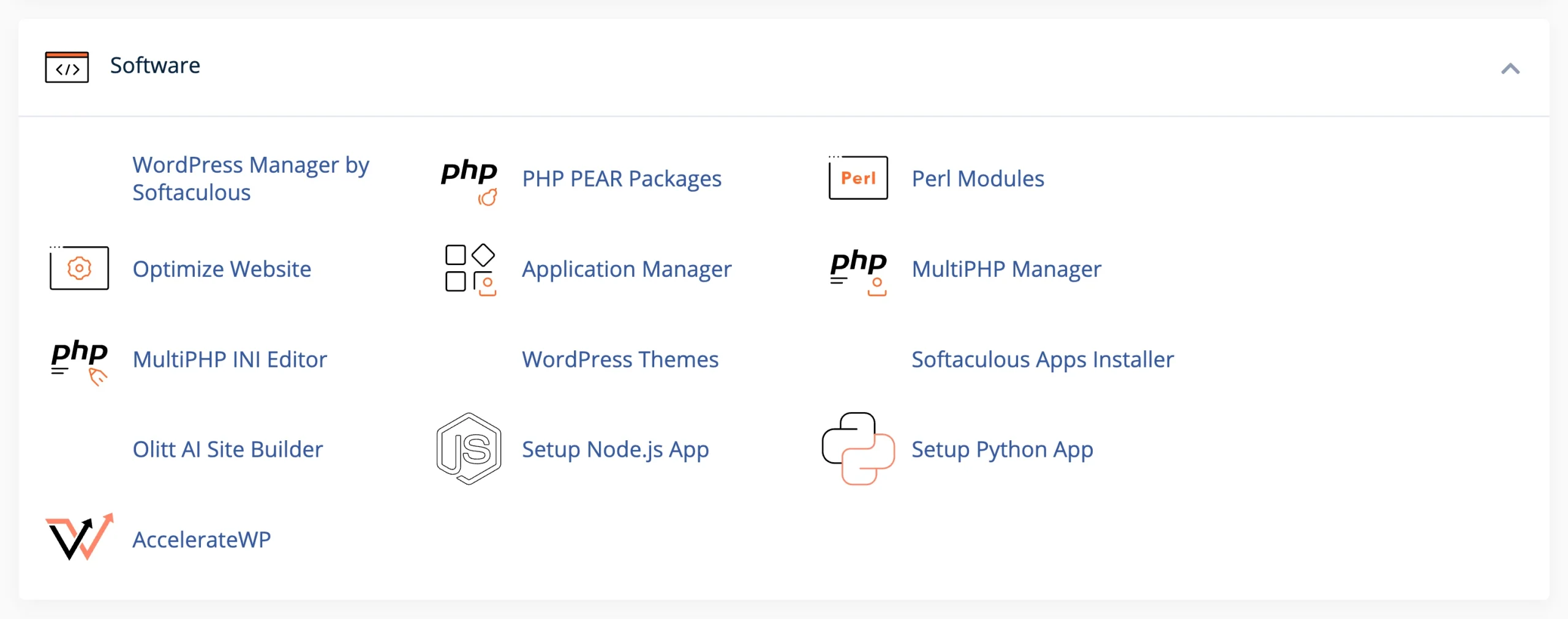
The applications available depend on your hosting provider and server configuration. Keep installed applications updated to reduce security risks and maintain compatibility.
g) Metrics and backups
Metrics tools can show information about your account’s resource usage, bandwidth, storage, and website traffic, depending on the tools your host enables.
Backup options vary between providers. Some offer automatic daily backups, while others provide manual backup tools or charge separately for backup services.
Check the backup schedule, retention period, storage location, and restoration process before relying on them.
How to Use cPanel Effectively
The following sequence assumes you have purchased hosting and have access to your domain and cPanel login details.
1) Log in to cPanel
Open the cPanel login link supplied by your hosting provider and enter your credentials. You’ll usually find these details in your hosting welcome email or account dashboard.
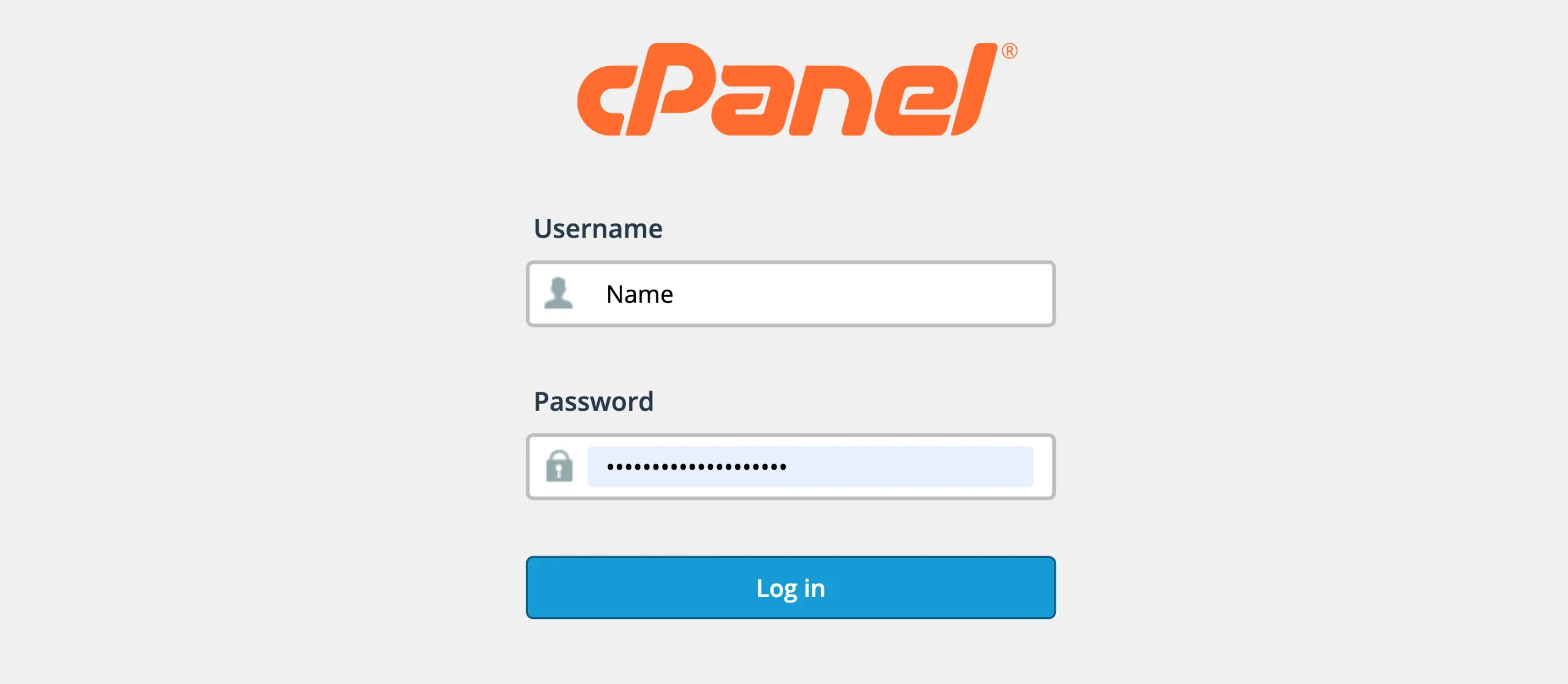
Once you’re logged in, look for tools such as File Manager, Domains, Email Accounts, and Softaculous. You don’t need to configure everything immediately; start with the tools required for your website.
Use a strong, unique password and enable two-factor authentication if your hosting provider offers it. Avoid sharing your login details with untrusted people.
2) Upload Your Files or Install WordPress
If you’ve built a custom website, open File Manager and locate the correct document root, often public_html for your primary domain. Upload the required files and confirm that your homepage is in the expected location.
If you’re using WordPress, open Softaculous, select WordPress, and follow the installation instructions.
Choose your domain, set an administrator username and strong password, and review the installation directory before proceeding. Installing WordPress in the wrong directory can leave it accessible at an unintended URL.
After installation, visit your domain to check that the website loads. If you’re using a custom website, verify that its pages, images, and links work as expected.
3) Create a Database If Required
Some applications create their databases automatically during installation. If yours doesn’t, open MySQL Databases in cPanel and create a database and database user.
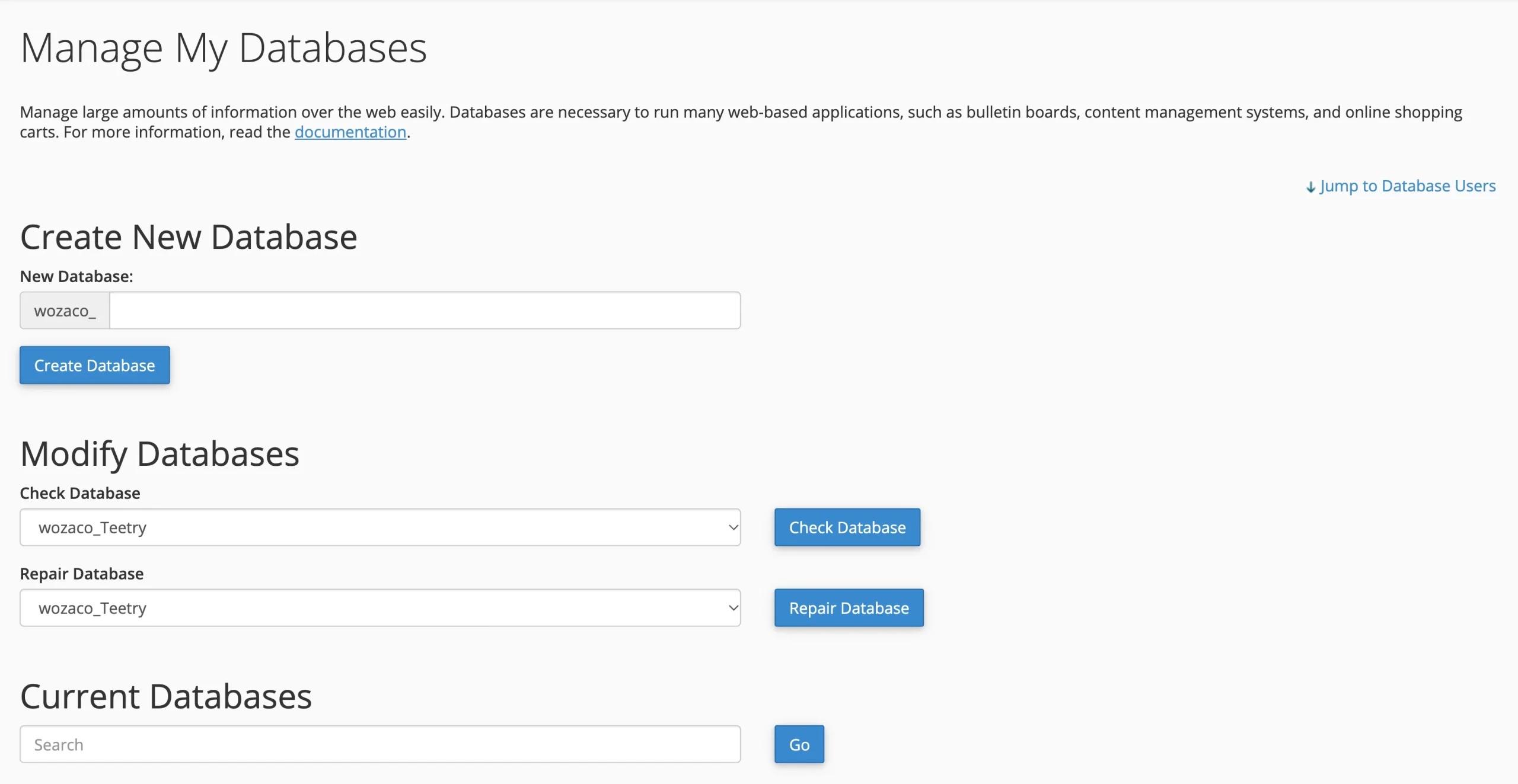
Assign the user the privileges required by your application, then save the database name, username, and password securely. Your application’s configuration settings may need these details to connect to the database.
Be careful when changing database permissions or deleting existing databases, especially if your website is already live.
4) Connect Your Domain Using Nameservers or DNS
Your domain must point to the hosting service where your website is stored.
If you registered your domain separately, you may need to update its nameservers at the registrar or add the required DNS records through the service managing your DNS.
Follow the specific instructions supplied by your hosting provider. The correct approach depends on how your domain and DNS are configured.
After making the changes, allow time for them to propagate. During this period, visitors using different networks may not see the updated destination immediately. If the website remains inaccessible, verify the DNS records before making more changes.
5) Install and Verify Your SSL Certificate
Open the SSL/TLS or SSL Status section in cPanel, depending on the tools your provider offers. If automated SSL is included, check that the certificate has been issued and covers your domain.
Visit your website using https:// and confirm that the browser recognizes the secure connection.
If the browser displays mixed-content warnings, some resources may still be loading over HTTP. Check your website settings and affected links to identify the cause.
Remember that having an SSL certificate installed doesn’t replace other security measures, such as software updates and strong passwords.
6) Set Up a Professional Email Address
Open Email Accounts and create an address using your domain, such as [email protected].
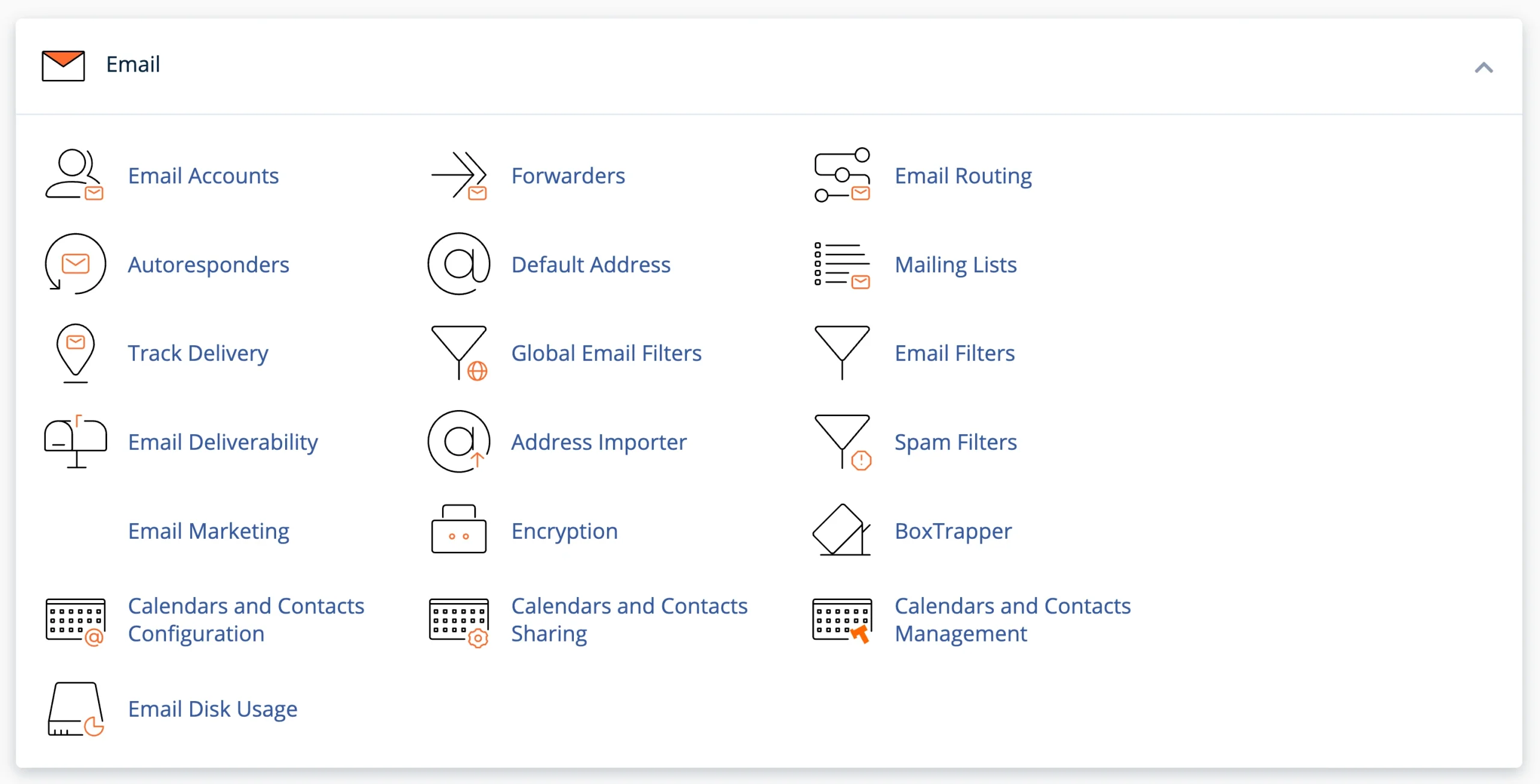
Choose a strong password and configure the mailbox size if your plan provides that option.
You can access messages through webmail or connect the account to a supported email application using the correct incoming and outgoing mail server settings.
If messages aren’t arriving or are being marked as spam, check your mail configuration and the DNS records required by your email provider. Follow your host’s instructions for the appropriate settings.
7) Schedule and Verify Backups
Check which backup tools your hosting provider offers and how often backups are created. If scheduled backups are available, configure them according to your website’s needs.
Your backup requirements will depend on how frequently your website changes. A business site that receives daily orders or customer submissions may need more frequent backups than a simple site that rarely changes.
Check how long backups are retained and if you can restore individual files, databases, or the entire website.
Where possible, test the restoration process and keep an independent copy of important website data.
Is cPanel Free?
cPanel is commercial hosting software, but website owners normally don’t need to purchase a separate license. Many hosting providers include cPanel access in their hosting plans, with the licensing cost covered by the hosting subscription.
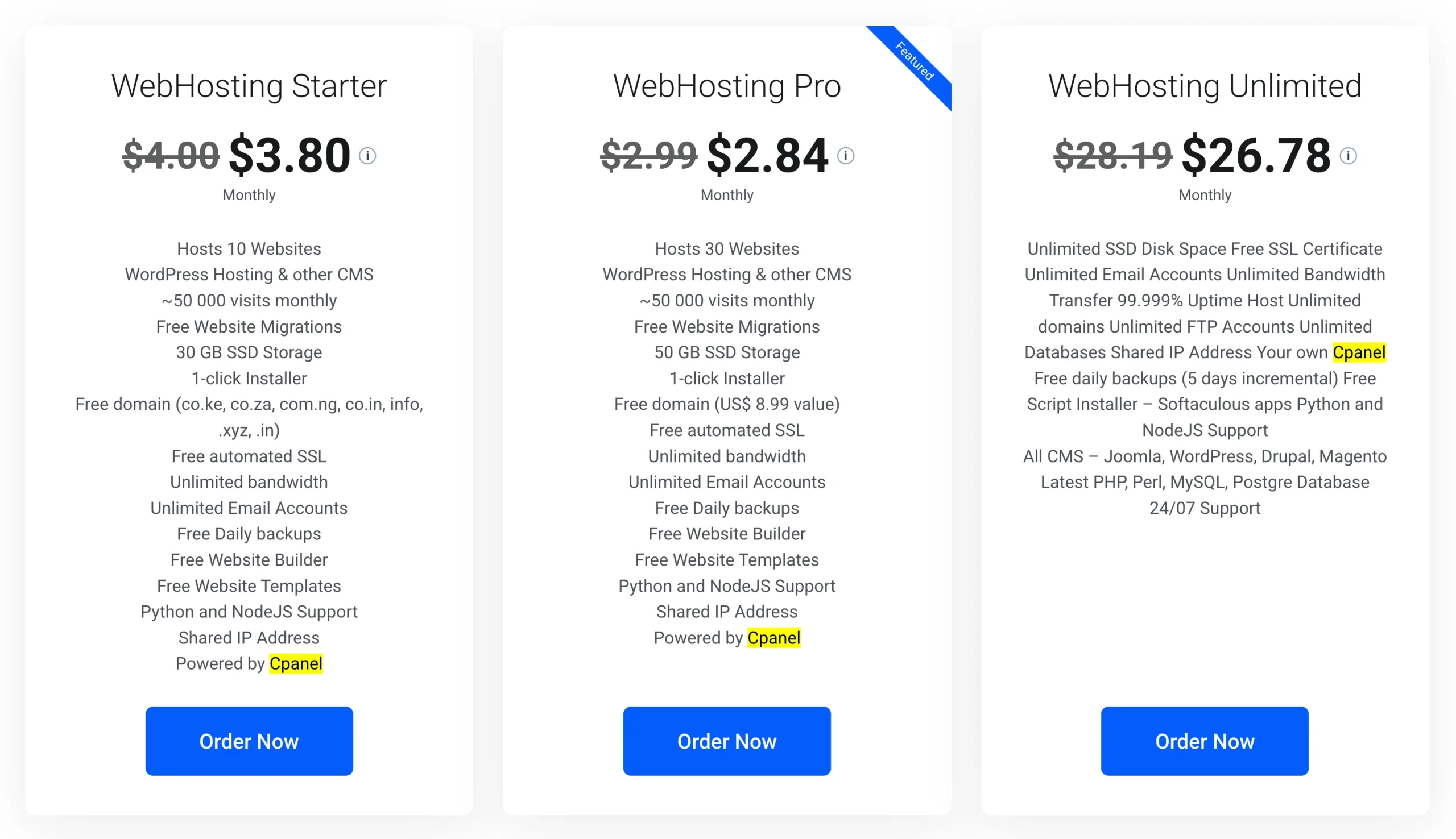
For Pakistani website owners, hosting prices vary by provider, plan, billing cycle, and included resources.
Our Truehost’s current cPanel hosting plans are managed through cPanel, including a Starter plan priced at ₨235.54 per month on the three-year billing option.
The distinction is simple: cPanel is the software you use to manage your hosting account, while the hosting plan is the service you pay for.
Some providers use alternative control panels, so confirm which one comes with your selected package.
Common Mistakes to Avoid
Even with a beginner-friendly dashboard, a few mistakes can cause unnecessary problems. Keep these in mind as you manage your website.
- Skipping backups before making changes. Back up your website before changing themes, installing plugins, editing important files, or modifying DNS settings. A recent backup gives you a recovery option if something goes wrong.
- Ignoring SSL. A website without properly configured HTTPS can display browser security warnings and leave data transmitted between the website and visitors inadequately protected. Check that your certificate is active and that renewals are handled.
- Using weak or default passwords. Replace temporary credentials with strong, unique passwords. Protect your cPanel, email, WordPress administrator, and database accounts.
- Failing to update software. Keep WordPress, plugins, themes, and supported PHP versions updated according to security and compatibility requirements. Check with your hosting provider before making major PHP version changes.
- Changing DNS records without checking them. Incorrect DNS settings can interrupt your website or email service. Keep a record of the existing settings and verify the correct values before editing them.
Getting Started With cPanel Hosting in Pakistan
Choosing a cPanel hosting provider involves more than checking if the control panel is included. You also need to consider performance, security, customer support, and the resources your website requires.
Look for:
- Server and network performance: Check where your website will be hosted and how the provider serves visitors in Pakistan.
- Free SSL: Confirm that SSL certificates are included and find out how they’re issued and renewed.
- Website migration: Check if the provider offers assistance with moving an existing website.
- WordPress installation: Look for a supported installer such as Softaculous if you want to set up WordPress without installing it manually.
- Customer support: Review the available support channels, operating hours, and the technical assistance offered.
- Transparent pricing: Compare renewal prices, billing terms, storage, website limits, and included resources.
At Truehost, we offer cPanel hosting with features including free SSL, one-click application installation, domain email, file and database management, and daily automatic backups.
We also include website migration assistance and infrastructure optimized for Pakistani businesses.
Checkout our available plans to see which resources and services are included, then compare them against your website’s storage requirements, expected traffic, budget, and growth plans.