 Domain SearchInstantly check and register your perfect .pk or international domain
 Web HostingGet a .pk domain for as low as PKR 467
 cPanel HostingUser-friendly hosting powered by cPanel
 Reseller HostingLaunch your own hosting business with minimal technical requirements
 Windows HostingOptimized for Windows-based applications and websites
 Affiliate ProgramEarn referral commissions by promoting our services
 WordPress HostingFast & Reliable WordPress Hosting
 Domain TransferMigrate your existing domain seamlessly with zero downtime.
 All DomainsAccess 324+ top-level domains (TLDs) worldwide from a single platform
 Whois LookupIdentify the owner of any domain using our whois and rdap lookup tool
 Managed VPS Hosting
 AI Website BuilderCreate beautiful websites effortlessly using intuitive drag-and-drop features
 Online ShopLaunch a professional online shop with no technical skills required
 BlogDiscover expert guides on hosting, websites, SEO, and digital growth strategies
 ContactGet instant assistance via live chat or email
 SupportAccess help articles, tutorials, and service documentation
 SSL CertificatesEncrypt data, build trust, and boost SEO.
Have you ever tried to load your website and nothing happens, or gotten an error message that makes no sense? It’s also so annoying to stare at a blank white screen.
Most hosting outages have identifiable causes. Once you know if the problem is local, DNS-related, application-related, or server-side, you can usually resolve it.
Luckily, when web hosting is down, it’s fixable, not permanent.
However, downtime costs add up. Every minute your site is offline, you’re losing potential visitors, customers, and revenue. If you run an online store, those are direct sales disappearing.
If you run a blog or business site, you’re losing trust and credibility with every failed page load. And Google may also reduce your search rankings if your site is frequently unreachable.
So, let’s see what to do when web hosting is down.
What to Do Immediately
- Confirm it’s not just you: Try your site on your phone using mobile data, or on a different computer. If it loads elsewhere, the problem is on your end.
- Use an uptime checker: Tools like IsItDownOrJustMe or DownForEveryoneOrJustMe tell you whether your site is down for everyone or just your connection.
- Check your host’s status page: Most providers post current outages and maintenance windows there. Your host may already be on it.
- Restart your router and modem: Unplug both, wait thirty seconds, plug them back in, and try again. Local network issues are more common than you’d think.
- Flush your DNS cache: On Windows, type ipconfig /flushdns in Command Prompt. On Mac, run sudo dscacheutil -flushcache; sudo killall -HUP mDNSResponder in Terminal.
- Try a different browser: Extensions or cached data can cause connection problems unrelated to your site.
- Contact your host: If the site is down for everyone and there’s no status update, open a ticket or start a live chat with your domain name and what you’re seeing.
- Note the error message: Screenshot it. “Error 500,” “Database Connection Error,” and “Account Suspended” all point to different problems.
- Check your recent changes: A new plugin, theme update, or .htaccess edit is the most common cause of sudden downtime.
Problem-based Solutions When Web Hosting is Down
1) Check Recent WordPress Changes and Disable Problematic Plugins
WordPress sites most often go down because of plugin conflicts. A new plugin, a plugin update, or two plugins fighting over the same function can crash your site.
The standard fix is to deactivate all plugins and reactivate them one by one.
Access your site via FTP or your hosting file manager, navigate to /wp-content/plugins/, and rename the plugins folder to plugins-old.
This forces WordPress to deactivate everything. Your site should load; then rename the folder back and deactivate plugins one at a time from your WordPress dashboard, checking the site after each one.
If you can’t access your WordPress admin at all, the Plugin Detective plugin can help even with a white screen of death or PHP errors.
It walks you through identifying the culprit without needing technical knowledge
2) Reset the .htaccess File- for Apache/WordPress Setups
The .htaccess file controls how your server handles URLs, redirects, and security rules.
If it gets corrupted, your site can throw 500 errors or fail to load entirely. This file is used on Apache servers, which most WordPress hosts run.
Connect via FTP or your hosting file manager and locate the .htaccess file in your site’s root directory. Rename it to .htaccess_old as a backup.
Then go to your WordPress dashboard, navigate to Settings > Permalinks, and click “Save Changes” without changing anything.
WordPress will generate a fresh .htaccess file automatically. If you can’t access the dashboard, you can create a new .htaccess file manually with the default WordPress rules.
3) Check DNS and Domain Settings
DNS problems make your site unreachable even when the server is running perfectly. The domain system translates your website address into an IP address, and if that translation fails, visitors can’t connect.
First, check whether your domain has expired.
Log in to your domain registrar and verify the expiration date. An expired domain stops resolving immediately. Next, check your nameservers. They should point to your hosting provider’s servers.
If you recently changed hosting companies or updated nameservers, DNS propagation can take up to 48 hours to complete worldwide.
You can verify DNS resolution using command-line tools. Run nslookup yourdomain.com or dig yourdomain.com to see what IP address your domain returns.
4) Repair the Database
Database errors show up as “Error establishing a database connection” or “One or more database tables are unavailable.”
This means WordPress can’t communicate with its MySQL database, or the database itself is corrupted.
Before doing anything, back up your database. Then you have two repair options.
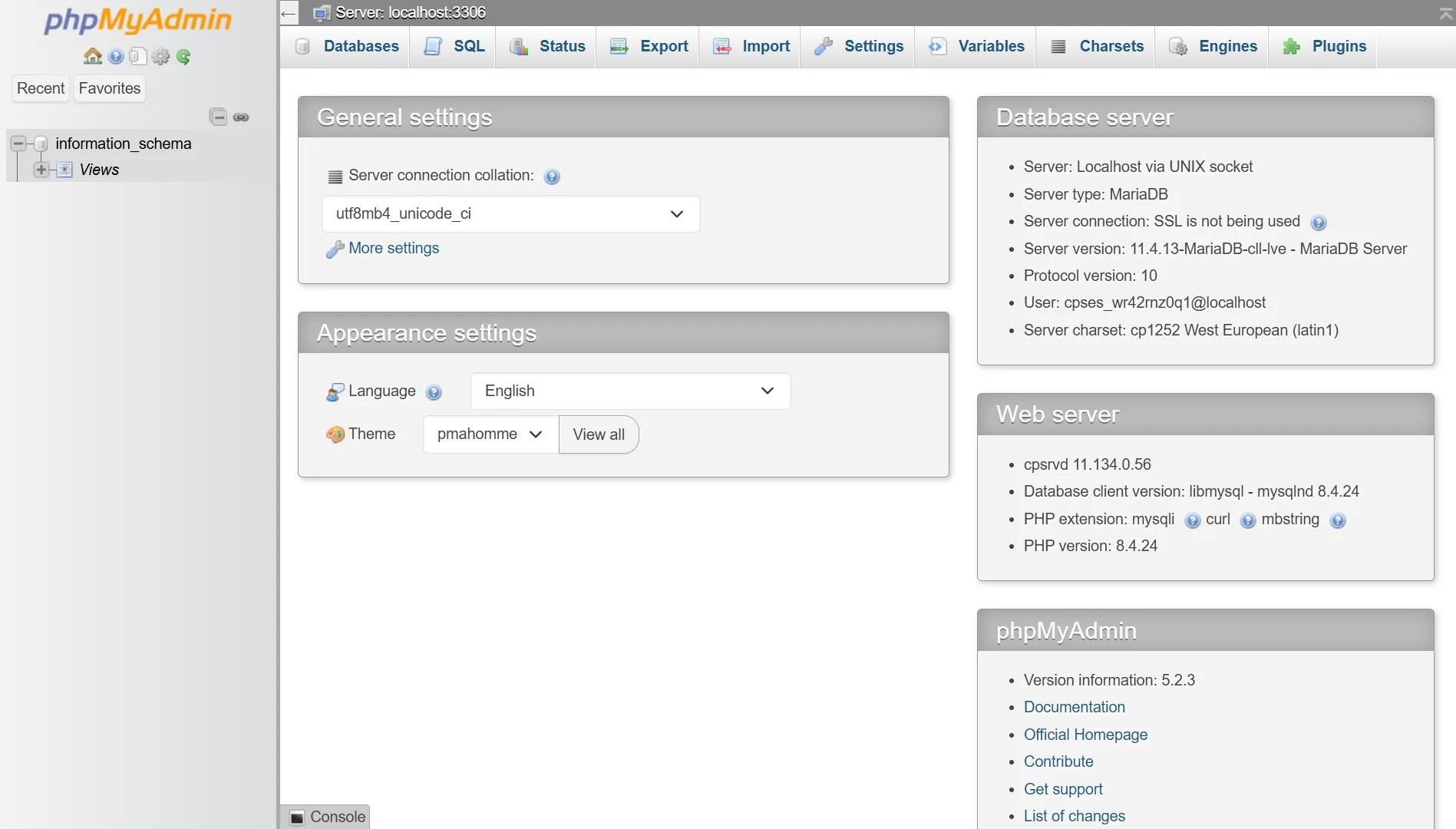
First, log into phpMyAdmin through your hosting control panel, select your WordPress database, check all tables, and choose “Repair table” from the dropdown menu.
Second, add this line to your wp-config.php file: define('WP_ALLOW_REPAIR', true);. Then visit yourdomain.com/wp-admin/maint/repair.php and run the repair. Remove that line afterward for security.
If neither works, the corruption may be physical damage at the storage level. Contact your host; they can run MySQL recovery tools or restore from a server-side backup
5) Renew or Reinstall SSL Certificate
An expired SSL certificate triggers browser warnings that scare visitors away.
You’ll see “Your connection is not private” or NET::ERR_CERT_DATE_INVALID. Some browsers block access entirely.
Log into your hosting control panel and look for the SSL/TLS section. If you’re using Let’s Encrypt, most hosts renew certificates automatically.
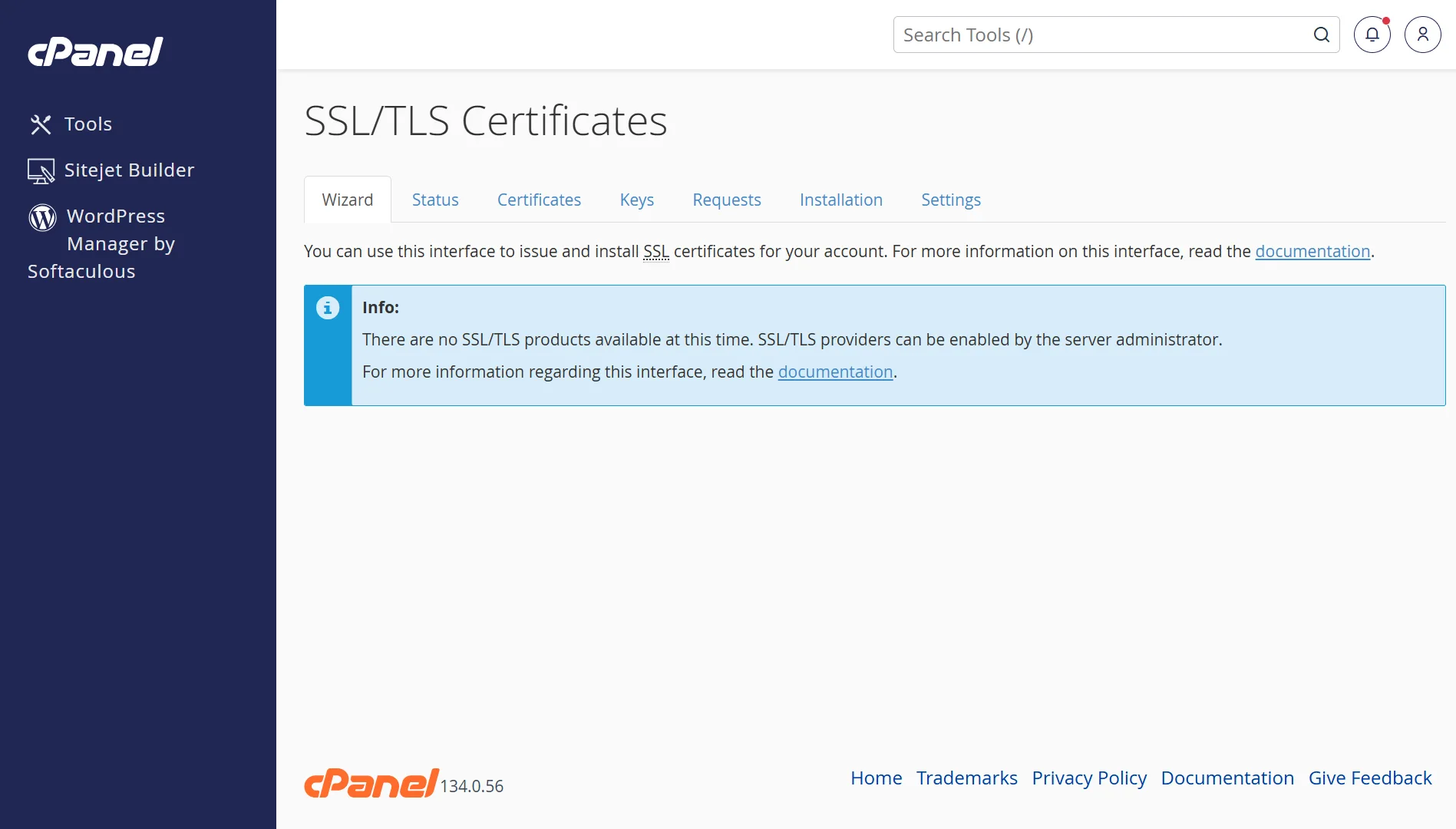
But auto-renewal can fail if domain validation breaks or the certificate service has issues.
You can manually trigger renewal from your control panel or delete and reinstall the certificate. After installation, clear your browser cache and check that the padlock icon appears correctly.
6) Restore from a Clean Backup
If nothing else works, or if your site was hacked, restoring from a backup is the fastest path back online. Good hosting providers like Truehost offer automated daily backups.
Log into your control panel, find the backup section, and select a restore point from before the problem started.
This overwrites your current files and database with a known-good version.
You’ll lose any changes made after the backup date, but you’ll have a working site again. After restoring, update everything and run a malware scan before making new changes.
7) Check Account Suspension Reason & Resolve With Provider
If you see “This account has been suspended,” or your hosting dashboard shows your account as inactive, your provider has deliberately taken your site offline.
Common reasons for suspension include non-payment, malware infection, resource overuse, or policy violations.
So, check your email and spam folder for suspension notices. Log in to your hosting billing panel to see whether you have unpaid invoices. Pay any outstanding balance and wait for reactivation on shared hosting.
If payment isn’t the issue, contact support and ask exactly why they suspended the account.
Fix that specific problem; remove malware, reduce resource usage, delete prohibited content, then request a review.
8) Check Server Resources
Shared hosting accounts have limits on CPU usage, memory, and concurrent connections. If your site exceeds those limits, the server may throttle or suspend it to protect other users.
Signs of resource overuse include sudden slowness, 508 Resource Limit errors, or intermittent downtime during traffic spikes.
Log in to your hosting control panel and look for resource usage statistics. If you’re consistently hitting limits, you need to optimize.
Disable heavy plugins, clean up old database entries, remove unused files, and consider upgrading to a plan with more resources.
How to Prevent Web Hosting Downtime
- Choose a reliable hosting provider with strong uptime guarantees: Look for providers that offer 99.9% uptime or better and have transparent status pages.
- Monitor your site 24/7 with uptime monitoring tools: Services like UptimeRobot or StatusCake check your site every few minutes and alert you the moment it goes down. You’ll know about problems before your visitors do.
- Keep your CMS, plugins, and themes updated: Outdated software is vulnerable to attacks and prone to compatibility issues. Set a weekly or monthly schedule to run updates. Test major updates on a staging site first.
- Use a CDN to reduce server load: A content delivery network distributes your static files across global servers, reducing traffic to your origin server. Cloudflare offers a free plan that also provides basic DDoS protection.
- Set up automatic backups for files and databases: Never rely on manual backups. Configure daily automatic backups through your host or a plugin. Store copies off-site as well.
- Enable SSL and keep certificates auto-renewed: An expired certificate makes your site inaccessible to many visitors. Most hosts handle Let’s Encrypt renewals automatically, but verify that it’s working.
- Use a firewall and malware scanning to stay secure: A compromised site can be suspended by your host or blacklisted by search engines. Install a security plugin, keep it updated, and scan regularly.
- Have a disaster recovery plan ready: Know exactly what you’ll do if your site goes down. Document your hosting login, backup locations, and support contact information. Test your restore process before you need it.
What to Do When Web Hosting is Down FAQs
How do I know if the downtime is my fault or my host’s?
Check your site from a different device and network. Use an uptime checker to see if the site is down globally. If it’s down for everyone, the problem is likely server-side or DNS-related. If it loads for others but not you, the issue is local.
How long does web hosting downtime usually last?
It depends on the cause. Minor plugin conflicts can be fixed in minutes. DNS propagation takes up to 48 hours. Server hardware failures might take a few hours for your host to resolve. Account suspensions last until you fix the underlying problem.
How can I detect if a website is down?
Use a free tool like IsItDownOrJustMe, DownForEveryoneOrJustMe, or your host’s status page. These check whether a site is reachable from external servers, not just your connection.
Should I switch hosts if my website goes down often?
If your host has frequent unplanned outages, poor communication, or slow support responses, yes. Consistent downtime hurts your SEO, your visitors, and your revenue. A reliable host with strong uptime guarantees is worth the investment.
Stay Online with Truehost Web Hosting
When your site goes down, you want fast support and servers that stay up. That’s what we do.
Every plan comes with 99.9% uptime, free SSL certificates, and automated daily backups. Our support team is available around the clock, so when something goes wrong, you won’t have to wait until morning.
Our pricing:
| Plan | Price (per month, billed annually) |
| Starter | ₨282.65 |
| Pro | ₨296.78 |
| Unlimited | ₨4,149.77 |
The Starter plan hosts up to 10 websites with 30 GB SSD storage. The Pro plan gives you 50 GB and room for 30 sites. The Unlimited plan removes all limits: unlimited storage, unlimited websites, and unlimited bandwidth.
Every plan includes a free domain, one-click WordPress installation, unlimited email accounts, and our easy-to-use cPanel dashboard.