 Domain SearchInstantly check and register your perfect .pk or international domain
 Web HostingGet a .pk domain for as low as PKR 467
 cPanel HostingUser-friendly hosting powered by cPanel
 Reseller HostingLaunch your own hosting business with minimal technical requirements
 Windows HostingOptimized for Windows-based applications and websites
 Affiliate ProgramEarn referral commissions by promoting our services
 WordPress HostingFast & Reliable WordPress Hosting
 Domain TransferMigrate your existing domain seamlessly with zero downtime.
 All DomainsAccess 324+ top-level domains (TLDs) worldwide from a single platform
 Whois LookupIdentify the owner of any domain using our whois and rdap lookup tool
 Managed VPS Hosting
 AI Website BuilderCreate beautiful websites effortlessly using intuitive drag-and-drop features
 Online ShopLaunch a professional online shop with no technical skills required
 BlogDiscover expert guides on hosting, websites, SEO, and digital growth strategies
 ContactGet instant assistance via live chat or email
 SupportAccess help articles, tutorials, and service documentation
 SSL CertificatesEncrypt data, build trust, and boost SEO.
If you have outgrown shared hosting or simply want more control over your website, a VPS is a great option.
It gives you dedicated resources, root access, and the freedom to configure your server however you need.
Unlike shared hosting, you are not competing with other websites for CPU and memory.
You get your own part of a powerful machine, and that means better performance, stronger security, and room to grow.
This guide walks you through hosting a website on a VPS; how to connect to your server, install the software that powers your site, point your domain, deploy your files, and lock everything down.
By the end, you will have a live website running on infrastructure you control.
Must-Haves Before You Start
- A VPS plan. You need an active VPS with a provider. The specs depend on your website, but for a WordPress site or small business page, 1-2 GB of RAM and 25-50 GB of SSD storage is enough to start.
- A domain name. Your visitors need an address to type in. Register a domain from Truehost. You will point this domain to your VPS IP address later.
- SSH details. Your VPS provider will give you the server IP address, a username (usually root), and either a password or an SSH key.
- An operating system on your VPS. Ubuntu is the most common choice for beginners because of its large community and straightforward package management. Ubuntu 22.04 or 24.04 LTS are solid picks.
- Basic knowledge of using a terminal. You just need to be comfortable typing commands, navigating directories, and editing files with a text editor like nano. If you can follow instructions and copy-paste accurately, you are fine.
- Website files or a CMS such as WordPress. Have your website ready to upload. This could be static HTML files, a WordPress installation, or another content management system.
Step 1: Initial Server Setup and Connection
Your VPS is a blank slate when you first get it. The first thing you do is log in and secure it.
Open your terminal on Windows, Mac, or Linux. Use SSH to connect:
text
ssh root@your_server_ip
Replace your_server_ip with the actual IP from your provider. If you are using a password, you will be prompted to enter it. If you set up an SSH key during VPS provisioning, the connection is password-free.
Once you are in, update the system immediately. This patches any known vulnerabilities in the base image:
text
apt update && apt upgrade -y
If a kernel update was applied, reboot the server:
text
reboot
Now create a non-root user. Running everything as root is risky. If an application is compromised, the attacker gets full system access. Create a regular user with sudo privileges:
text
adduser yourname
usermod -aG sudo yourname
Exit and log back in as this new user:
text
exit
ssh yourname@your_server_ip
Verify sudo works:
text
sudo -v
If no errors appear, you are set.
Step 2: Install and Configure a Web Server (LAMP or LEMP)
Your website needs a web server to respond to visitor requests. The two most common stacks are LAMP and LEMP. Both run on Linux. The difference is the web server and how it handles traffic.
LAMP uses Apache. Apache is process-driven, meaning it spins up a thread or process for each connection.
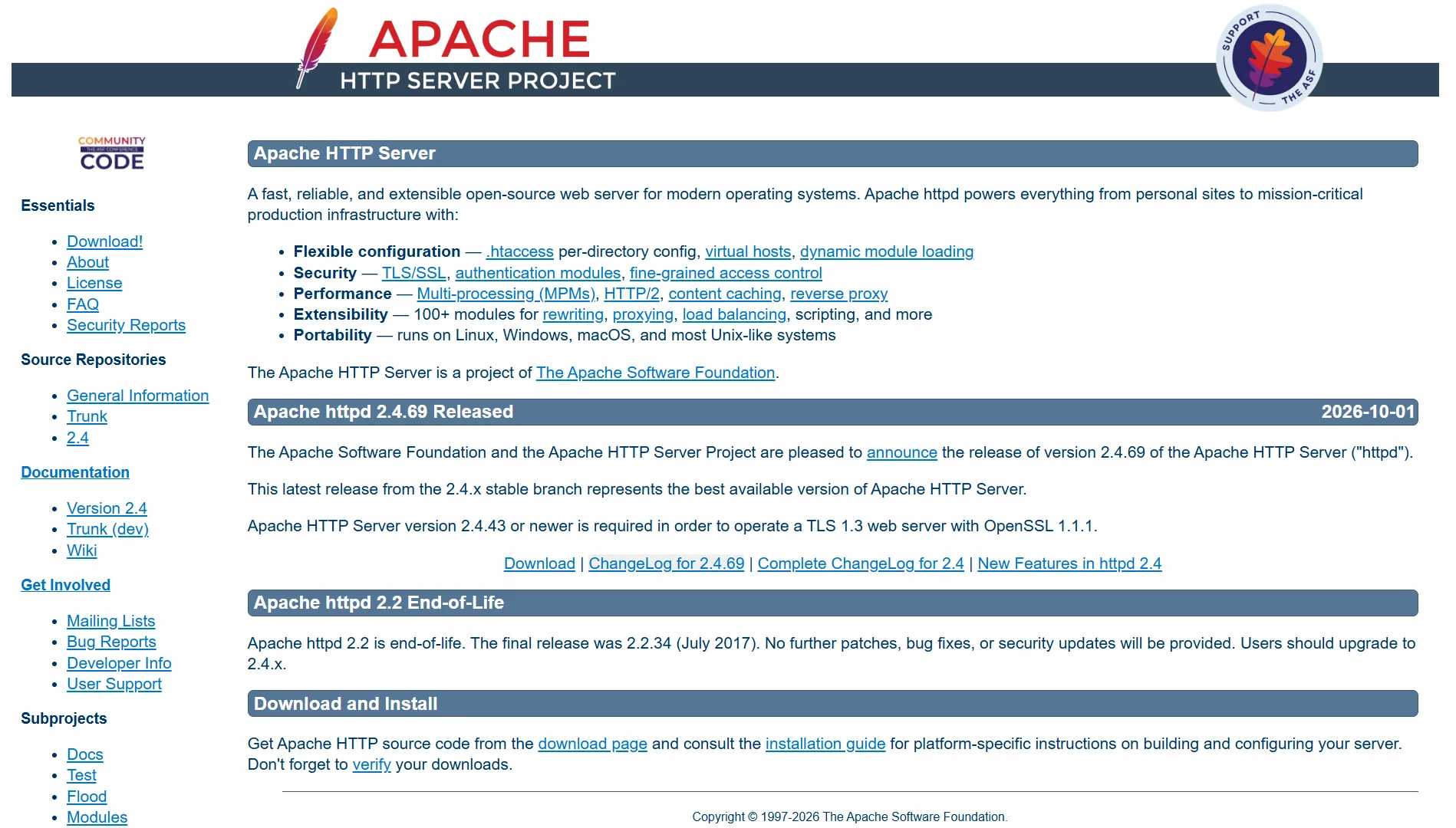
It is flexible, has decades of modules, and supports .htaccess files for per-directory configuration. It is a solid choice if you want the widest compatibility and easier setup.
LEMP uses Nginx. Nginx is event-driven. A single worker process handles many connections without creating a new thread for each one.
This makes Nginx more memory-efficient under high traffic, especially for static content like images, CSS, and JavaScript. It needs PHP-FPM to process PHP scripts since Nginx does not handle PHP directly.
For a beginner hosting a typical website, either works. If you expect traffic spikes or serve a lot of static assets, LEMP has an edge. If you want the simplest setup with the most community tutorials, LAMP is hard to beat.
Install LAMP on Ubuntu:
text
sudo apt install apache2 mariadb-server php libapache2-mod-php php-mysql -y
Enable Apache to start on boot and start it now:
text
sudo systemctl enable apache2
sudo systemctl start apache2
Check that PHP is working:
text
php -v
You should see a version number. If not, PHP did not install correctly.
For LEMP, install Nginx, MariaDB, and PHP-FPM:
text
sudo apt install nginx mariadb-server php-fpm php-mysql -y
Start and enable Nginx:
text
sudo systemctl enable nginx
sudo systemctl start nginx
Run the MySQL secure installation to set a root password and remove test databases:
text
sudo mysql_secure_installation
Follow the prompts. Answer yes to removing anonymous users, disallowing root login remotely, and removing test databases.
Step 3: Point Your Domain to Your VPS
Your domain needs to know which server to connect to. This happens through DNS, specifically an A record.
Log in to your domain registrar or DNS provider. Find the DNS management section. Look for the A records.
Edit the existing A record for @ (the root domain) and set its value to your VPS IP address. If you want www.yourdomain.com to work as well, add or edit a record for www pointing to the same IP.
Here is what the records should look like:
| Type | Name | Value |
|---|---|---|
| A | @ | your_vps_ip |
| A | www | your_vps_ip |
DNS changes do not happen instantly. It can take anywhere from a few minutes to 48 hours, though often it propagates within 30 minutes. You can check if it has propagated:
text
nslookup yourdomain.com
If the output shows your VPS IP, DNS is working. If not, wait a bit longer before moving to the next steps.
Step 4: Deploy Your Website Files
Now your files need to live on the server. The web root directory is where your website files belong. For Apache and Nginx on Ubuntu, this is typically /var/www/.
Create a directory for your site:
text
sudo mkdir -p /var/www/yourdomain.com
You have two main ways to get files there.
SFTP or SCP: Use a graphical tool like FileZilla or WinSCP to connect to your server with the same SSH credentials. Drag and drop your files into /var/www/yourdomain.com.
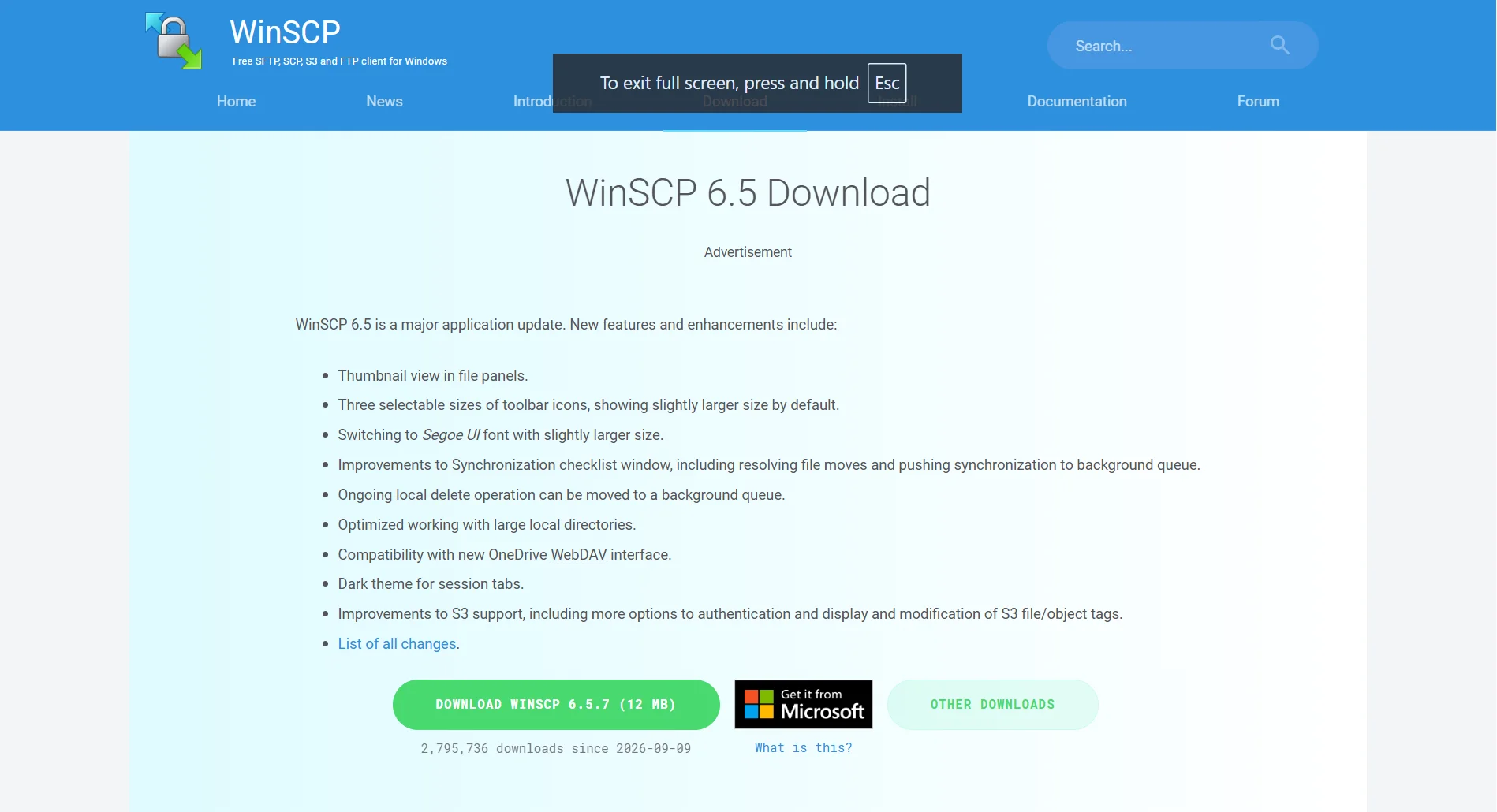
Or use the command line:
text
scp -r /local/path/to/website/* yourname@your_server_ip:/var/www/yourdomain.com/
Git. If your website code is in a repository, install Git and clone it directly:
text
sudo apt install git -y
cd /var/www/yourdomain.com
sudo git clone https://github.com/yourusername/your-repo.git .
Git is better for ongoing development because you can pull updates instead of re-uploading files manually.
After uploading, set proper permissions. The web server user needs to read your files. On Ubuntu, that user is usually www-data for both Apache and Nginx. Set ownership:
text
sudo chown -R www-data:www-data /var/www/yourdomain.com
For directories, 755 is standard. For files, 644:
text
sudo find /var/www/yourdomain.com -type d -exec chmod 755 {} \;
sudo find /var/www/yourdomain.com -type f -exec chmod 644 {} \;
If your application needs to write to specific directories (like a cache or uploads folder), grant write access only to those directories. Do not set 777 permissions globally. That is a security risk.
Step 5: Configure Your Web Server to Host the Site
Your web server does not know about your website yet. You need to tell it where the files are and which domain to respond to.
For Apache, create a virtual host configuration file:
text
sudo nano /etc/apache2/sites-available/yourdomain.com.conf
Paste this configuration:
text
<VirtualHost *:80>
    ServerName yourdomain.com
    ServerAlias www.yourdomain.com
    DocumentRoot /var/www/yourdomain.com

    <Directory /var/www/yourdomain.com>
        AllowOverride All
        Require all granted
    </Directory>
</VirtualHost>
Save and exit (Ctrl+X, then Y, then Enter). Enable the site:
text
sudo a2ensite yourdomain.com.conf
Test the configuration:
text
sudo apachectl configtest
If it says “Syntax OK,” reload Apache:
text
sudo systemctl reload apache2
For Nginx, create a server block:
text
sudo nano /etc/nginx/sites-available/yourdomain.com
Paste this:
text
server {
    listen 80;
    server_name yourdomain.com www.yourdomain.com;
    root /var/www/yourdomain.com;
    index index.php index.html;

    location / {
        try_files $uri $uri/ =404;
    }

    location ~ \.php$ {
        include snippets/fastcgi-php.conf;
        fastcgi_pass unix:/var/run/php/php8.1-fpm.sock;
    }
}
Adjust the PHP version in the fastcgi_pass line to match what you installed. Check the PHP-FPM socket path:
text
ls /var/run/php/
Enable the site by creating a symbolic link:
text
sudo ln -s /etc/nginx/sites-available/yourdomain.com /etc/nginx/sites-enabled/
Test Nginx configuration:
text
sudo nginx -t
If successful, reload:
text
sudo systemctl reload nginx
Visit your domain in a browser. If everything is configured correctly, your website should load.
Step 6: Secure Your Website with a Free SSL Certificate
HTTP alone means data travels between your visitors and your server without encryption. HTTPS encrypts everything. Browsers mark HTTP sites as “Not Secure,” which hurts trust and can affect search rankings.
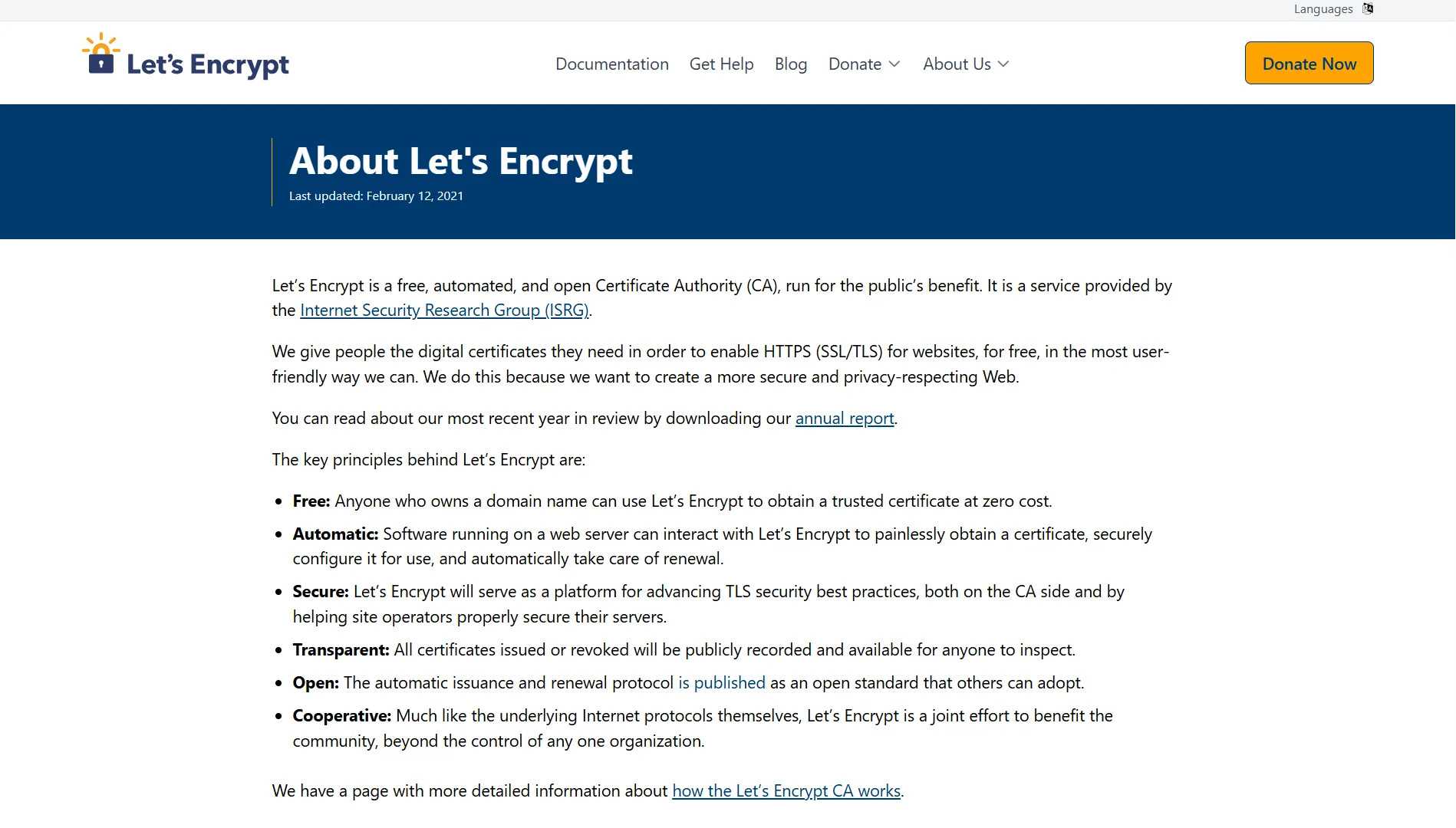
Let’s Encrypt provides free SSL certificates. Certbot is the tool that automates getting and renewing them.
Install Certbot. For Nginx:
text
sudo apt install certbot python3-certbot-nginx -y
For apache:
text
sudo apt install certbot python3-certbot-apache -y
Make sure port 80 is open in your firewall. Let’s Encrypt validates your domain by making an HTTP request to your server on port 80. This must work both for initial issuance and future renewals.
Run Certbot with the appropriate plugin:
text
sudo certbot --nginx -d yourdomain.com -d www.yourdomain.com
Or for Apache:
text
sudo certbot --apache -d yourdomain.com -d www.yourdomain.com
Certbot will find your server configuration, obtain the certificate, install it, and offer to redirect all HTTP traffic to HTTPS. Choose the redirect option.
Certificates expire every 90 days. Certbot sets up automatic renewal via a systemd timer. You can test it:
text
sudo certbot renew --dry-run
If that runs without errors, renewals will happen automatically.
Step 7: Security Hardening for Your VPS
A new VPS gets scanned by automated bots within minutes of going live. They look for open ports, weak passwords, and known vulnerabilities. Hardening your server is not optional.
Disable root login and password authentication. Use SSH keys instead. On your local machine:
text
ssh-keygen -t ed25519 -C "[email protected]"
ssh-copy-id yourname@your_server_ip
Verify you can log in with the key. Then edit the SSH configuration on the server:
text
sudo nano /etc/ssh/sshd_config
Set these values:
text
PermitRootLogin no
PasswordAuthentication no
PubkeyAuthentication yes
Restart SSH:
text
sudo systemctl restart sshd
Keep your current session open. Open a new terminal and test the key login before closing the original session. If something goes wrong, you can still fix it from the open session.
Set up UFW firewall. Allow SSH first or you will lock yourself out:
text
sudo apt install ufw -y
sudo ufw allow 22/tcp
sudo ufw allow 80/tcp
sudo ufw allow 443/tcp
sudo ufw default deny incoming
sudo ufw default allow outgoing
sudo ufw enable
Check the status:
text
sudo ufw status verbose
Install Fail2ban. This monitors logs and bans IPs that fail authentication repeatedly:
text
sudo apt install fail2ban -y
sudo systemctl enable fail2ban
sudo systemctl start fail2ban
Check that it is watching SSH:
text
sudo fail2ban-client status sshd
Enable automatic security updates. This keeps packages patched without manual intervention:
text
sudo apt install unattended-upgrades -y
sudo dpkg-reconfigure --priority=low unattended-upgrades
Select yes when prompted.
Troubleshooting Issues
| Issue | Fix |
|---|---|
| Can’t connect via SSH | Check firewall allows port 22; verify server IP |
| Domain not loading | Check A record points to VPS IP; wait for DNS |
| 403 Forbidden | Fix permissions: sudo chown -R www-data:www-data /var/www/yourdomain.com |
| 404 Not Found | Check files are in the correct web root folder |
| 502 Bad Gateway | Restart PHP: sudo systemctl restart php8.x-fpm |
| SSL certificate fails | Make sure DNS is live, then re-run Certbot |
| Database connection error | Verify credentials; restart: sudo systemctl restart mariadb |
How to Host a Website on a VPS FAQs
Is VPS hosting good for beginners?
It depends on your willingness to learn. If you are comfortable following instructions and using a terminal, yes. A VPS gives you full control, which means more responsibility. Managed VPS plans can reduce the learning curve by handling updates and security for you.
Which VPS is best and cheap?
Truehost offers great value at good pricing starting ₨2,261.20/month. Before commiting, Compare what you get for the price: CPU cores, RAM, storage type (NVMe is faster than SSD), and bandwidth.
Is there any free VPS hosting?
Platforms such as Oracle free tier cloud and vpsFree.cz that run free offers. You can also use the free trial periods offered by providers like Hostinger or AWS.
How much RAM do I need for a VPS?
For a simple static website or a low-traffic WordPress site, 1 GB is workable. For a small business site with moderate traffic, 2 GB is more comfortable. If you run WooCommerce, multiple plugins, or expect growth, 4 GB or more gives you headroom. You can always upgrade later.
Which OS is best for VPS?
Ubuntu is the most popular for beginners because of its extensive documentation and community support. Debian is stable and lightweight. AlmaLinux and Rocky Linux are good if you prefer the Red Hat ecosystem. For most people hosting a standard website, Ubuntu is the safest starting point.
What Are the Benefits of Using a VPS to Host a Website?
You get dedicated resources that are not shared with other websites. This means consistent performance, better security isolation, and the ability to scale as you grow. You also get root access, so you can install any software and configure the server exactly how you need it.
Can I run Windows on VPS?
Yes, many providers offer Windows VPS options. Windows VPS is typically more expensive because of licensing costs. It makes sense if you need to run ASP.NET, MSSQL, or other Windows-specific technologies. For PHP, WordPress, and most open-source stacks, Linux is the standard choice.
Host Your Website On Truehost VPS
If you want a VPS that is ready for real work, we built our plans for exactly this.
Every Truehost VPS runs on NVMe SSD storage that delivers up to 7x the I/O speed of traditional SSDs. Your databases and applications respond faster, and your visitors notice.
We include dedicated resources, so your vCPUs and RAM are yours. No noisy neighbors.
And you get full root access to install any stack you want. Managed security handles patching, malware scanning, and firewall management in the background.
Plus daily backups run automatically with 30-day retention, and restoring takes one click.
DDoS protection covers you up to 10 Tbps. Our Linux engineers are available 24/7 via live chat, phone, and ticket, with an average response time under three minutes.
For those who want everything managed, we offer addons like WHM/cPanel and Plesk licenses, Softaculous for one-click app installs, and JetBackUp or Cloudoon Vault for backup solutions.
If you need an extra IP for load distribution or email deliverability, that is available too.
Our plans scale from basic single-core setups to multi-core machines with 8 GB RAM and 200 GB NVMe storage. The Cloud VPS Elite starts at ₨2,261.20/month. Cloud VPS 1 is ₨1,817.68/month. Cloud VPS 2 comes in at ₨3,315.72/month, and Cloud VPS 3 is ₨6,650.99/month.