 Domain SearchInstantly check and register your perfect .pk or international domain
 Web HostingGet a .pk domain for as low as PKR 467
 cPanel HostingUser-friendly hosting powered by cPanel
 Reseller HostingLaunch your own hosting business with minimal technical requirements
 Windows HostingOptimized for Windows-based applications and websites
 Affiliate ProgramEarn referral commissions by promoting our services
 WordPress HostingFast & Reliable WordPress Hosting
 Domain TransferMigrate your existing domain seamlessly with zero downtime.
 All DomainsAccess 324+ top-level domains (TLDs) worldwide from a single platform
 Whois LookupIdentify the owner of any domain using our whois and rdap lookup tool
 Managed VPS Hosting
 AI Website BuilderCreate beautiful websites effortlessly using intuitive drag-and-drop features
 Online ShopLaunch a professional online shop with no technical skills required
 BlogDiscover expert guides on hosting, websites, SEO, and digital growth strategies
 ContactGet instant assistance via live chat or email
 SupportAccess help articles, tutorials, and service documentation
 SSL CertificatesEncrypt data, build trust, and boost SEO.
You run your business from your phone. Between client calls, invoices, and WhatsApp orders, checking a separate webmail login just adds friction.
If you are a freelancer, student, or small business owner in Pakistan, you are not alone in this.
Pakistan’s freelance economy has grown fast in recent years, with millions of freelancers now working across IT and digital services.
Most of that work runs through email, and most of those people already live inside Gmail every day.
You already live in Gmail. So why not bring your domain email there too?
Connecting your domain email to Gmail means you set up your custom address, like [email protected], to send and receive through your familiar Gmail account.
It is not a full migration. Your mailbox still lives on your hosting server. Gmail just becomes the window you use to read and reply.
What You’ll Need Before Starting
Gather these before you open any settings.
- An active domain email account. If you have not created one yet, see our guide on setting up business email in cPanel first.
- Your IMAP/POP and SMTP server details. Find these in cPanel under Email Accounts > Connect Devices.
- Confirmation of your mail server address. It is usually mail.yourdomain.com. Standard ports are 995 for POP3, 993 for IMAP, and 465 or 587 for SMTP. Always confirm these against your own cPanel screen, since values can vary by server.
- Your email account password. If you have two-factor authentication turned on for that mailbox, you will need an app-specific password instead.
- A Gmail account to receive and send from.
- 5 to 10 minutes, plus access to your webmail inbox for verification.
With that ready, you can start connecting.
1) Bring Your Domain Email Into Gmail (Forwarding)
Here is something important to know before you begin.
Google has retired the old “Check mail from other accounts” POP3 import tool inside Gmail’s web settings. It is gone from the Accounts and Import page. So the classic route of adding a POP3 account directly inside Gmail no longer works.
The good news: forwarding does the same job, and it is simpler.
Step 1: Log into your Truehost cPanel. Go to Email Accounts, then find the domain address you want inside Gmail.
Step 2: Open the Forwarders tool. In cPanel, search for “Forwarders” and click Add Forwarder.
Step 3: Enter your domain email address. This is the address whose mail you want to land in Gmail, for example [email protected].
Step 4: Set the destination to your Gmail address. Choose “Forward to Email Address” and type your Gmail address in full.
Step 5: Save the forwarder. New mail sent to your domain address now lands in your Gmail inbox automatically, usually within seconds.
Step 6: Decide whether to keep a webmail copy. Forwarding does not delete the original message from your domain mailbox by default. That is usually what you want, since it keeps a backup outside Gmail.
Step 7: Test it. Send a message from another account to your domain address. Confirm it lands in Gmail within a minute or two.
This is the current, reliable way to complete the how to connect your domain email to Gmail process for receiving mail. Once mail is arriving, move to the next section so you can reply using your domain address too.
2) Send Mail As Your Domain Address (SMTP)
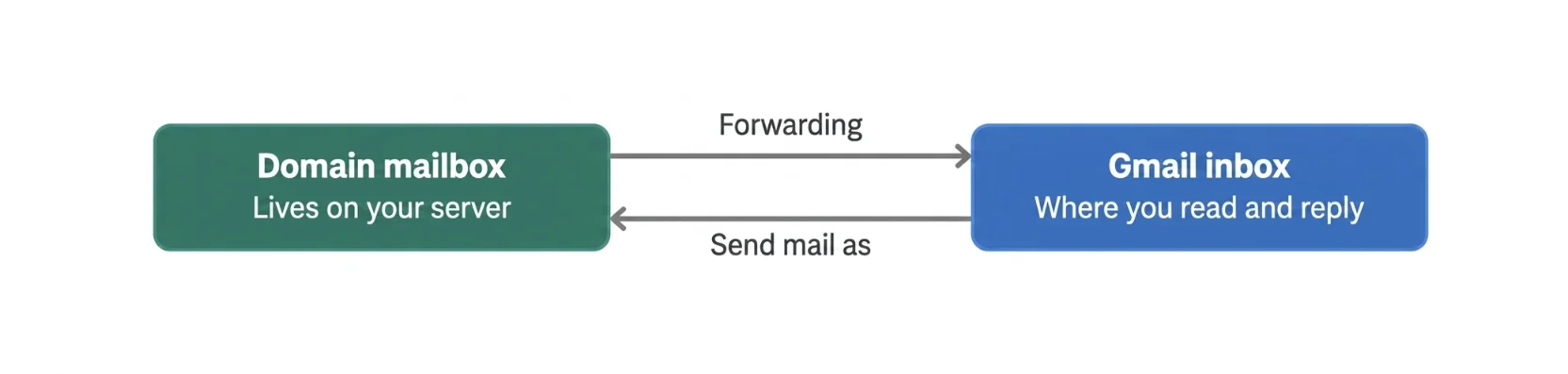
Receiving mail in Gmail is half the job. Replying from your domain address, instead of your Gmail one, is the other half. This part still works as before.
Step 1: Open Gmail Settings. Click the gear icon, then “See all settings,” then go to Accounts and Import.
Step 2: Find “Send mail as.” Click “Add another email address.”
Step 3: Enter your name and domain email address. Leave “Treat as an alias” unchecked. This gives you full control over your signature and reply-to address.
Step 4: Enter your SMTP server details. Use your mail.yourdomain.com server, port 587 with TLS, or port 465 with SSL. Enter your domain email username and password.
Step 5: Choose TLS as your secured connection type. This matches most Truehost PK server configurations. Confirm the setting on your own cPanel Connect Devices page if you are unsure.
Step 6: Retrieve your verification code. Gmail sends a short code to your domain address. Log into your Truehost webmail to find it.
Step 7: Confirm the code in Gmail, then set your default. Paste the code into Gmail, confirm, and choose whether your domain address becomes your default “send as” or something you select per email.
From here, every reply can go out under your business name, not your personal Gmail.
Common Errors & Troubleshooting
Most setup problems come down to a handful of repeat offenders.
- “Server rejected your login.” Usually a wrong port or mismatched SSL/TLS setting. Double-check port 587 with TLS versus 465 with SSL.
- “Please enable IMAP/POP.” Some hosting setups need IMAP or POP switched on in webmail settings before Gmail’s “Send mail as” verification will complete.
- Verification email not arriving. Check your webmail spam folder first. If it is not there, trigger a manual mail check in webmail.
- Forwarded mail arriving late or not at all. Confirm the forwarder is still active in cPanel. Forwarders can occasionally get disabled during a plan change or migration.
- Wrong password errors with 2FA enabled. You need an app-specific password generated from your cPanel account, not your regular login password.
If your settings still do not match this guide, reach out through Truehost support so our team can confirm your server values.
A quick note on patience. Forwarders are usually near-instant, but occasional delays of a few minutes are normal on shared hosting during high traffic periods. Give it ten minutes before assuming something is broken. If mail still has not arrived after that, check the forwarder is pointed at the correct Gmail address, since a small typo in the destination field is one of the most common causes of “missing” mail.
Ready for a Professional Email Address of Your Own?
Connecting to Gmail solves your daily inbox-checking headache. It does not fix a bigger problem if you are still running your business off a free Gmail, Yahoo, or Hotmail address.
Here is why a hosted, branded address is still important.
A message from [email protected] does not carry the same weight as [email protected]. Clients and vendors notice the difference, especially on invoices, proposals, and first-contact emails.
A branded address signals that your business is established, not improvised.
We at Truehost make this affordable. Plans start from:
₨282.65Every mailbox comes with built-in 2FA, anti-spam filtering, and antivirus scanning, plus aliases and forwarding rules you control.
The Gmail sync you just set up runs on top of a properly secured mailbox, not a bare free account with no protection layer behind it.
Connect Your Domain Email to Gmail FAQs
Can I use IMAP instead of POP3 with a regular Gmail account?
Gmail’s own web interface no longer offers a built-in tool to pull mail from outside IMAP or POP3 accounts. Forwarding your domain mail to Gmail, as shown above, is the current working method. IMAP still works normally for connecting third-party apps to your Gmail account itself.
Is connecting domain email to Gmail free?
Yes. Forwarding and “Send mail as” cost nothing extra, on top of the email hosting you already pay for. A dedicated Google Workspace mailbox is a separate, paid product.
Will old emails import, or only new incoming mail?
Forwarding only carries new mail going forward, from the moment you set it up. Anything already sitting in your domain mailbox stays there and needs to be checked through webmail or downloaded through an email client.
What happens if I change my domain email password later?
Your forwarder keeps working, since forwarding does not use your mailbox password. Your “Send mail as” SMTP connection will stop working until you update the saved password in Gmail’s settings.
Can I do this with a .pk or .com.pk domain, or only .com?
Yes. The setup works the same way regardless of your domain extension, as long as your hosting provider gives you standard IMAP, POP, and SMTP access. This applies to .pk, .com.pk, and .com domains hosted with us at Truehost.